
Addresses
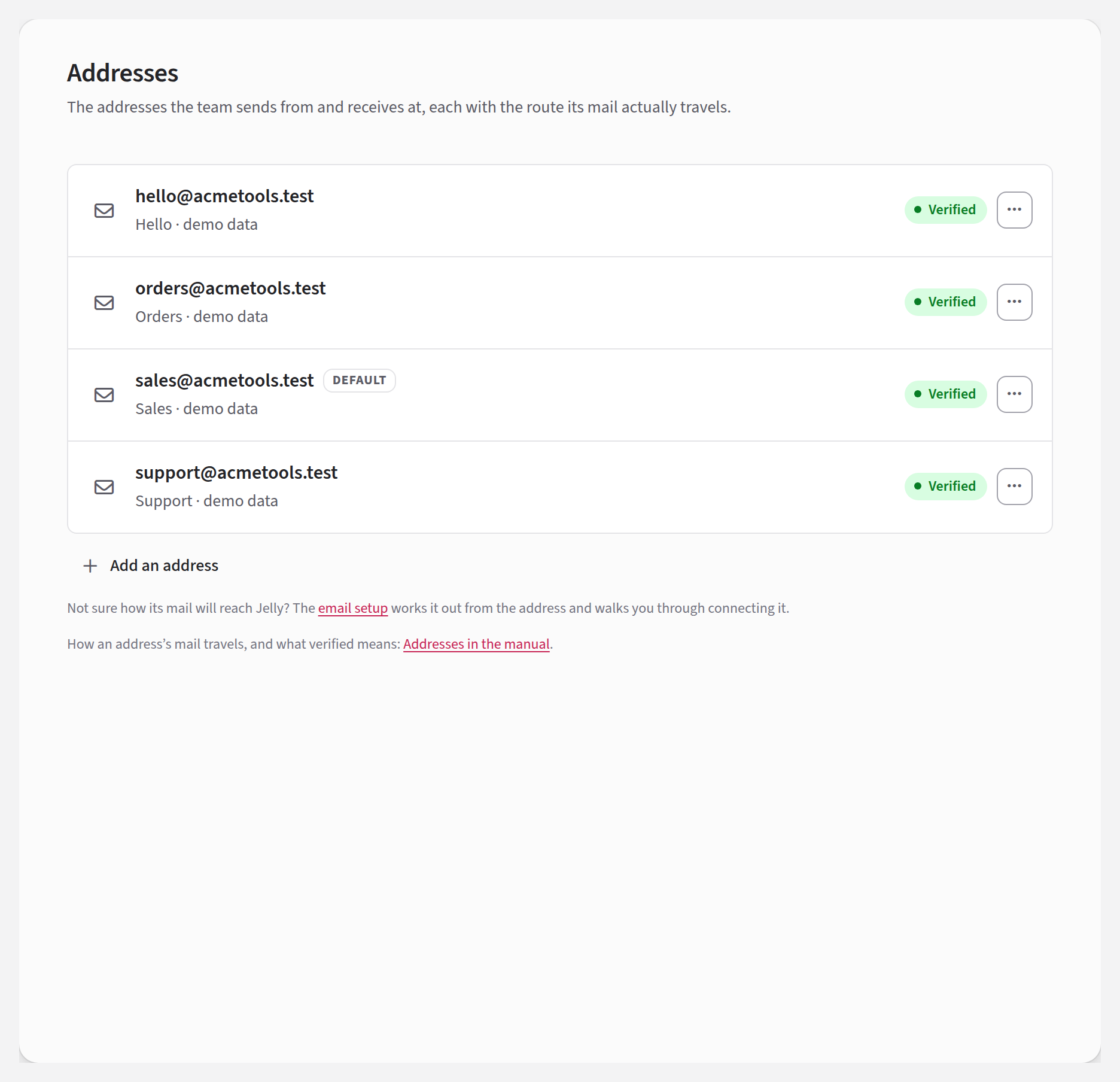
An address is one of the email addresses your team answers on, such as
support@, sales@ or hello@. Settings → Addresses lists them
all, and shows for each one how its mail arrives and how its replies
leave, so you can see at a glance whether it's working.
Adding an address
The easiest way to add an address is the email setup, linked under Add an address. It works out from the address how to connect it and takes you through each step, as it did for the team's first address. Connecting a Google account adds that account's address for you, too.
To add one by hand:
- On Settings → Addresses, press Add an address.
- Type the Email address, and a Display name such as
Support. The display name is what people see beside the address when you write to them. - Press Add address.
If your team uses Postmark, the new address sends and receives through it straight away. Otherwise you still need to connect both halves: tick the address on an IMAP account's page (or forward its mail to Jelly), and tick it on an SMTP server's page.
How many addresses you can have
The Jelly plan and the free trial allow up to three sending addresses. Royal Jelly has no limit. When you reach the limit, On the Royal plan replaces Add an address. See Billing.
How each address's mail travels
Under each address is its display name and a line saying what carries its mail. The line updates whenever you connect or remove something.
| The line says | What it means |
|---|---|
| via Google | A Google account receives and sends for the address. |
| via Postmark | Postmark receives and sends for the address. |
| receives through … · sends through … | One thing brings its mail in and another sends its replies. It might receive through an IMAP account, shown by the name you gave it, through the inbound relay (that's forwarding), or through Postmark. It might send through an SMTP server, again shown by name, through Google, or through Postmark. |
| sends through Google · Jelly doesn't read it | A Google account connected only to send sends for the address, and its mail reaches the team some other way. That's a complete setup, so there's no warning. |
If one half is missing, the address also shows a warning:
- Receives only: mail arrives, but nothing can send from the address, so the From menu doesn't offer it.
- Sends only: replies can leave, but nothing brings the address's mail in.
- Not configured: nothing receives or sends for the address.
An address that receives by forwarding ends its line with forward mail to and the address to forward to. It shows Not configured until its first forwarded message arrives.
If your Jelly gives the team one address to forward everything to, it's shown above the list as Forward your mail to, with a Copy button.
Verified and unverified
Each address shows Verified or Unverified. An address becomes verified by itself once Jelly has seen it work: one message has arrived at it, and one has left from it. An address on a Google account or an SMTP server is verified as soon as you connect it.
Being verified matters for three things:
- the Connect the team's mail step on the setup page is done only once an address is verified;
- autoresponders only answer mail sent to a verified address;
- rules that forward mail only forward mail sent to a verified address.
It doesn't affect sending. If something can send from an unverified address, it's in the From menu and its replies go out.
If you know an address works, you can verify it yourself: choose Mark verified from its ⋯ menu, or on its own page.
The default address
One address carries the Default badge. Jelly uses it in two ways:
- A new conversation you start goes out from it, unless you choose another in the From menu.
- Incoming mail that isn't addressed to any of the team's addresses is filed under it.
To change it, choose Make it the default from an address's ⋯ menu, or on its own page. If you remove the default address, the team has no default until you choose another or add a new address.
Which address a reply comes from
When you reply, Jelly picks the address to send from, in this order:
- The team address the customer wrote to. (If you're following up a message your team sent, the address it was sent from.)
- If they wrote to none of the team's addresses, the address you've set to send replies for the one they did write to.
- Otherwise, the address the conversation arrived at.
- Otherwise, the default address.
Jelly skips any address that nothing can send from, and any address you aren't allowed to send from. You can always choose a different address in the From menu for one reply.
Sending replies for mail received elsewhere
Some of your mail is sent to addresses that aren't the team's: an old address that still forwards to you, perhaps, or a colleague's own address that customers still write to. Jelly can't tell which of your addresses should answer that mail, so the reply would start from the default. You can tell it which one to use.
- On Settings → Addresses, click the address that should answer, or choose Everything about it from its ⋯ menu.
- Under Send replies from this address when mail is received at,
type each of the other addresses on its own line. For example, put
hello@oldname.comonsales@'s list. - Press Save.
From then on, a reply to mail sent to hello@oldname.com starts from
sales@.
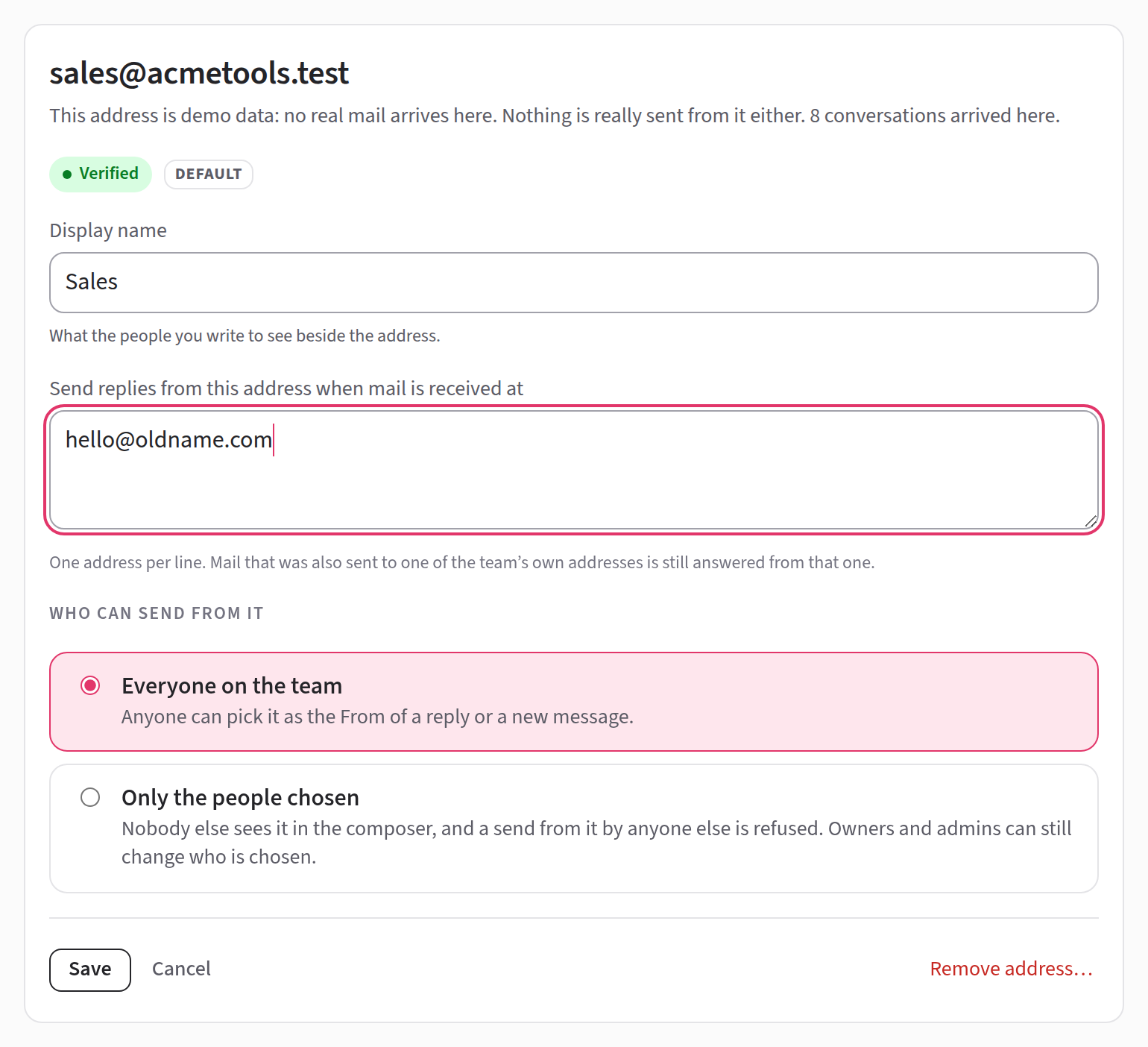
An address can be on only one list, so to move it, take it off the other list first. And if a message was also sent to one of the team's own addresses, the reply comes from that one.
Who can send from an address
This is part of the Royal Jelly plan, and every trial includes it. On the Jelly plan, everyone on the team can send from every address. A list you chose before is kept, and applies again on Royal Jelly. See Billing.
To begin with, everyone on the team can send from every address. You
can keep an address to certain people, so that only the boss sends
from boss@, or only the finance team from finance@.
- On Settings → Addresses, click the address.
- Under Who can send from it, choose Only the people chosen. The first time, Jelly puts you on the list, so the address is never left with nobody who can send from it.
- Press each person who should send from it, so that their name says · remove. Press your own name if you shouldn't be on the list.
The address then shows Only some can send on the Addresses page.
Everyone else no longer sees the address in the From menu, on the web or in the apps, and a reply that would have started from it starts from another address instead. If they open a draft that someone else wrote from the address, the From menu still shows it, marked "you can't send from this one", and they need to choose another address before sending.
A few things are worth knowing:
- Admins and the Owner can always change who's on the list, but they can only send from the address if they're on it themselves.
- A message scheduled with Send later goes out as the person who scheduled it. If they're taken off the list before then, it isn't sent. It stays a draft and says why.
- If everyone on the list leaves the team, nobody can send from the address, and its page says so. Add someone, or choose Everyone on the team again.
- Rules that forward mail, and autoresponders, carry on answering from the address. They belong to the team, not to a person.
- Going back to Everyone on the team keeps the list, so you can switch back later without choosing everyone again.
Mail between your own addresses
Sometimes one of your addresses writes to another, for example when
pastor@ emails jennifer@ from the mail app on a phone. That
message arrives in the inbox like any other, showing the sender's
name, and the sender doesn't become a contact.
If the same message also went to somebody outside the team, such as a
customer with office@ in Cc, Jelly treats it as mail your team
sent to that customer, as if you'd sent it from Jelly.
Anybody can type your address into a message's From line, so Jelly only trusts this mail when it carries your provider's DKIM signature (see Deliverability). A message that claims to be from one of your addresses without one goes to Spam.
Jelly can check the signature on mail that reaches it through a Google account, by forwarding, or through an IMAP account on Google. It can't on mail that comes through Postmark or another IMAP provider, so there, mail from one of your own addresses always goes to Spam.
Changing the display name
Open the address's page, change Display name and press Save. The new name is used from the next message you send.
Whether recipients see the address's display name, a person's name or both is set under From name on outgoing mail in team settings.
Removing an address
Choose Remove address… from an address's ⋯ menu, or on its own page, and confirm. The team can no longer send from it. Conversations that arrived at the address stay where they are, with every message in them.