
Notifications
A busy shared inbox would be exhausting if it told you about every message. Jelly tells you about the conversations you're involved in, which it calls the ones you follow, and stays quiet about the rest. Notifications appear in Jelly, and by email too unless you turn that off.
Following
You follow a conversation automatically once you're involved in it, which means when:
- you reply to it, or start it by writing a new message;
- you write a note on it;
- you're assigned to it, including when you press I got this;
- somebody mentions you in a note, such as
@jane; - you choose to follow it.
To follow a conversation you're not otherwise involved in, choose Follow in its More menu, or in the ⋯ menu on its row in the list. The top of a conversation you follow says You are following, and the foot of the thread lists everyone who follows it.
While you follow a conversation, you're told about its new messages and notes, when you're assigned to it or mentioned in it, and when a reply your team sent doesn't get through.
You aren't told about things you did yourself, with one exception: Jelly tells you if a reply of yours didn't go out, either after the undo-send window or at the time you scheduled it for.
You only hear about conversations in mailboxes you're in.
Stopping following
Choose Stop following in the same menus.
You can't stop following a conversation while you're assigned to it, and replying assigns you. To stop hearing about one of those, unassign yourself first, then choose Stop following.
Where notifications go
Notifications can reach you in three places.
In Jelly. The bell in the top bar shows how many you haven't read. Click it to open Notifications, which lists your 100 most recent, and click one to go straight to the message or note it's about. Opening a conversation marks its notifications as read, and Mark all read clears the lot.
By email. Jelly emails you each notification unless you turn off Email me about conversations I follow (see Tuning what you follow). The email comes from Jelly (your team's name). When it's about a message, it includes the whole message, so you can read it without opening Jelly. Small attachments come with it, up to 500 KB in total, and any that don't fit are listed with a link that opens the file in Jelly once you've signed in. Pictures placed within the message's text aren't included, so open the conversation to see those.
As pop-ups. On Preferences → Notifications, under Pop-up notifications, turn on Pop-up notifications on this device. The switch covers one browser on one device, so turn it on in each place you want pop-ups: switching it on for your laptop doesn't switch it on for your phone.
On an iPhone or iPad, pop-ups need iOS 16.4 or later, and work only once Jelly is on your Home Screen:
- Open Jelly in Safari.
- Tap Share, then Add to Home Screen.
- Open Jelly from the new icon on your Home Screen and sign in.
- Turn on Pop-up notifications on this device there.
Tuning what you follow
You can change what you follow, and whether you're emailed, on Preferences → Notifications. Open Your preferences from the account menu (your picture, top right), then choose Notifications. Each switch saves as soon as you change it, and these settings are yours alone: they don't affect what your colleagues hear about.
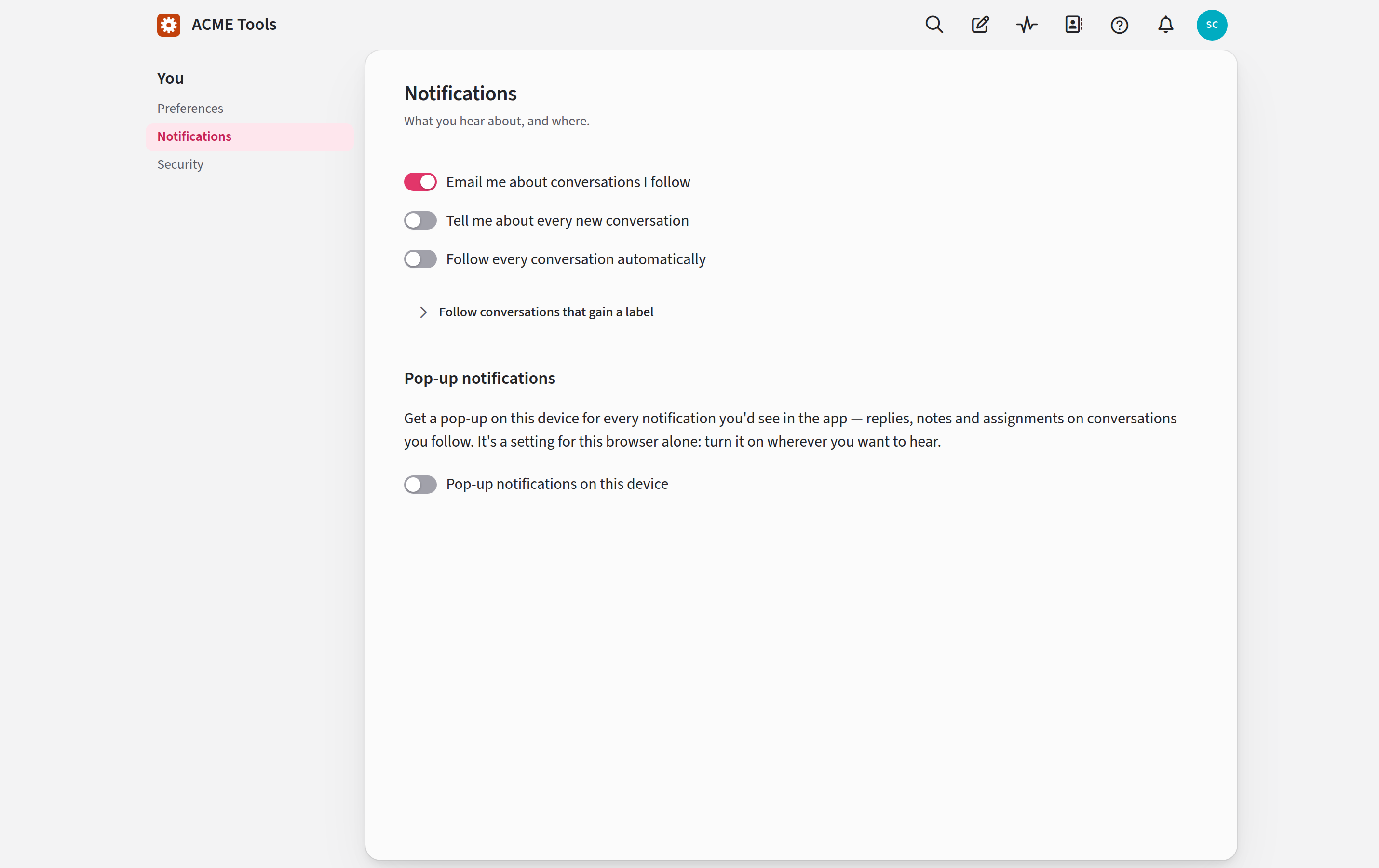
| Setting | Default | What it does |
|---|---|---|
| Email me about conversations I follow | On | Sends each notification to you by email as well. |
| Tell me about every new conversation | Off | Tells you once when a new conversation arrives. You don't follow it, so you won't hear about its replies unless you choose to. |
| Follow every conversation automatically | Off | Makes you a follower of every new conversation from now on, whether it arrives by email or a colleague starts it. |
| Follow conversations that gain a label | Off | Pick the labels you care about, and you'll follow any conversation one of them is put on from now on, whether by a person or by a rule. |
Follow conversations that gain a label appears only when your team has labels. Neither of the two Follow settings reaches back to conversations that already exist.
When nobody is notified
A few things never notify anyone, whoever follows the conversation:
- anything on a conversation marked as spam;
- mail from a blocked sender;
- mail that a rule archived as it arrived;
- an automatic reply, such as an out-of-office, on a conversation that's already under way.
A conversation that somebody archived by hand is different: new mail on it notifies its followers as usual.
Nobody gets any notifications while your team's Jelly is paused.
Email from Jelly
Email from Jelly, on the same preferences page, is a separate matter from everything above. It's where you say whether Jelly may send you marketing email: Jelly's newsletter, and the short emails that help the Owner of a new team get set up during the free trial.
You're asked once, when your account is made, on the sign-up form or the invitation page. The box is ticked unless you untick it. If your account is older than that question, the answer is no until you switch it on.
Your answer belongs to you, not to a team, so if you're on two teams, changing it on one changes it on both. The other team's page can take up to a day to catch up. You can also say no from any of these emails, with Stop these emails at the foot.
Notices about your team's account, such as a trial ending, aren't marketing and are sent either way. A team that runs its own server gets no marketing email from Jelly at all.