
Finding conversations
Sooner or later you'll need to dig out a conversation from months ago. Search finds it by what it said, who was on it, or what your team noted about it. When you can't think what to search for, All mail, Attachments and My Bookmarks give you other ways in.
Searching
Click Search mail at the top of the page, or press / when you're not typing somewhere else. On a narrow screen the box shows as a magnifying glass. Type what you remember and press Enter.
Search looks in subjects, message text, the names and addresses of the people on a conversation, and your team's notes. It covers every conversation you can see, so it won't find one in a mailbox you're not in.
| You type | What it finds |
|---|---|
hammer |
hammer, hammers and hammering: a word matches anything that starts with it |
rubber hammer |
Conversations with both words somewhere in them |
"order confirmation" |
The words together, as a phrase |
jane@cust |
Part of a name or an address |
5551234567 |
A phone number however it's written, such as +1 (555) 123-4567 |
If nothing contains all of your words, Jelly shows conversations that contain any of them.
A conversation your team has renamed can be found by its new subject or its original one.
Reading the results
Results are sorted by Best match: a match in the subject counts most, then the people, then the message text. To see the most recently active conversations first, choose Newest above the results.
The words that matched are highlighted. Click a result and the conversation opens at the message or note that matched, with the results still beside it. Close or Esc takes you back to where you were in the list.
A search shows its 200 best matches at most, 25 to a page. If what you're after isn't among them, add another word or an operator.
Narrowing a search
Words aren't always enough. To search by who sent a message, which
label a conversation has, or when it was last active, use an operator:
a word ending in a colon, followed straight away by what you're
looking for. from:jane finds mail from Jane.
You can mix operators with ordinary words, in any order. label:billing refund finds conversations labelled Billing that mention a refund.
You don't need to memorise them. Press Narrow a search, above the results, to see the common ones.
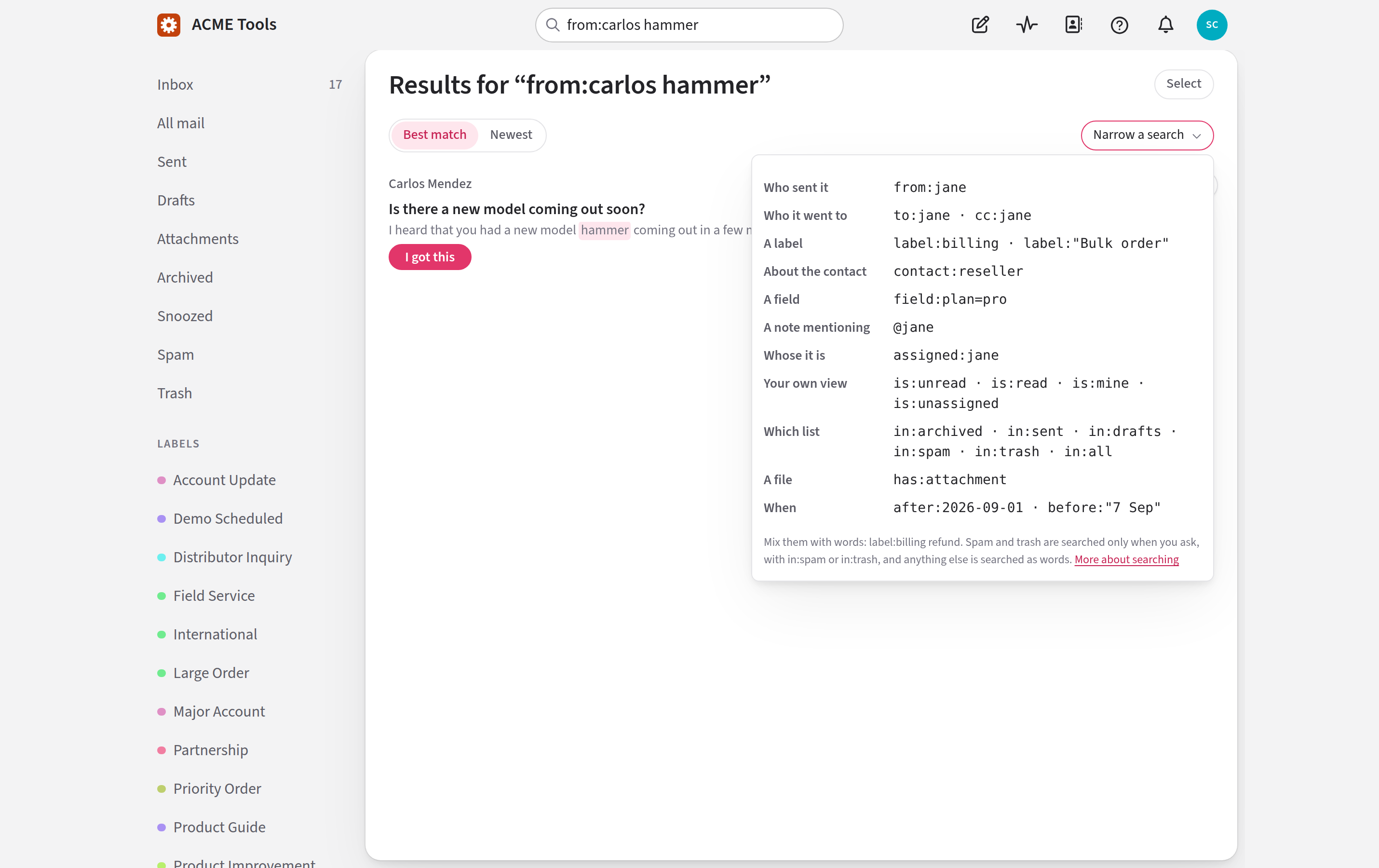
An operator works on its own, too. is:unread lists every
conversation you haven't read, newest first.
Operators
| Operator | Example | What it finds |
|---|---|---|
from: |
from:jane |
A message from someone whose name or address contains "jane" |
to: |
to:billing@ |
A message sent to a name or address containing "billing@" |
cc: |
cc:jane |
A message copied to a name or address containing "jane" |
label: |
label:billing |
Conversations with that label. Capitals don't matter |
contact: |
contact:reseller |
Conversations with a contact whose note or links contain "reseller", or who has a contact label called exactly that |
field: |
field:plan=pro |
Conversations where the field plan is pro, on the conversation or on one of its contacts. field:plan finds any that have a plan at all |
@ |
@bob |
Conversations with a note that mentions Bob |
assigned: |
assigned:bob |
Conversations assigned to Bob, by his handle, address, full name or first name |
is:unread |
is:unread |
Conversations you haven't read since their newest message |
is:read |
is:read |
Conversations you have read since their newest message |
is:mine |
is:mine |
Conversations assigned to you |
is:unassigned |
is:unassigned |
Conversations nobody has picked up |
in: |
in:archived |
Conversations in one list: in:inbox, in:archived, in:snoozed, in:sent, in:drafts, in:spam, in:trash, in:vault or in:all |
has:attachment |
has:attachment |
Conversations with a file attached |
after: |
after:2026-09-01 |
Conversations last active on that day or later |
before: |
before:"7 Sep" |
Conversations last active before that day |
Anything with a space in it goes in quotes: label:"Bulk order",
assigned:"Bob Smith", field:region="North America".
Combining operators
When you use several operators, a conversation has to match all of
them. from:jane is:unread finds Jane's conversations that you
haven't read, and label:billing label:urgent finds conversations
with both labels.
The exception is in:, where any of the lists will do: in:spam in:trash searches both.
Dates
after: includes the day you name, and before: doesn't.
You can write a date as 2026-09-01, 7 Sep, 7 September, 7 Sep 2026 or 7 September 2026. Leave the year off and Jelly assumes this
year. A date with a space in it needs quotes: before:"7 Sep".
A few things that might surprise you
is:unassignedfinds conversations nobody has picked up, which is what Brand new shows. It isn't the inbox's Unassigned section, which holds what your team has set aside.@bobfinds notes where Bob was mentioned with an@, not notes that only say "Bob". If two colleagues share a handle, use the whole address to pick one:@sam@example.com.contact:searches what your team has recorded about a contact, not their mail.field:wants the field's key, not its name, and the whole value. Narrow a search lists your team's keys. Write a date as2027-01-01and a yes-or-no field asyesorno.has:attachmentignores pictures that are part of an email's design, such as a logo.- A word with a colon that isn't an operator is searched for as it
stands, so
ticket:4521finds mail that mentionsticket:4521. To search for text that looks like an operator, put it in quotes:"from:jane".
What search doesn't find
- Spam and the trash, unless you add
in:spamorin:trash. - The vault, unless you add
in:vault. - Attachment file names. Use the Attachments page to find a file by its name.
- The name your team gave a contact. Search finds people by the name and address in their mail.
All mail
All mail, in the left column, lists every conversation in one place, whether it's open, archived or snoozed. Only spam and the trash are left out. It's the place to look when you're sure something exists but can't think what to search for.
Attachments
Attachments, in the left column, shows every file that has come through your team's mail, newest first. It's for when you remember the file but not the conversation. Click a file's name to open or download it, or click the message under it to go to that message in its conversation.
The box at the top, Search files, and the mail they came on, works
like the main search and takes the same operators. A file is found
when its own name matches or when the mail it came on does. So
quote.pdf finds the file by name, and invoice from:jane finds the
files Jane sent in mail that mentions an invoice.
The page leaves out spam and the trash unless you ask for them, pictures that are part of an email's design, and files attached to your team's notes.
Bookmarks
A bookmark keeps a conversation on a shortlist of your own. Choose Bookmark (for me) in the conversation's More menu, or in the ⋯ menu on its row. Remove bookmark takes it off again.
Once you have a bookmark, My Bookmarks appears in the left column. Bookmarks are personal, so nobody else sees yours. To mark something for the whole team, use a label.