
People and roles
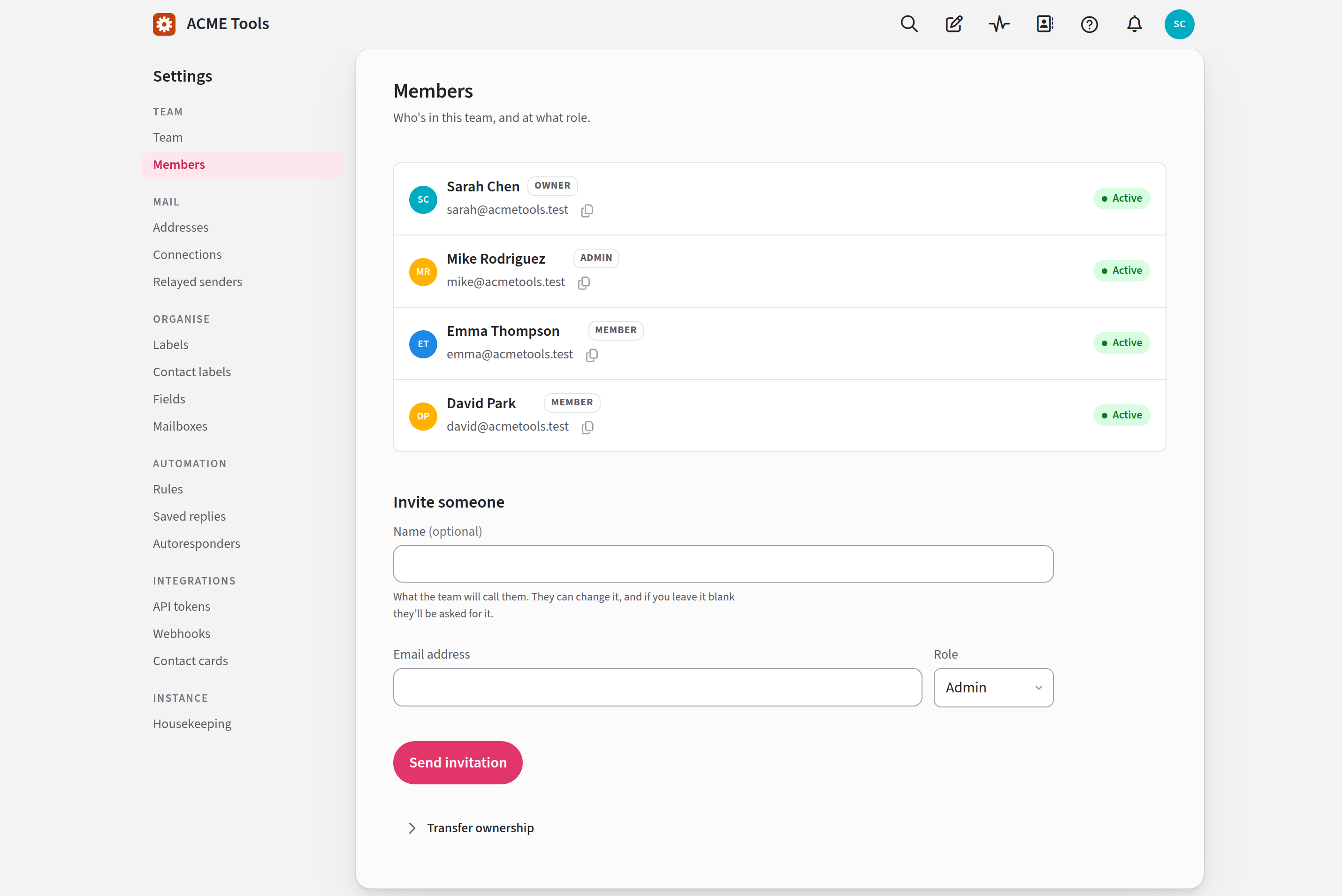
Everyone who works in your team's inbox is on the Members page, with their role beside their name. It's where Admins and the Owner invite new people, change what they can do, and remove them when they leave. To open it, choose Team settings in the account menu, then Members.
Inviting someone
Under Invite someone, type the person's Email address, choose their Role (Member or Admin), and press Send invitation. You can type a Name for them too. If you leave it blank, Jelly asks them for one when they arrive.
Jelly emails them an invitation. From there:
- They open the link in the email and press Accept invitation.
- Jelly emails a join link to the address you invited. It works once, for 15 minutes.
- The join link signs them in. There's no account to create.
- Before the inbox opens, they add a passkey or an authenticator app.
The join link only ever goes to the address you invited, so nobody else can use an invitation, even if the email is forwarded. If the join link runs out before they use it, the page offers Send me a new join link.
On a team Jelly hosts, the invitation page also asks whether Jelly may send them its newsletter and tips. The box is ticked unless they untick it, and they can change their answer later under Email from Jelly.
Pending invitations
Invitations that haven't been accepted yet are listed under Pending invitations, each with the date it expires. An invitation lasts a week.
- Resend sends a new invitation with a fresh week. The link in the old email stops working.
- Revoke… cancels the invitation, once you confirm. You can invite the same person again later.
If Jelly says The invitation was created but could not be sent, revoke it and try again.
The three roles
Every person on the team is a Member, an Admin or the Owner.
| Member | Admin | Owner | |
|---|---|---|---|
| Read, reply to and take conversations, and write notes | Yes | Yes | Yes |
| Change the team's settings | No | Yes | Yes |
| Invite people as Members or Admins | No | Yes | Yes |
| Change the role, name or availability of Members and Admins, and remove or restore them | No | Yes | Yes |
| See and pay for billing | No | No | Yes |
| Hand the team to someone else | No | No | Yes |
There's always exactly one Owner. Nobody can change the Owner's role or remove them. The only way the role moves is for the Owner to transfer ownership.
Nobody can change their own role or remove themselves.
Changing someone's role, name or availability
Click the person's row on the Members page and it opens for editing. Change their Name, their role, or their availability (Available, Away, On holiday or Off sick), and press Save.
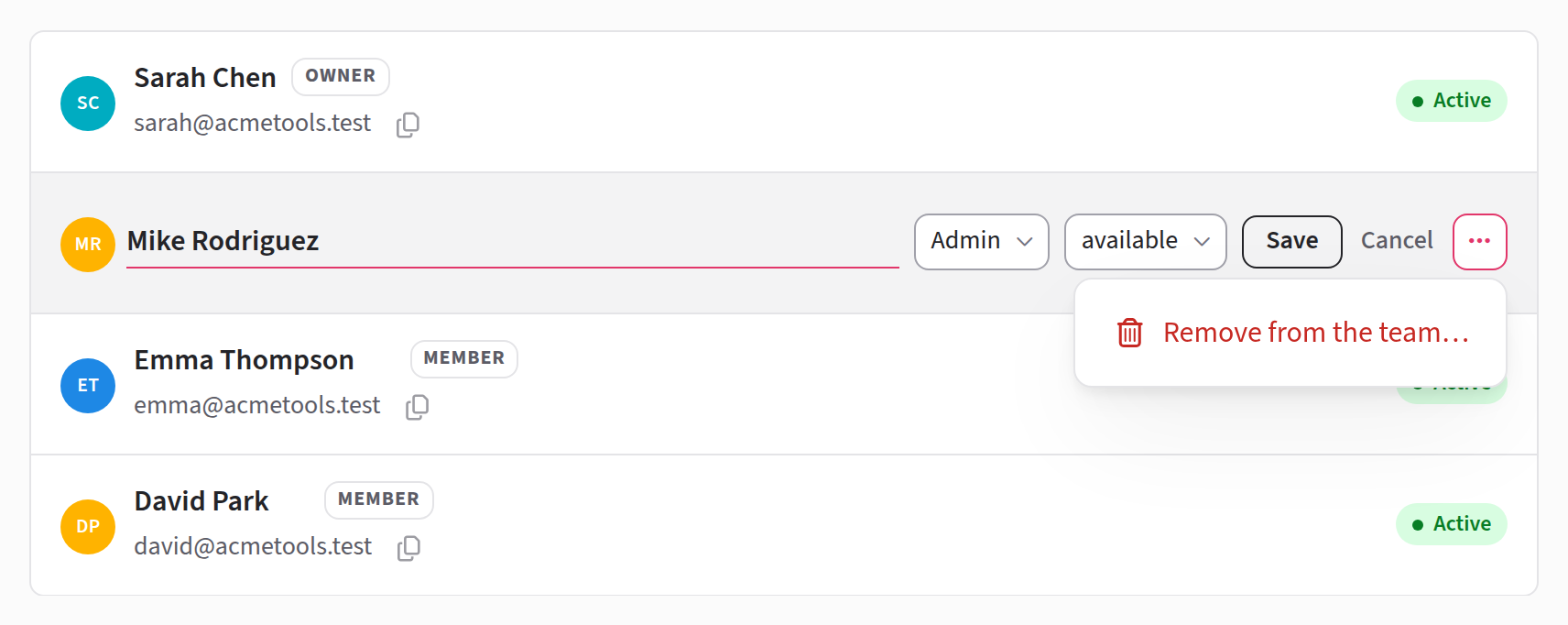
Setting someone's availability for them is useful when they're away and couldn't say so themselves. Availability explains what it changes.
Changing a role doesn't send anyone an email.
You can't edit your own row here, or the Owner's. Your own name and availability are on your preferences.
Removing someone
When someone leaves the team, click their row on the Members page, open the ⋯ menu at the end of it, and choose Remove from the team…. Jelly tells you how many conversations are assigned to them and how many mailboxes they're in, and asks you to confirm. Press Remove them, or Keep them if you've changed your mind.
As soon as you remove someone:
- They're signed out everywhere, including Jelly for iOS and any AI assistant they connected, and they can't sign in again.
- They stop getting notifications.
- Conversations assigned only to them count as nobody's, so anyone on the team can take them with I got this.
Everything they did stays, with their name on it: their replies, their notes, and their place in each conversation's activity. On the Members page they're listed as Former member.
Jelly doesn't email them to say they've been removed.
The Owner can't be removed. An Owner who's leaving transfers ownership first, and an Admin can remove them after that.
Restoring someone
To bring back someone who was removed, click their row and press Restore. They come back with the role they had before, and Jelly emails them to say so. They sign in the usual way.
They're back in the same mailboxes, and the conversations that were assigned to them are theirs again. If somebody took one with I got this in the meantime, it's now assigned to both of them.
You can't send a new invitation to someone who was removed. Restore them instead.
Transferring ownership
Only the Owner can do this. It makes someone else the Owner and makes you an Admin, in one step.
- On the Members page, open Transfer ownership, below the list, and choose the New owner. They must already be on the team.
- Press Transfer ownership….
- Confirm it's you. Jelly asks for the strongest way you sign in: your passkey, if you have one.
- Jelly asks Make … the Owner? Press Transfer ownership to …, which names their address.
Jelly emails both of you once it's done.
The first person on a new Jelly
If you signed up for a team on Jelly's own hosting, you're already its Owner. The email saying your team is ready has a link that signs you in. It works once, for a day. After that, sign in from the sign-in page as usual.
Any other brand new Jelly belongs to nobody yet. Its sign-in page says Claim and the team's name. Type your email address and press Claim ownership (or Claim it with Google, where it's offered), then follow the link Jelly emails you, and you're the Owner. This happens once. After that, everyone joins by invitation.
Either way, Jelly next asks you to add a passkey or an authenticator app. Then the inbox opens, empty. Press Set up the team to go to the setup page, which lists what's left to do: name the team, connect its email, and invite your colleagues.