
Archiving, spam and trash
The inbox is for conversations your team is still working on. When one doesn't belong there any more, there are three ways to take it out:
- Archive it when it's finished.
- Report spam when it's junk.
- Delete it when it isn't worth keeping. It moves to Trash.
All three take the conversation out of the inbox for the whole team. Each shows a notice with an Undo button, and pressing z does the same. If you had the conversation open, Jelly takes you back to the inbox. The conversation's activity records who did it.
Archive
Archiving says "this one's done". To archive a conversation, press Archive at the top of it, choose Archive in the ⋯ menu on its row, or press e.
The conversation moves to Archived, in the left column. Nothing is lost: you can still find it in All mail and in search, and whoever was assigned to it stays assigned.
To bring one back yourself, find it in Archived and press Move to inbox at the top of the conversation, or in the ⋯ menu on its row.
When an archived conversation comes back by itself
If the person writes to you again, the archived conversation comes back to the inbox on its own, still assigned to whoever had it. So you can archive freely, knowing the next message won't be missed.
A few kinds of mail leave it where it is:
- automatic messages, such as out-of-office replies and bounces;
- mail from somebody you've blocked;
- mail that a rule files away as it arrives;
- replies from your own team.
A snoozed conversation and one in the trash come back in the same way.
Report spam
When a conversation is junk, choose Report spam in its More menu, or in the ⋯ menu on its row. It leaves the inbox and moves to Spam, and any more mail that arrives on it stays there.
Reporting spam deals with that one conversation. It doesn't block the sender, so their next email starts a new conversation in the inbox as usual. To send everything from somebody straight to spam, block them.
If something was reported by mistake, find it in Spam in the left column and press Not spam at the top of the conversation, or in the ⋯ menu on its row. It goes back to the inbox.
If a message carries a Possibly forged warning, see Possibly forged and Sender not confirmed.
Delete
For mail that isn't spam but isn't worth keeping either, choose Delete in the conversation's More menu, or in the ⋯ menu on its row. The conversation moves to Trash.
You have 30 days to change your mind. Find the conversation in Trash in the left column and press Restore at the top of it, or in the ⋯ menu on its row, and it goes back to the inbox.
If the sender writes again, a conversation in the trash comes back to the inbox, as an archived one does. To stop hearing from them altogether, block them.
After 30 days
The 30 days count from when the conversation was last moved there. If you take it out and put it back, or move it between Spam and Trash, the count starts again.
This happens on every plan, while a team is paused, and on a Jelly you run yourself. There's no way to empty Spam or Trash sooner.
Finding spam and trash
Conversations in Spam and Trash don't appear in All mail, in
labels or in search results. To see them, open Spam or Trash in
the left column. To search them, add in:spam or in:trash to your
search (see finding conversations).
Doing several at once
You can archive, label, mark as read or move a batch of conversations together.
-
Tick the conversations. With a mouse, point at the dot on the left of a row and it turns into a tick box. On a touch screen, press Select at the top of the list first. From the keyboard, press x or Space on a row. Shift-click a box to tick every row between it and the last one you ticked.
-
Choose what to do in the bar that appears above the list:
- Archive, or press e;
- Read or Unread, which change them for you only;
- Label and Mailbox, if your team uses them;
- Report spam and Delete, in the bar's ⋯ menu.
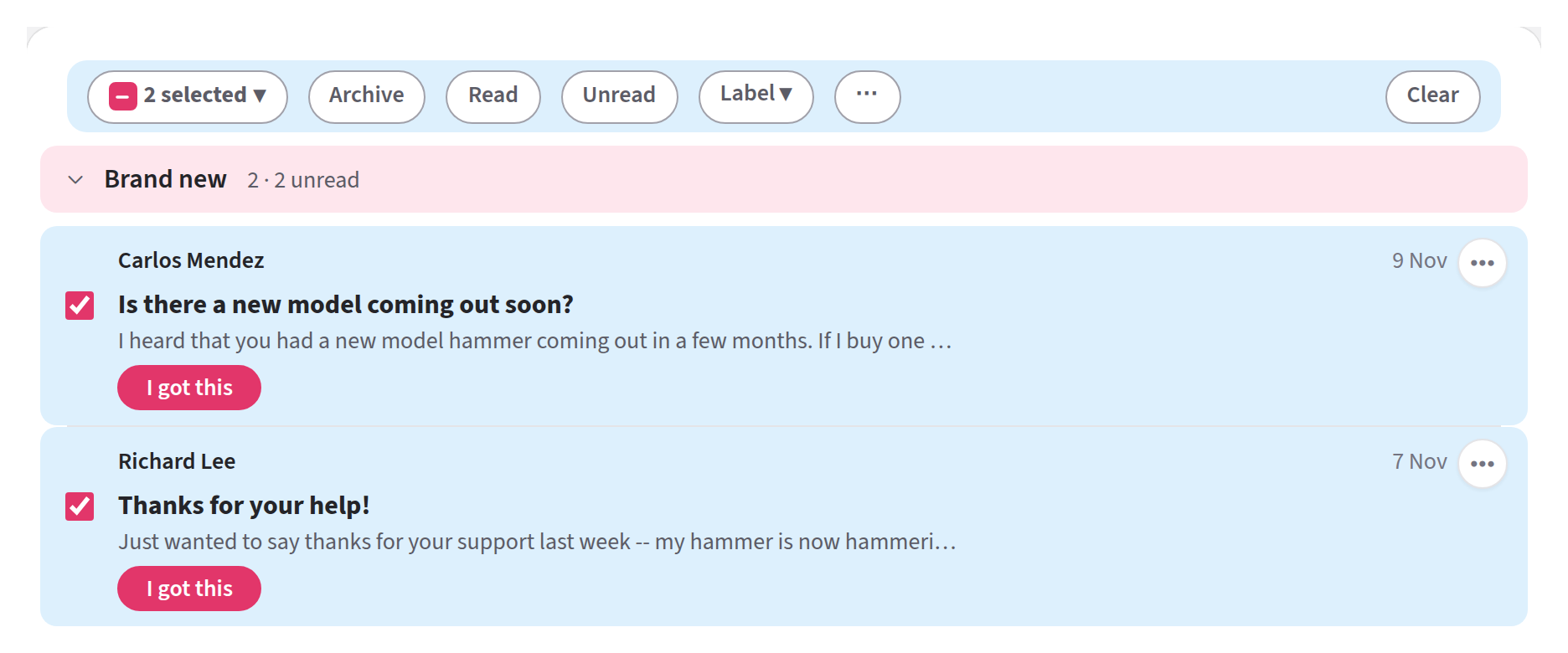
Tick conversations, then choose what to do with them all in the bar above the list
A notice tells you how many conversations changed. For archive, spam and trash, it has an Undo. To drop the selection without doing anything, press Clear or Esc.
Ticking a whole section
The box at the left of the bar opens a menu. All ticks every row you can see on the page, None unticks everything, and in the inbox there's a line for each section that ticks the rows in it.
A section shows 25 rows at most, so ticking a section ticks only those. To act on more, open Show all for that section and tick them there, a page at a time.