
The conversation sidebar
When you're answering somebody, it helps to know who they are. Beside every conversation is a card about the person who wrote in: what your team knows about them, and the other conversations you've had with them. Nobody has to go and look them up.
Opening it
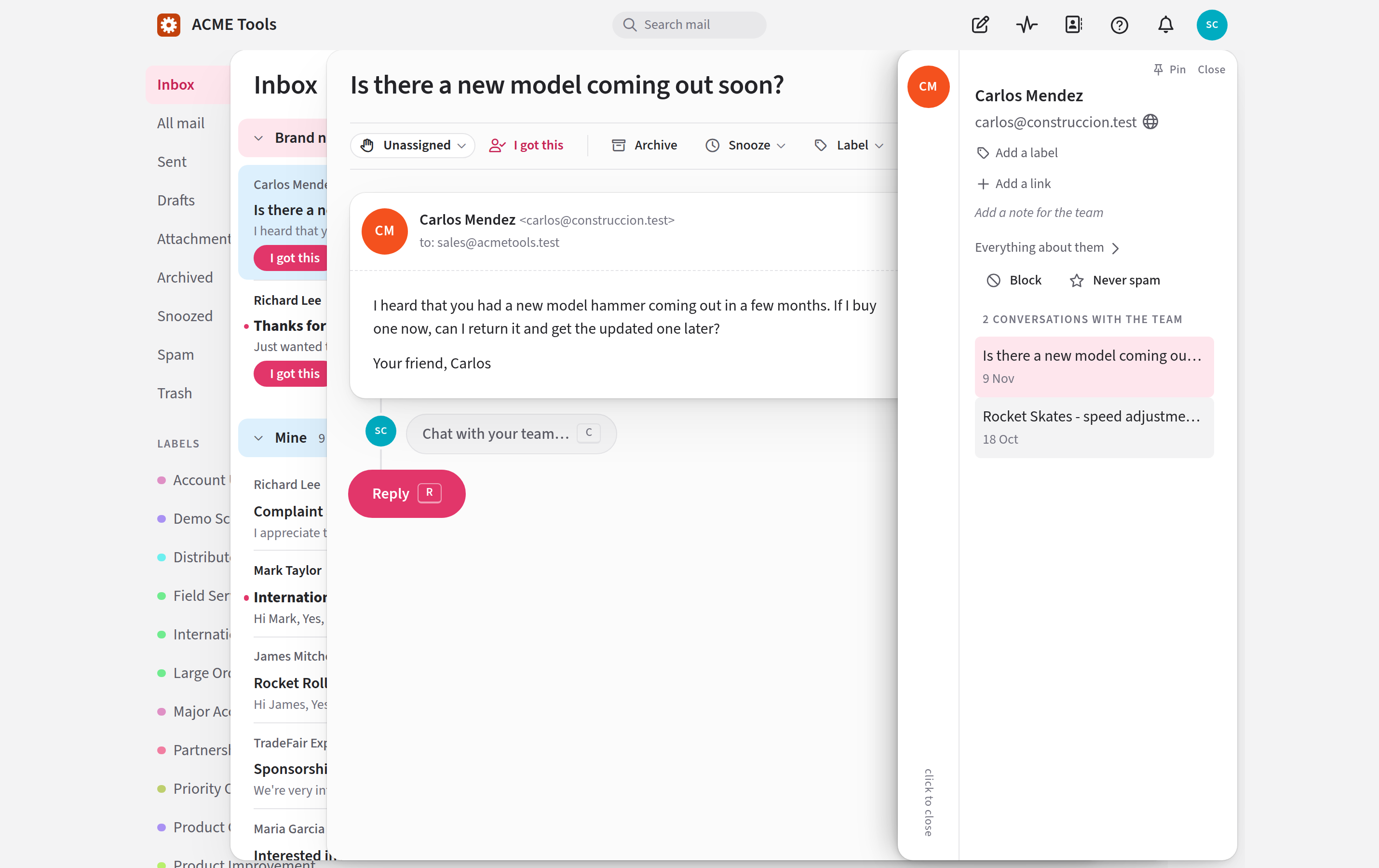
When you open a conversation, the sidebar is a thin tab down the right edge, showing the person's picture, name and address. Click the tab to open the card. To close it, click the tab again, press Close, or press Esc.
From the keyboard, l moves into the sidebar and h moves back, and j and k step through the person's conversations.
The sidebar isn't shown on a phone or other narrow screen. Open the person's page from Contacts instead, which has everything the card has and more.
Keeping it open
If you'd like the card there all the time, press Pin at the top of it. It then stays open beside every conversation you read, sitting next to the messages instead of over them. Press Unpin to go back to the tab.
Pinning is your own setting, so nobody else's screen changes. It needs a fairly wide window: in a narrow one the sidebar goes back to being a tab until there's room again.
What's on it
The card shows one person at a time. To begin with, that's the first person from outside your team on the conversation, usually whoever wrote in. From the top, you'll see:
- Their name, picture and main address, with any other addresses they have. Click an address to start a new conversation to it.
- A globe beside the address, when it looks like a company's own domain and not a free email service. It opens the company's website in a new tab.
- Blocked or Never spam, if either is turned on.
- Their contact labels.
- Their links to records in your other systems, such as a billing account or a CRM entry.
- Their fields, such as their plan or account number, if your team has set any up. Click a value to change it.
- The team's note about them.
- Contact cards, if your team has set them up: what your own systems, such as billing or a CRM, know about the person. These appear a moment after the conversation opens. If a system doesn't answer, its card says why and offers Try again.
- Your conversations with them, under a heading such as 3 conversations with the team, newest first. The one you're reading is highlighted, and you can click any other to open it. The list shows the latest 12, and leaves out spam, trash and anything in a mailbox you're not in.
If your team keeps facts about each conversation, those come first, above the person.
A conversation with nobody from outside your team on it yet says No outside contact on this conversation yet.
Several people on one conversation
Some conversations involve more than one person from outside your team: a colleague who replies on behalf of the person who wrote in, or somebody they copied. The tab then shows each person's picture, one above the other, and the card shows one of them at a time.
To see somebody else, click their picture. The card switches to that person, and the conversation stays where you were reading it. Point at a picture to see whose it is.
The first picture is always the person the conversation is with, and the one the card is showing has a dark ring round it. The closed tab has room for four pictures; if there are more, a count such as +2 tells you so, and opening the sidebar shows everyone.
Everything on the card is about the person it's showing. If you rename them, label them or block them, that's who you change.
Two kinds of people don't get a picture: members of your own team, and somebody who was only copied in and isn't one of your contacts yet.
From the keyboard, press l to move into the sidebar, then Tab to the pictures and Enter to choose one.
This conversation
Your team can keep its own facts about each conversation, as it can about each person: the order it's about, say, or the plan the customer was on when they asked. These are the conversation's fields. Often a program fills them in as the message arrives in Jelly, and a rule can set one or act on it.
They're at the top of the sidebar, under This conversation, one to a line, with Not set where a field has no value. To change one, click it, type or pick the value and press Save. Clear removes the value. A yes-or-no field is a switch, and saves as you flip it.
Each change is recorded in the conversation's activity, such as "Sarah set Plan to “Pro”".
A program can also give a conversation an external id: its own name for it, such as an order number. It's shown above the fields, and only a program can change it.
If your team hasn't set up any conversation fields, there's no This conversation section. Admins create fields in Settings → Fields: see Fields.
Changing the record
Everything on the card belongs to the whole team. Anyone can change it, and changes are saved straight away.
- Rename them. Click their name, type a new one and press Rename. The name is for your team only. Jelly never uses it in the mail you send.
- Write the team's note about them. Click Add a note for the team, or the note that's already there, type, and press Save note.
- Label them. Open Add a label (it reads Label once they have one) and click a contact label. To take one off, click the × on it. An Admin can also create a contact label here: type it under New label and press Add.
- Add a link. Open Add a link, give it a name if you like, paste the web address and press Add. Remove takes a link off.
- Block them, so their new mail goes straight to spam. See blocking somebody.
- Mark them Never spam, so your rules never file their mail as spam. See never spam.
Block and Never spam take effect at once, without asking you to confirm. Each button then changes to Unblock or Stop trusting, which undoes it, and turning one on turns the other off.
To change the person's addresses, or to see everything your team has on them, click Everything about them ›. It opens their contact page.