
Your preferences
Your preferences are the settings that are yours rather than the team's: your name and picture, your signature, how Jelly looks to you, and how you sign in. Everyone on the team has their own.
To open them, open the account menu (your picture, top right) and choose Your preferences. There are three pages, listed down the side:
- Preferences: your name, availability, picture and signature, and how Jelly looks to you.
- Notifications: what Jelly tells you about. See notifications.
- Security: your passkeys, authenticator app, password and recovery codes. It also leads to Where you're signed in, every browser and app signed in as you, and to Security activity, a record of everything that has happened to your sign-in.
How the team sees you
Your name and picture appear beside your notes, your assignments and the mail you send.
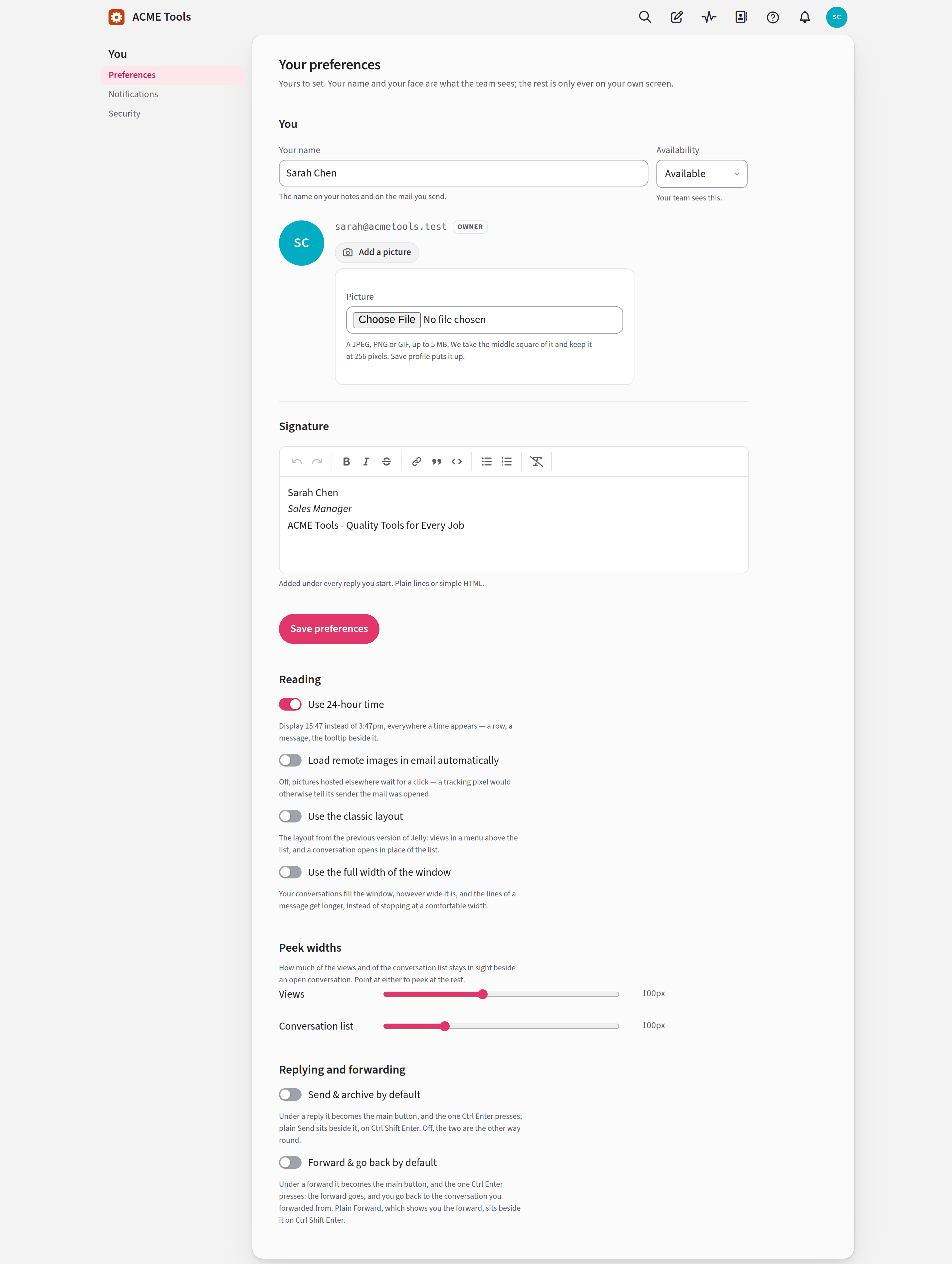
Type Your name and press Save preferences. If the person who invited you gave your name, it's already filled in. Until you have one, the inbox asks What should the team call you?
Availability tells the team whether you're Available, Away for a bit, On holiday or Off sick. While you're away, new replies on your conversations show up for the rest of the team. It saves as soon as you choose, and you can also change it from Availability in the account menu. Availability has the details.
An Admin or the Owner can change your name and availability from the Members page, which helps if you're off sick and can't do it yourself. Nothing else on these pages can be changed by anyone but you.
Your picture
You may already have a picture. If you sign in with Google, or connected a Gmail account for the team, Jelly uses your Google picture. Otherwise it uses your Gravatar if you have one, and your initials if you don't.
To use a picture of your own, press Add a picture (or Change picture), choose a JPEG, PNG or GIF of up to 5 MB, and press Save preferences. Jelly uses the middle square of the picture, and keeps only that: anything else in the file, such as where your phone recorded the photo was taken, is thrown away.
To take a picture down, press Change picture, then Remove picture…, then Remove it. You go back to your Gravatar or your initials.
Your signature
Your signature goes under every reply you write and every new message you start. Type it under Signature the way you want it to appear, and press Save preferences.
You can still delete it from any one message as you write. If you change your mind, the Add your signature button in the editor's toolbar puts it back. Replying has more.
Reading and replying
The switches under Reading and replying change only what you see, not what your colleagues see. Each one saves as soon as you flip it.
Use 24-hour time is on to start with, so times read like 15:47. Turn it off to see 3:47pm instead. Either way, times are in your own time zone.
Load remote images in email automatically is off to start with. Many emails load their pictures from the sender's server, and loading them tells the sender that you opened the email, and when. While the switch is off, a message with remote images has Show … remote images under it, which loads them for that one message. Turn the switch on if you'd rather see every email as its sender designed it.
The classic layout
Use the classic layout is off to start with. Turn it on if you used the previous version of Jelly and would rather keep its look and its layout. On a computer, your conversations are drawn the way that Jelly drew them: a plain white page with the buttons at the window's edges, each conversation on one line with who wrote it at the left, and a conversation's buttons in a pill under its subject. And it changes three things about how you move around:
- The list of views (Inbox, All mail, Sent, your labels and so on) is no longer a column beside your conversations. To choose another view, click the list's name, such as Inbox, at the top of the list, or press h.
- A conversation opens in place of the list instead of sliding over it. Press Esc, or your browser's Back button, to go back to the list.
- New message is always in the bar across the top, with the other buttons on the right, instead of beside Select at the top of the list.
- The contact isn't beside a conversation until you ask: Contact details, above the first message, opens it at the edge of the window and keeps it there for every conversation until you press Hide contact details.
A phone shows one thing at a time anyway, so it looks the same with the switch on or off.
The full width of the window
Use the full width of the window is off to start with. Normally Jelly stops growing at a comfortable width, however large your screen is. Turn this on if you'd rather have the room: your conversations fill the window, and the lines of a message get longer, up to about 120 characters. It changes nothing on a phone.
Peek widths
While a conversation is open, a strip of the views and a strip of the conversation list stay in sight beside it. Move the pointer over either one to peek at the rest.
Each strip is 100 pixels wide to start with. The sliders under Peek widths make them wider or narrower. Once you've moved one, Reset to default appears beside it and puts it back to 100. At 0 the strip is hidden, which leaves more room for the conversation. You can still press h to peek at the views, or close the conversation to get back to the list.
In a small window Jelly may show less than you chose, so there's always room for the conversation. The classic layout and phones don't have these strips, and the sliders aren't shown while you use the classic layout.
Which send button leads
Under a reply, Jelly shows Send first and Send & archive beside it. If you archive nearly every conversation you answer, turn on Send & archive by default to swap them. Jelly for Mac follows the same switch.
The keyboard follows the buttons: ⌘Enter presses whichever comes first, and ⌘⇧Enter presses the other. On Windows and Linux, use Ctrl for ⌘.
Forwarding has its own pair. Forward shows you the forward once it has gone, and Forward & go back takes you back to the conversation you forwarded from. Forward comes first unless you turn on Forward & go back by default, and the keyboard follows in the same way.
See replying and keyboard shortcuts for more.
Signing in
Your team's inbox holds your customers' mail, so Jelly asks for more than an email address to get in. You need two things:
- A passkey or an authenticator app. Jelly asks you to add one the first time you sign in. A passkey is the better choice, and a second passkey on another device means losing a phone doesn't lock you out.
- Your recovery codes, saved somewhere other than that device: printed, or in a password manager on another device. They're your way back in if you lose the passkey or the app.
A password is optional.
Ways to sign in
The sign-in page offers whichever of these you can use:
- A passkey. A passkey is a sign-in that your phone, computer or password manager keeps for you and unlocks with your fingerprint, face or PIN. There's nothing to type or remember. Press Sign in with a passkey and confirm on your device.
- An emailed link. Type your email address, leave the password blank, and press Email me a sign-in link. The link opens a page with one button, Sign in. It works once, for 15 minutes.
- Google. Press Continue with Google, where your team's Jelly offers it.
- A password, if you've set one. Type it, and the button changes to Sign in. If you forget it, use an emailed link instead: there's no separate password reset.
After an emailed link, Google or a password, Jelly asks you to Confirm it's you with your passkey, a code from your authenticator app, or a recovery code. You have 5 minutes to do it. After five wrong codes you have to start again, and Jelly emails you to say so.
If you have a passkey, a browser you've signed in on remembers you. Next time it says Welcome back with your address. Press Not you? Sign in as someone else to use another account. Signing out makes the browser forget you.
A sign-in lasts at most 90 days, and a browser you haven't used for two weeks is signed out.
Your first sign-in asks for a second factor
The first time you sign in, Jelly shows One more thing before the inbox. Before the team's mail opens, you add a second way to prove it's you:
- A passkey, which is the best choice; or
- an authenticator app: an app on your phone that shows a new six-digit code every few seconds.
Whichever you choose, Jelly then gives you recovery codes to keep, and the inbox opens. Not now — sign out leaves without adding one, and Jelly asks again the next time you sign in.
Some teams that moved over from the earlier Jelly don't have this step. On those teams a second factor is optional: Jelly doesn't ask for one, but you can add one from Security whenever you like.
Passkeys and authenticator apps
You manage both on Preferences → Security.
Passkeys
A passkey lets your device sign you in with your fingerprint, face or PIN. Unlike a password, it can't be stolen by a fake copy of Jelly's sign-in page.
To add one, press Add a passkey on Security and follow what your device or password manager asks. Passkeys need JavaScript, so if you browse with it turned off, use an authenticator app instead.
Each passkey is listed with:
- its name, which starts as whatever keeps the passkey, such as Apple Passwords, 1Password or Windows Hello;
- Tier 1 · verifies you if it checks your fingerprint, face or PIN, or Tier 2 · presence only if it only checks that someone is there, such as a security key you touch;
- whether it's Synced across your devices, On one device, or Not yet backed up;
- when you added it and when you last used it.
Rename or remove opens the passkey's own page.
If your only passkey lives on one device and you have no authenticator app, Jelly warns you: One passkey, on one device. Lose that device and you lose your way in, so add a second passkey on another device, or an authenticator app.
A passkey that only checks someone is there is weaker. After you sign in with one, Jelly also asks for a code from your authenticator app, if you have one.
If you go looking for the passkey in your password manager, it's usually called Jelly followed by your team's name. Apple's, Google's and Microsoft's own password stores list it under your Jelly's web address instead.
Authenticator app
Any app that makes six-digit codes works: Google Authenticator, 1Password, Authy, and most password managers.
- On Security, press Set up an authenticator app.
- Press Show me the code to scan.
- Scan the code with your app. If you can't scan it, type in the key shown under it.
- Type the code the app shows into Code from the app, and press Turn it on.
From then on, signing in with a link, Google or a password asks for the app's current code.
Removing a passkey or the app
You can remove either from Security. The one thing Jelly won't let you do is remove your last passkey or authenticator app while you still have a password: remove the password first, or add another passkey or app. (On a team where a second factor is optional, you can remove it and keep the password.)
Passwords
You don't need a password. If you want one, you can set it once you have a passkey or an authenticator app, and signing in with it always asks for that too.
To set one, press Set a password on Security. A password must:
- be at least 10 characters long;
- not be your email address or the name of the site;
- not be the password you already have;
- not be on the public lists of passwords that have leaked in data breaches.
Capitals, numbers and symbols aren't required. A long phrase of unrelated words, or a password manager's suggestion, is best.
Jelly checks your password against the leaked lists again each time you sign in with it. If it turns up there later, you'll have to choose a new one before you can carry on. The check uses the Have I Been Pwned service, and your password itself is never sent to it.
After too many wrong passwords, Jelly says Too many attempts. Wait a few minutes, then try again.
On a team where a second factor is optional, you can set a password without one, and it signs you in on its own. Changing it first asks you to confirm with an emailed link. If you add a passkey or an authenticator app later, signing in with the password asks for that too.
Recovery codes
Recovery codes get you back in if you lose the device with your
passkey or authenticator app. You get ten when you add your first
passkey or app, and each works once. They look like abcde-fgh23.
Jelly shows them only once, and asks you to confirm you've saved them before you go on. Keep them somewhere other than the device your passkey is on.
To use one:
- On the sign-in page, press Email me a sign-in link (or Continue with Google, or type your password).
- On Confirm it's you, open Lost your passkey? Use a recovery code (or Lost your authenticator?).
- Type one code and press Sign in with this code. That code is now used up.
- Go to Preferences → Security and add a new passkey or authenticator app straight away.
When you have two or fewer left, Jelly reminds you as you sign in. To get a fresh set, press Generate new recovery codes on Security. The new set replaces the old one, and is also shown only once.
Confirming it's you before a change
Before you change anything about how you sign in, Jelly checks that it's really you, unless you've confirmed in the last five minutes. That covers adding, renaming or removing a passkey, adding or removing an authenticator app, setting, changing or removing a password, and seeing or making recovery codes.
It asks for the strongest way you sign in:
- If you have a passkey that checks your fingerprint, face or PIN, you must use that passkey, or a recovery code.
- Otherwise, a passkey or a code from your authenticator app will do.
- If you have neither, Jelly emails you a link.
If you've lost your passkey, press Sign out and use a recovery code on the confirm page. Then sign in again and use a recovery code at the Confirm it's you step.
Changing or removing your password, or removing a passkey or your authenticator app, signs out every other browser and app signed in as you, so you'll need to sign in again on those. The browser you're using stays signed in.
Where you're signed in
Where you're signed in, reached from Security, lists every browser signed in as you: what it is, how and when it signed in, when it was last used, and the network address (IP address) it connected from. The one you're using says This browser. An app signed in as you, such as Jelly for iOS, is listed too.
If you see one you don't recognise, or you've lost a device:
- Sign out, beside a browser, signs that browser out, once you confirm.
- Sign out everywhere signs out every browser and app, this one included, and forgets every remembered browser. Jelly emails you to say it happened.
When a browser or app you haven't used before signs in as you, Jelly emails you its details, with links to these pages.
Allowing an app
An app your team registered, such as its own support console, can ask to sign in as you. Jelly shows a page that names the app and lists what it's asking to do. It sees only the mailboxes you can see, and can never do more than you can. Press Allow to let it in, or Cancel to turn it away.
Once allowed, the app is listed on Where you're signed in with what you allowed it to do, such as "Allowed to read and write". If an Admin revokes an app for the whole team, Jelly signs you out of it and emails you to say so.
Security activity
Security activity, reached from Security, is a record of everything that has happened to how you sign in, newest first: sign-ins, wrong passwords and codes, passkeys and apps added or removed, password changes, and browsers being signed out. Each entry names the browser and its network address. The page shows the last 100 entries, and nobody can edit or remove them.
Jelly also emails you when something important happens:
- a new browser or app signs in as you;
- a recovery code is used, or you make new ones;
- a passkey, the authenticator app or a password is added, changed or removed;
- you sign out everywhere;
- someone enters five wrong codes;
- you become the Owner, or hand ownership on;
- you're restored to the team.
These emails are sent whatever your notification settings say.
Your team's Jelly may show a country beside each network address. It's a guess from the address, and a VPN or a phone network can put you somewhere you aren't. Treat a surprising country as a reason to look closer, not as proof.