
Activity
When you come back to a conversation and wonder who archived it, or when it was handed to you, the answer is in its activity. Jelly keeps a record of every change to a conversation, with who made it and when, so you can see what happened without asking around.
Activity is for your team only. The people you write to never see it.
In a conversation
A conversation's activity runs down its thread, between the messages and notes, in the order things happened. It reads like this:
- "Sam picked this up"
- "Jane assigned this to Sam"
- "Sam added the label Billing"
- "Jane snoozed this until 7 Sep"
- "Sam renamed “Help” to “Refund for order 1042”"
Things nobody did by hand, such as a rule adding a label or a snooze ending, appear under the name Jelly.
Changes that are quickly undone are left out, to keep the record readable. If you archive a conversation and move it back to the inbox within 10 minutes, with nothing else happening to it in between, neither line is shown.
Across the team
Click Activity in the top bar to open Team activity. It's the same record for every conversation at once, newest first and grouped by day, and it's a quick way to catch up after a few days away.
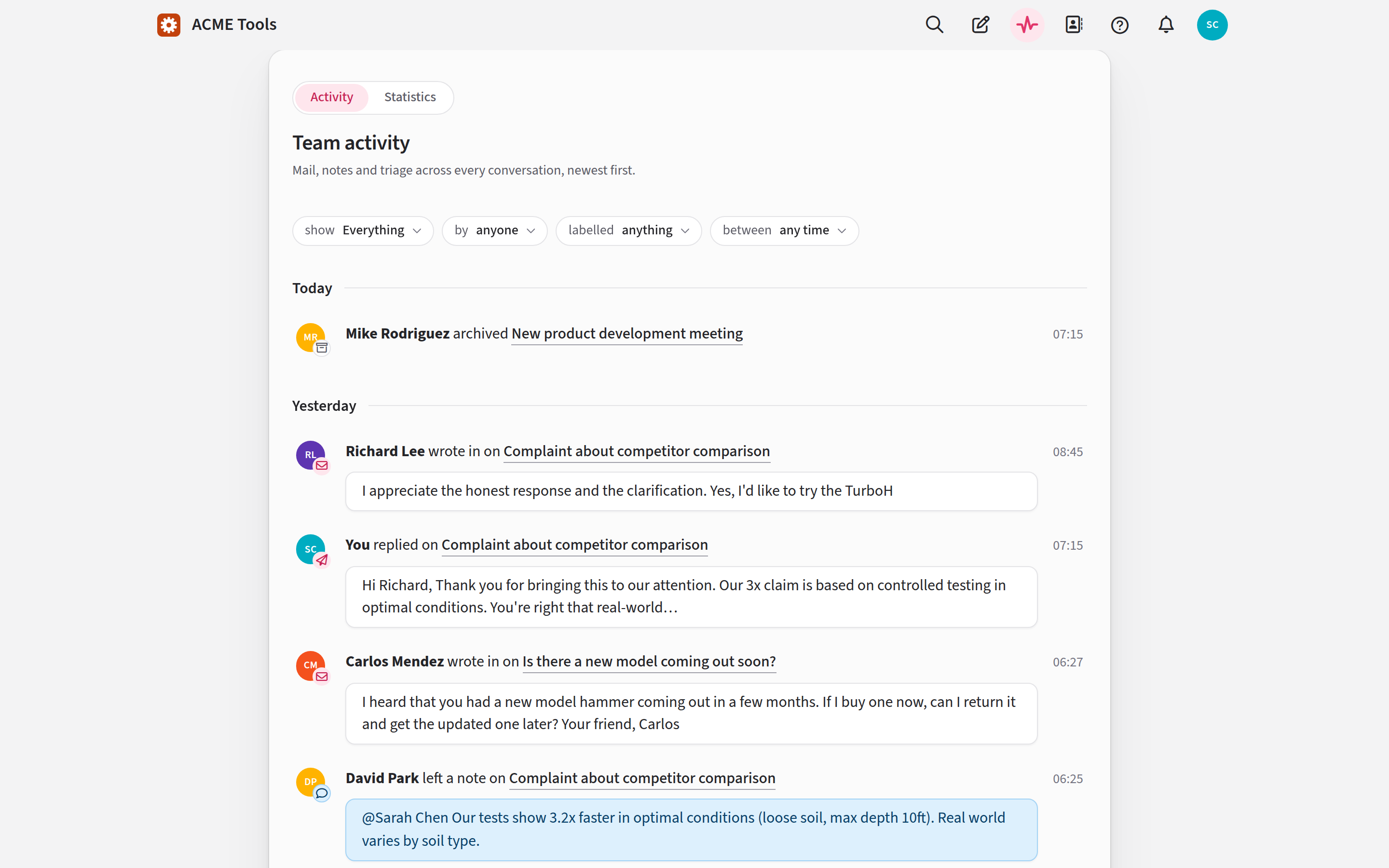
You see activity only for conversations in mailboxes you're in.
Filtering
The filters above the list narrow it down, and each one shows what it's currently set to:
- show picks the kind of activity (see the table below).
- by picks who did it: anyone, or one person on your team. Choosing a person hides mail from customers, since nobody on your team was behind it.
- labelled shows activity on conversations that have the label you choose now, including what happened before the label went on. It appears only when your team has labels.
- between picks the days. Fill in First day, Last day or both, and press Show. Both days are included. Any time clears the dates.
| show | What it covers |
|---|---|
| Everything | All of the rows below, plus the rest: mailboxes, renames, splits, following and so on |
| Messages | Mail that arrived, and replies your team sent |
| Notes | Notes |
| Assignments | Assigning, unassigning and picking up |
| Labels | Labels put on, taken off or deleted |
| Triage | Archiving, snoozing, spam and the trash, and undoing each of them |
On a narrow window, some filters move into a More button.
The list shows 50 entries at a time, with Newer and Older at the foot. Each filtered view has its own address, so you can bookmark one you use often.