
Notes
Sometimes you need a word with a colleague before you reply: "Can we offer a refund here?", or "I've phoned them, it's sorted." A note is a message to your team, written on the conversation itself, so the discussion sits right beside the emails it's about.
The people you're emailing never see notes.
Writing a note
- Open the conversation and click Chat with your team… under the thread, or press c.
- Write your note. To bring a colleague in, type @ and pick their name (see mentioning someone).
- Press Add note, or ⌘Enter (CtrlEnter on Windows and Linux).
Your note appears in the thread straight away, as a tinted card with your picture, so it's easy to tell apart from an email.
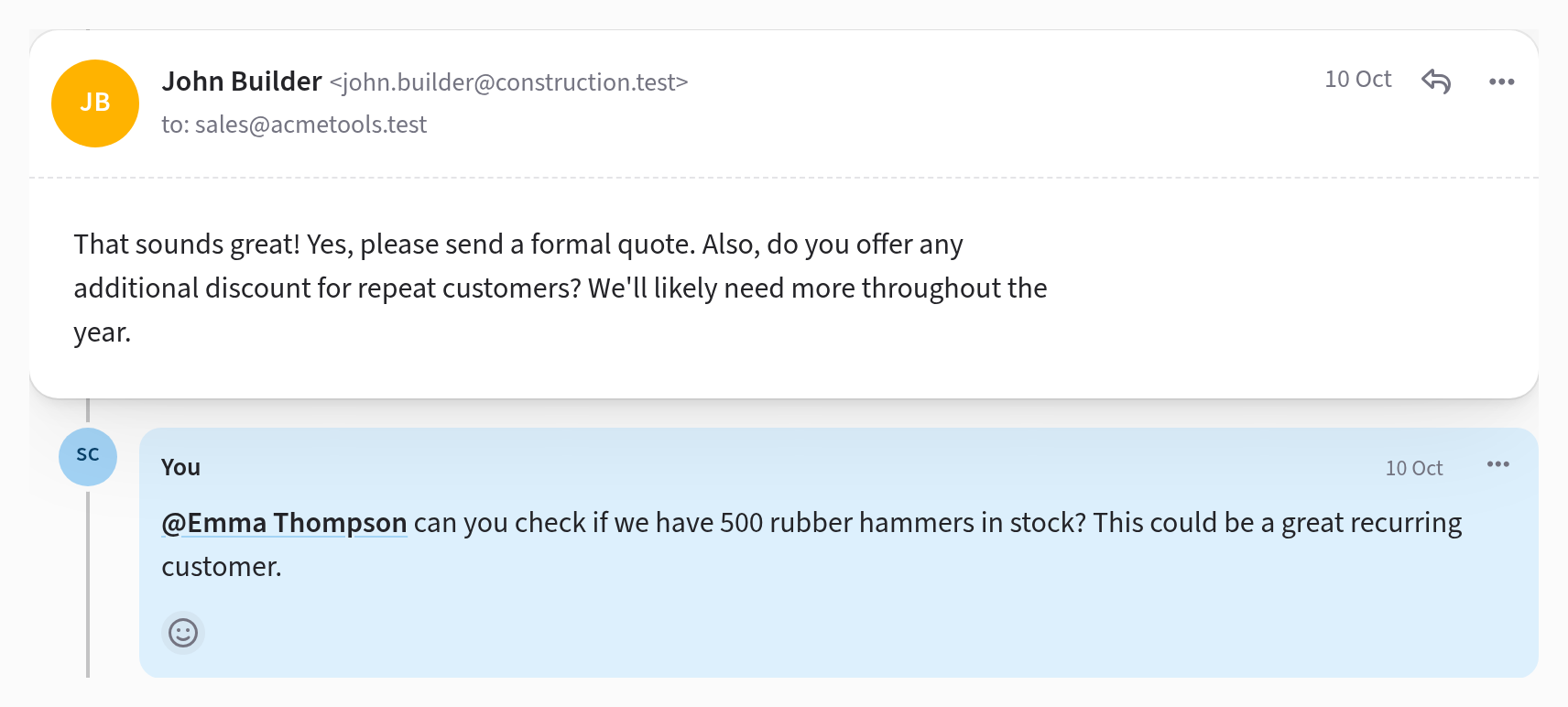
Everyone following the conversation is notified about your note, and writing one makes you a follower too, so you hear about what happens next. A note moves the conversation up the list, but it doesn't mark it unread for anybody.
Attaching files
To add files to a note, use Attach under the box, or drop or paste them onto the note. All the files together must be under 10 MB, and the note needs some words as well.
Like the note itself, its files are for your team only.
Changing or deleting a note
You have 5 minutes after posting a note to change or delete it. After that, nobody can.
- To change it, open the ⋯ menu on the note, choose Edit, make your changes and press Save note. The note is then marked edited. While you're editing you can tick files under Remove attachments to take them off, but you can't add new ones.
- To delete it, open the ⋯ menu on the note and choose Delete. Its files and reactions go with it.
Mentioning someone
To pull a colleague into a conversation, type @ in a note and pick their name from the list. They're notified, wherever their notification settings send it, and they start following the conversation, so they hear about the replies and notes that come after.
Picking a name writes the person's handle, which is the part of their
email address before the @, such as @bob. To find the conversations
somebody was mentioned in, search for their
handle.
A few things to watch for:
- A mention only reaches somebody who can see the conversation. In a conversation kept to a mailbox, the list offers only the people in that mailbox, and typing anybody else's handle by hand mentions nobody.
- Adding a mention to a note you're editing doesn't notify the person. Write a new note instead.
- If two colleagues share a handle, such as bob@acme.test and
bob@acme.example, the list writes each one's whole address instead,
such as
@bob@acme.example. A plain@bobthen mentions neither of them.
Reacting to a note
When all you want to say is "seen" or "thanks", react to the note with an emoji instead of writing another. Click the smiley under the note and pick one; Search emoji… finds one by name. Click your reaction again to take it back, and point at a colleague's to see who left it.
Reactions don't notify anybody.
Notes written by other programs
If your team uses the API, a program can add notes too. A note written that way is marked API, and it can't be changed or deleted in Jelly.