
Contacts
When a customer writes in, it helps to know who they are: what you talked about last time, what a colleague learned about them, which account is theirs. Jelly keeps one shared record of every person outside your team who has had mail with you, and shows it beside each conversation with them.
You don't add contacts yourself. Jelly makes one the first time it sees an outside address, whether they wrote to you or you wrote to them.
Everything on a contact is shared with the whole team, and anyone on the team can change it. That's true even when mailboxes are in use: everyone sees every contact, including one whose conversations are all in a private mailbox. Only the conversations themselves are hidden.
Finding a contact
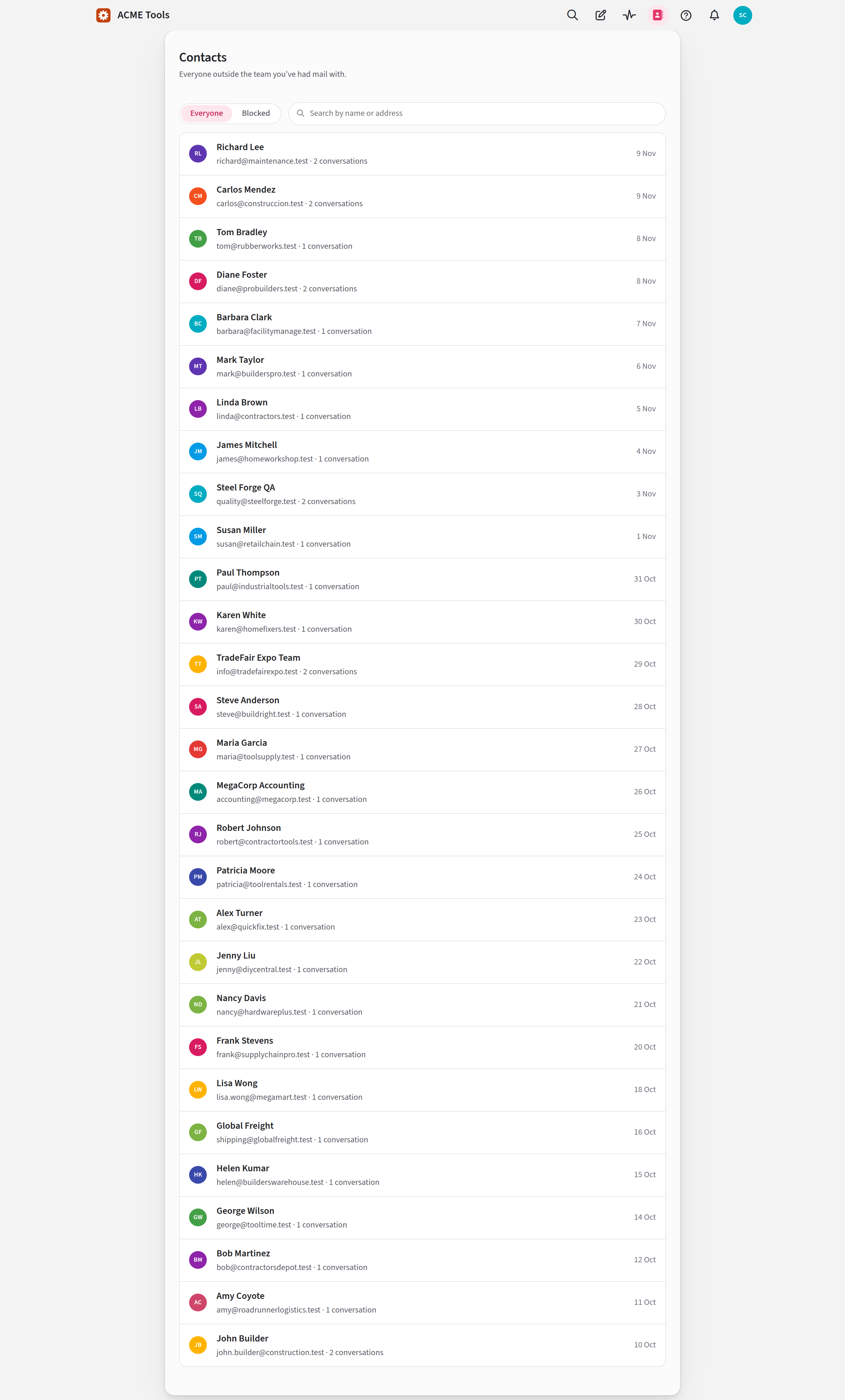
Click Contacts in the top bar. The list shows the people you've heard from most recently first, up to 200 of them. To find anyone else, search by their name or any of their addresses. The Blocked tab lists only the people you've blocked.
Click a contact to open their page. It lists every conversation with them, newest first, including any in spam and the trash.
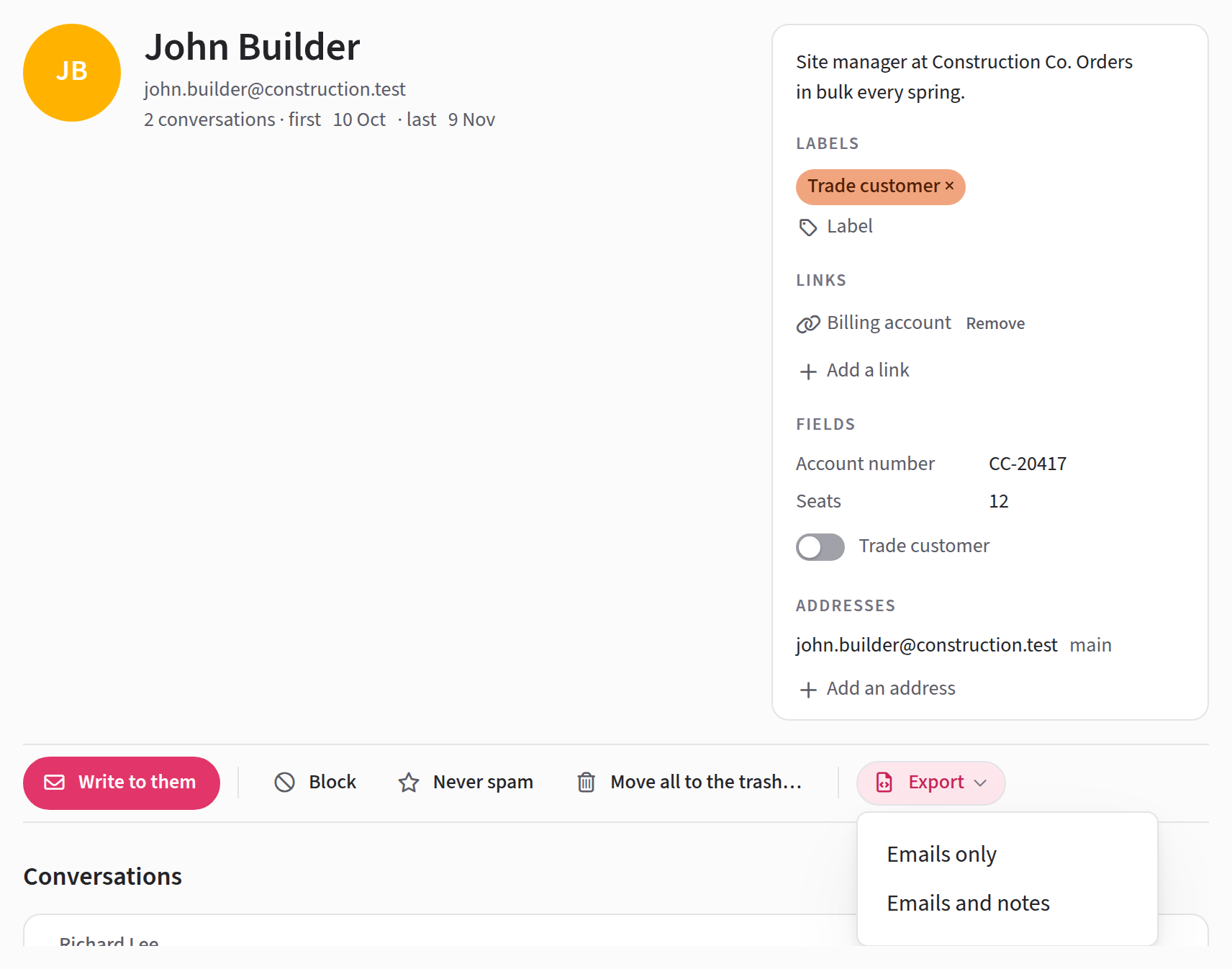
Most of what's on this page is also in the conversation sidebar, so you can rename someone, edit the note, change their labels, links and fields, and block them without leaving the conversation. For the rest (their addresses, moving their conversations to the trash, exporting), click Everything about them › in the sidebar to open their page.
Renaming a contact
Some email programs send an unhelpful name, such as jj_84. To give
someone a better one, click the name on their page or in the
sidebar, type a new one and press Rename. Only your team sees this
name, and Jelly never uses it in mail. Clear the field to go back to
showing their address.
The team's note
The note is for whatever the team should remember about this person: an account number, that they prefer the phone, that their contract ends in March. Click Add a note for the team, or the note that's already there, type, and press Save note. It shows beside every conversation with them.
Labels
Contact labels describe the person, rather than a conversation:
Reseller, Press, Supplier. The contacts list shows each person's
labels.
To put one on, open Add a label on their page or in the sidebar (it's called Label once they have one) and click a label. To take one off, click its ×.
Contact labels are separate from conversation labels.
Both sets can have a VIP, and renaming or deleting one doesn't
change the other.
Making and managing contact labels
Only Admins can make, rename, recolour and delete contact labels. An Admin can make one in two places:
- In the Add a label fold on any contact: type a name in New label and press Add.
- On Settings → Contact labels: open Add a label, give it a Name and a colour, and press Add label.
Settings → Contact labels is also where Admins rename, recolour and delete them. Deleting a label takes it off every contact, and there's no undo.
Links
A link connects a contact to their record somewhere else: a billing account, a CRM entry, an admin page.
On their page or in the sidebar, open Add a link. Type the text
for the link, such as Billing account, paste the web address, and
press Add. If you leave the text empty, Jelly names the link after
the website. The address must start with https:// or http://.
Each link opens in a new tab, and Remove takes one off. If you add a link with the same text as one the contact already has, the new one replaces the old.
Blocking somebody
Block is for a sender who won't stop. Press it on their page or in the sidebar, and from then on their mail goes straight to Spam. Nobody is notified about it, the autoresponder doesn't reply to them, and nothing is posted to Slack, Discord or a webhook.
Blocking only affects mail that arrives afterwards. Their existing conversations stay where they are.
There's one case where a blocked person's mail doesn't go to spam. If they reply in a conversation that someone else outside your team is also writing in, such as one they were copied on, their message is added to it and the conversation stays where it was. It still isn't marked unread and nobody is notified.
Rules still run on a blocked person's mail, so a rule can still label or assign it. A rule can also do the blocking for you: see Mark as spam and block the sender in the actions a rule can take.
Unblock puts things back to normal for mail that arrives from then on. It doesn't move anything out of spam.
Never spam
Never spam is for the opposite problem: one of your rules keeps filing a real customer's mail as spam. Turn it on for that contact, and when a rule set to Mark as spam or Mark as spam and block the sender matches their mail, Jelly skips that part. The rule's other actions, such as a label or an assignment, still happen.
It only affects your rules. A colleague can still mark one of their conversations as spam, and it doesn't change your email provider's own spam filter, which acts before mail reaches Jelly.
When Never spam is on, the button reads Stop trusting. Press it to turn Never spam off. A contact can't be blocked and marked Never spam at once, so turning one on turns the other off.
More than one address
Somebody who writes from work and from home starts out as two contacts. Jelly never guesses that two addresses are the same person, so it's up to you to join them.
On the person's page, under Addresses, open Add an address, type the address and press Add. From then on, mail from that address is filed under this person.
Joining two contacts into one
If the address you add already belongs to another contact, Jelly asks whether they're the same person before it does anything. Press Merge them to join the two, or Keep them apart to leave them as they are.
Merging moves the other contact's addresses, conversations and labels to this one, adds their note to the end of this one's, and deletes the other contact. All their conversations move, including any in mailboxes you're not in. Where the two disagree, this contact wins: it keeps its own name and its own Block and Never spam settings, and takes the other's links and field values only where it has none of its own.
Anyone on the team can merge two contacts, and there's no undo.
The main address
One of a contact's addresses is marked main. To begin with, it's the first one Jelly saw. It's the address Jelly uses when you press Write to them to start a new conversation. Replies don't use it: a reply goes to the people in that conversation. Press Make main beside another address to change it.
Remove takes an address off a contact. Conversations already filed under them stay theirs, and the next message from that address makes a new contact. To remove the main address, make another one main first.
Fields
Labels and notes are free-form. Fields are for facts you want to keep about every contact in the same shape: the plan they're on, their account number, how many seats they have, when they renew. Your team decides which fields there are, and each one has a type:
| Type | A value is |
|---|---|
| Text | Any words |
| Number | A number, such as 12 or 4.5 |
| Date | A day, such as 2027-01-01 |
| Yes or no | Yes or no |
| Link | A web address that starts with https:// or http:// |
| Choice | One of the field's options, such as free or pro |
Filling them in
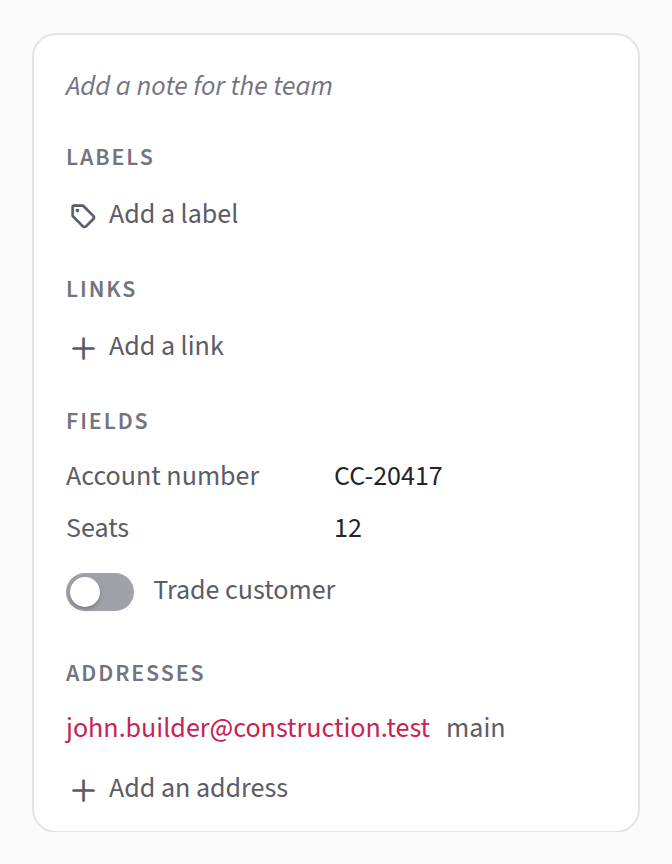
A contact's fields are on their page, under Fields, and in the conversation sidebar. Anyone on the team can fill them in. Click the field's value, or Not set if it has none, type or pick the value, and press Save. Clear takes a value off. A yes-or-no field is a switch, and it's saved as soon as you flip it.
If the value doesn't fit the field's type, such as words in a number field, Jelly tells you and keeps what you typed so you can fix it.
You don't have to fill fields in by hand. Your billing system or CRM can set them through the API, so the facts are already in Jelly when someone writes in.
Making and managing fields
Only Admins can make, rename, reorder and delete fields. They're on Settings → Fields, under Contact fields. (The same page has Conversation fields, which hold facts about each conversation instead. See the conversation sidebar.)
- Open Add a field under Contact fields.
- Give it a Name, such as
Renews on. Jelly fills in a Key from it as you type, such asrenews_on. The key is what a search or a program calls the field. It can only have lowercase letters, digits and_, and it can't be changed later, so if you'd like a different one, change it now. - Choose its Type. For a choice, list the Choices, one to a line.
- Press Add field.
To rename a field, click it, type the new name and press Save. Its key stays the same. The ··· beside Save has Move up and Move down, which change the order the fields are shown in, and Delete field…. A field's type can't be changed, so to change it, make a new field.
Deleting a field deletes every contact's value for it, and there's no undo. Jelly tells you how many contacts have a value before you confirm.
Searching by what you know about someone
Search can find conversations by the person they're with. The
contact: operator looks at a contact's labels, links and note, and
field: looks at their fields: field:plan=pro finds conversations
with contacts on the pro plan. Narrow a search, beside the
results, lists your team's field keys. See Finding
conversations.
Moving all their conversations to the trash
Move all to the trash… on a contact's page moves every conversation with them that you can see to the trash, wherever it is now: the inbox, the archive, spam or snoozed. Jelly shows how many conversations will move and asks you to confirm with Move them to the trash, or Keep it if you've changed your mind.
A conversation counts as being with them if they wrote any message in it, or your team sent one to them. One where they were only copied (Cc) doesn't count.
The notice that follows has an Undo, which puts each conversation back where it was (snoozed ones come back to the inbox). After the notice has gone, you can still restore conversations from Trash one at a time. For a contact with a very long history there's no Undo, and the confirmation page tells you so before you press the button.
The contact itself doesn't change, and their next message arrives as usual. To stop their mail reaching the inbox, block them.
Exporting their history
You can download everything your team has said with somebody as one file, for a records request, a handover, or to load into another tool. On their page, open Export ▾ and choose:
- Emails only: every conversation with them that you can see.
- Emails and notes: the same, plus your team's notes on each conversation and the files attached to those notes.
The file starts with what Jelly knows about the contact: their name, addresses, the team's note and their fields. Then comes each conversation, including any in spam and the trash, with every message in it as the complete original email, attachments included.
The file is in JSON format, which is meant for programs rather than people. It won't open in an email program, so you'll need a tool, or a person, that can read JSON. If the download is interrupted, the file is incomplete and won't open, so export it again.