
The API
The Jelly API lets your team's own programs read and act on your mail: a billing system that adds a link to each customer's contact, a script that labels or assigns conversations, a nightly export. A program connects with a token, which an Admin makes in Jelly.
This page is about tokens: how to make one, what it can see and do, and how to look after it. The API reference lists every endpoint and which tokens each one accepts, along with error formats and rate limits.
Making a token
Admins and the Owner make tokens.
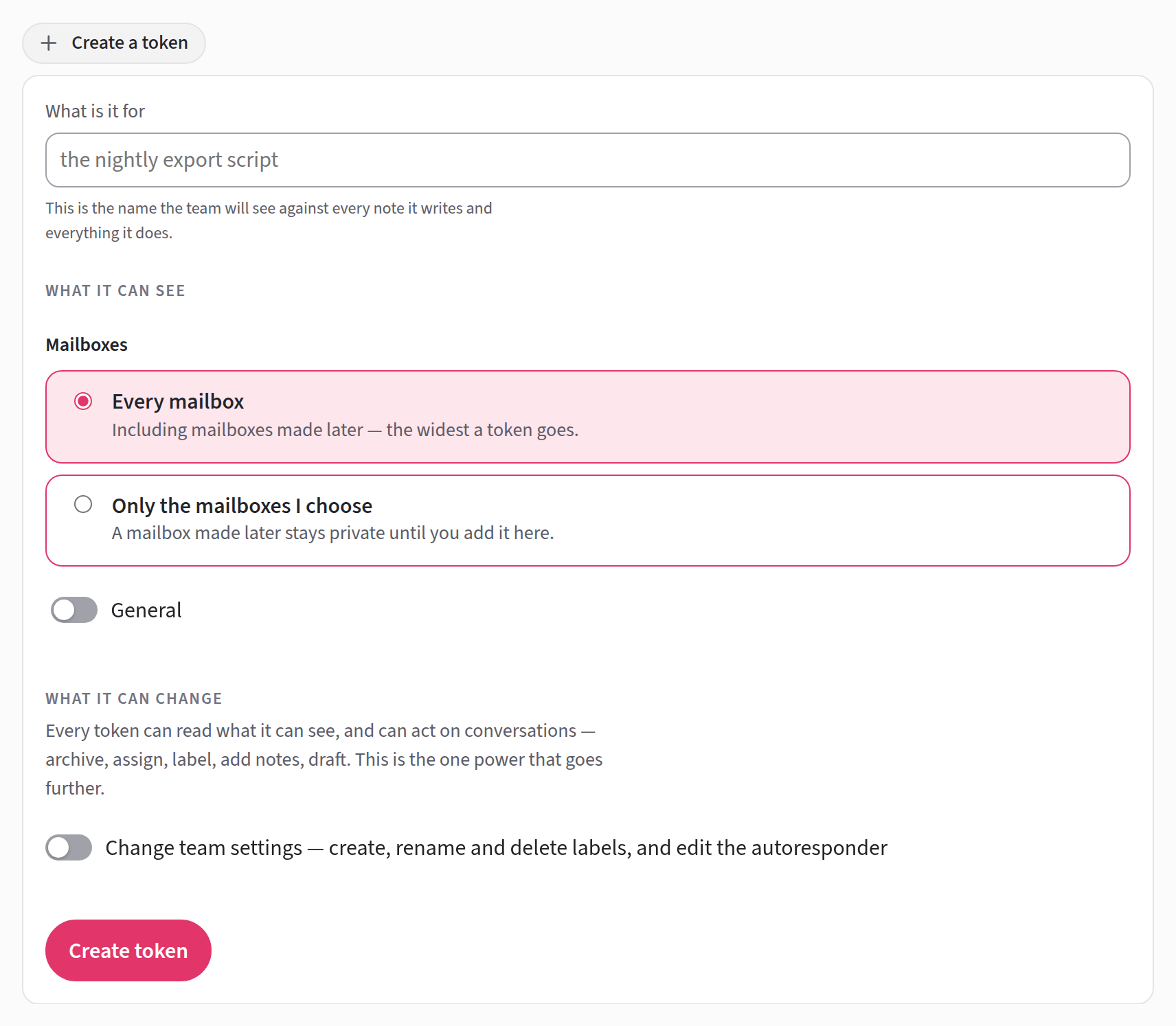
- Go to Settings → API tokens and open Create a token.
- Under What is it for, type a name, such as "the nightly export script". Your team sees this name on everything the token does.
- Under What it can see, choose Every mailbox or Only the mailboxes I choose. See what a token can see.
- Tick Change team settings only if the program needs it. See what a token can change.
- Press Create token. If you signed in a while ago, Jelly asks you to confirm it's you first.
- Jelly shows the token once. Press Copy and paste it into your program straight away.
Jelly can't show you the token again, so if you lose it, make a new one. Keep it as safe as a password: anyone who has it can do whatever the token can do.
Using a token
A program sends its token in the Authorization header of every
request:
Authorization: Bearer jelly_…
Requests go to your team's Jelly web address followed by /api, such
as https://acme.letsjelly.com/api. The web address is the start of
what's in your browser's address bar while you use Jelly.
There are two kinds of token:
- A team token (
jelly_…) is the kind an Admin makes on Settings → API tokens. It belongs to the team, and most of this page is about it. - A personal token (
jellyp_…) is a person's own sign-in from an app: Jelly for iOS, or an app your team registered. It acts as that person, and can do no more than they can. See Apps.
A sign-in from Claude is neither of these. It works only for connecting an AI assistant, not for the API.
A token acts under its own name
A team token doesn't act as the Admin who made it.
- Your team sees its name. Everything it does shows on the conversation under the token's name, with an API mark.
- It belongs to the team. It keeps working after the person who made it leaves. The list of tokens then says "made by a former member".
- Its notes are permanent. Nobody can delete a note a token writes.
What a token can see
When you make a token, you choose what it can see:
- Every mailbox: every conversation, including those in mailboxes made later.
- Only the mailboxes I choose: the mailboxes you tick, and nothing else. Your default mailbox is one of the boxes, so if you leave it unticked the token can't see your ordinary inbox. A mailbox made later stays hidden from the token until you add it.
A conversation the token can't see doesn't appear in its lists,
searches or statistics, and asking for it by its id gets 404, as if
it didn't exist.
What a token can change
Every token can work on the conversations it can see: archive, move to spam or the trash, snooze, assign, label, add notes and write drafts, and undo each of those. It can also move conversations between the mailboxes it can see, and add or update contacts. The API reference has the full list.
A token can also keep your own facts on a conversation or a contact:
- Fields are the team's own fields, such as the order a conversation is about or a customer's plan. A token can set their values on a conversation or a contact, and list conversations by them. Rules can match on them and set them.
- An external id is your system's id for the conversation or the contact, so you can find it again without keeping a table of your own. Only one conversation, and only one contact, can have a given external id.
Making, renaming and deleting labels and fields, and changing the
autoresponder, need more. A team token needs
Change team settings ticked. A personal token needs its person to
be an Admin or the Owner. Without that, those requests get 403.
Changing or revoking a token
On Settings → API tokens, open a token's menu:
- Edit it changes its name, what it can see, and Change team settings. The change applies from the token's next request.
- Revoke this token… stops it working at once. What it did stays on each conversation under its name. A revoked token stays in the list, marked Revoked, and can't be turned back on.
If your team leaves Royal Jelly
Your team's tokens are kept, but every request is refused until the team is back on Royal Jelly. Team tokens are also refused while your team is paused.
Your first five calls
Most programs start with the same five requests. Each one is shown
twice here: with curl, and in TypeScript with Jelly's library,
@letsjelly/api. All five work with a team token. Use your team's own
web address in place of acme.letsjelly.com.
First, keep the address and the token somewhere the examples can reach them:
export JELLY=https://acme.letsjelly.com
export JELLY_TOKEN=jelly_…
import { Jelly } from "@letsjelly/api";

const jelly = new Jelly({
  baseUrl: "https://acme.letsjelly.com",
  token: process.env.JELLY_TOKEN!,
});
-
Check the token works, and see which mailboxes it can see.
curl -H "Authorization: Bearer $JELLY_TOKEN" $JELLY/api/mailboxesconst { mailboxes } = await jelly.get("/api/mailboxes"); -
List the open conversations, 20 at a time. To get the next 20, send the answer's
next_cursorback ascursor.curl -H "Authorization: Bearer $JELLY_TOKEN" \ "$JELLY/api/conversations?status=open&limit=20"const { conversations, next_cursor } = await jelly.get("/api/conversations", { query: { status: "open", limit: 20 }, }); -
Read one conversation, with its messages. Its id is the
idfrom the list, such asbroken-widget-k3f9zq.curl -H "Authorization: Bearer $JELLY_TOKEN" \ $JELLY/api/conversations/broken-widget-k3f9zqconst { conversation } = await jelly.get("/api/conversations/{id}", { path: { id: conversations[0]!.id }, }); -
Add a note to it. Your team sees it under the token's name.
curl -H "Authorization: Bearer $JELLY_TOKEN" \
  -H "Content-Type: application/json" \
  -H "Idempotency-Key: $(uuidgen)" \
  -d '{"body": "Refund sent."}' \
  $JELLY/api/conversations/broken-widget-k3f9zq/notes
await jelly.post("/api/conversations/{id}/notes", { path: { id: conversation.id }, body: { body: "Refund sent." }, }); -
Archive it.
curl -X POST -H "Authorization: Bearer $JELLY_TOKEN" \
  -H "Idempotency-Key: $(uuidgen)" \
  $JELLY/api/conversations/broken-widget-k3f9zq/archive
await jelly.post("/api/conversations/{id}/archive", { path: { id: conversation.id }, });
The Idempotency-Key makes a write safe to send again: if the first
try timed out, the second doesn't add a second note. The library adds
one to every write for you. It also:
- asks for the API version it was made for, so answers keep the shape it expects;
- gets a new personal token when one expires;
- tries again when Jelly asks it to wait;
- goes through a list page by page (
jelly.paginate); - waits on the change feed (
jelly.changes); - checks that a webhook came from Jelly (
verifyWebhook).
Keeping up with changes
A program that keeps its own copy of your mail, or acts when something happens, doesn't need to read every list over and over. Jelly keeps a change feed: every message that arrives or goes out, every note, every archive, assignment, label and move, and every change to a contact, in the order it happened. These are the same events the team sees on the activity page.
The program asks for the changes since the last one it saw, and can wait for the next one rather than asking every few seconds. A token only hears about changes to the conversations it can see. The feed keeps 30 days of changes, so a program that has been away longer starts again from the lists. The API reference has the details.
To have Jelly call your system instead, use webhooks.
Putting messages in
A program can put a message into your team's mail as if it had arrived by email. This is how a support form in your own app, or a chat in your own product, reaches the team: the customer types, and your program puts their words into Jelly.
Jelly treats the message as mail that has just arrived. Rules run, followers are told, webhooks and Slack posts go out, and the autoresponder may answer. When the team replies, the reply goes to the customer by email, as any reply does.
Say your app has a Contact us form. When Jane sends it, your
program makes one request to POST /api/messages:
{
  "from": {"name": "Jane Customer", "email": "jane@customer.test"},
  "to": ["support@acme.test"],
  "subject": "Broken widget",
  "text": "My widget arrived broken.",
  "external_id": "order-1234",
  "fields": {"plan": "enterprise"},
  "contact": {"external_id": "user-881", "fields": {"seats": 12}},
  "attachments": ["file_k3f9zq2m7xw4b8n5c6d2"]
}
- from is Jane. to is one of your team's addresses.
- external_id and fields go on the new conversation, and contact on Jane's contact, before rules run. A rule such as "when the plan is enterprise, assign to Sarah" sees them.
- attachments are files Jane added, each uploaded first.
- An Idempotency-Key header makes the request safe to retry. If the first try timed out, the second makes no second conversation.
Putting a message in sends nothing: the message is only recorded, along with which token put it in. If your program writes a message from one of your team's own addresses, it's recorded as a reply the team sent somewhere else.
A token can put new conversations only into a mailbox it can see. The API reference has every field and every answer.
Versions and what may change
The API has dated versions, so a program keeps working while the API moves on. A token is pinned to the newest version on the day it's made, and keeps getting answers in that version until the program asks for a newer one. A change that would break a program comes with a new version, and the old one keeps working for 12 months after.
The reference sets out what we promise, and its changelog lists every change by date.
A sandbox to build against
A sandbox is a second Jelly team to develop against. Its customers are pretend and nothing it sends leaves, so you can point its webhooks at your laptop and its contact cards at a tunnel without anybody getting an email by mistake.
A sandbox works like any other team, with these differences:
- Every screen says Sandbox across the top.
- It starts with three pretend customers and one conversation from one
of them. Their addresses end in
.invalid, which no mail system delivers to. - Nothing it sends goes anywhere, whatever its addresses are connected to. A reply stays in its conversation, marked Would have been sent, and so does an autoresponder's.
- Mail arrives only through the API, by putting messages in. Mail sent to its addresses is refused.
- It has everything: the API, webhooks, apps, contact cards and putting messages in.
GET /api/mesays"sandbox": true, and so does every webhook request, so a program that hears from both your team and its sandbox can tell them apart.- It sends no usage figures.
The sandbox's own people are real, and still get their sign-in links, invitations and notifications by email.
Making one
Once your team has been given a sandbox, an Admin goes to Settings →
API tokens and presses Create a sandbox team. The sandbox gets
its own address, <your team>-sandbox.letsjelly.com, and the same
Owner as your team, who signs in to it and invites whoever else should
build against it.
Making it usually takes a few minutes. Until then the page says Sandbox requested… and where the sandbox will be, and when it's done it says Your sandbox team is ready, with a link. Check again asks straight away. If the page says it's taking longer than usual and Check again doesn't help, get in touch with us.
Starting again
On Settings → API tokens, Reset the sandbox… takes away every conversation, message, note, draft and contact, and brings back the pretend customers and their conversation. Your tokens, apps, webhooks and contact cards stay, and so do the team's members, mailboxes, labels, fields and rules. The change feed carries on from where it was.
A sandbox beside a Jelly you run yourself
A Jelly you run yourself that is connected to Jelly gets its sandbox the same way: once your team has one, an Admin presses Create a sandbox team on Settings → API tokens. Your team's Owner owns it.
Jelly hosts that sandbox, not you, because it holds nothing but pretend
people. So its address is on Jelly's hosting,
<something>-sandbox.letsjelly.com, and it runs Jelly's current
version, which may not be the version you run. Its API may have
endpoints or fields yours doesn't have yet, or answer a little
differently. The API reference describes Jelly's
current version.
A hosted sandbox stays until you ask us to take it away. Disconnecting your Jelly doesn't remove it.
Running your own
On a Jelly you run yourself, you can instead start a second Jelly with
JAM_SANDBOX=1 set. It becomes a sandbox the first time it starts,
and stays one: taking the setting away later doesn't turn it back into
a team that sends mail. A Jelly that already has mail refuses to start
with the setting, so real mail is never mixed with pretend.
Apps
An app signs a person in, and then acts as them. It gets a personal token, so it sees the mailboxes that person sees and does what they may do. Jelly for iOS is an app, and so is Claude when it connects as an assistant.
Your team can register apps of its own, such as a support console your developers built. Use an app rather than a team token when a program should act as a particular person: show their inbox, mark what they've read, or send email as them.
Registering an app
Admins and the Owner register apps.
- Go to Settings → Apps and open Register an app.
- Type a Name. People see it when the app asks to sign them in, and beside everything it does for them.
- Under Redirect URIs, type each address the app may send people
back to, one per line. Each must start
https://, orhttp://127.0.0.1for an app running on your own computer. Jelly matches them exactly, letter for letter. - Under What it may ask to do, tick the scopes the app needs. See what an app can do.
- Press Register app. The app's page shows its client id. Press Copy and give it to the app's developer.
An app has no secret. It proves who it is a different way (PKCE), so there's nothing to keep safe or replace.
On the app's page you can change its name, redirect URIs and scopes, and see who is signed in through it.
An app built for Jelly may come with a manifest instead, which sets up its sign-in, its webhook and its contact card in one step. See Installing an app.
What an app can do
When an Admin registers an app, they choose what it may ask to do. When the app asks a person to allow it, Jelly lists each of these in words:
- Read: read your team's conversations, notes and contacts.
- Write: write notes and drafts, and archive, assign and label conversations.
- Send: send email as you.
- Settings: change team settings, where you may change them yourself.
An app never gets more than its person has. With Settings, a Member's app still can't change labels, because a Member can't. An app your team registers also can't connect as an assistant: only Jelly's own apps can.
What a person does through an app shows with the app's name beside theirs, such as "Sarah via Acme Console", on the conversation, in the API and in webhooks.
Ending an app's sign-in
Each person can see the apps they've allowed: open the account menu, choose Your preferences, then Where you're signed in. Sign out beside an app, or Sign out everywhere, ends its sign-in at once.
An Admin can end an app for the whole team. On Settings → Apps, open the app's menu and choose Revoke for the whole team…. Jelly tells you how many people are signed in through it and asks you to confirm. All of them are signed out at once, and Jelly emails each of them to say so. What the app already did stays. A revoked app can't be turned back on: register it again, and it gets a new client id.
An Admin can also take a scope away from an app. Every sign-in through it loses that scope at its next request. Giving the scope back doesn't give it to anyone who hasn't allowed it: they have to allow the app again.
For developers
An app signs a person in with OAuth 2.1: the authorization code flow
with PKCE (S256). There is no client secret. Jelly publishes its
endpoints at /.well-known/oauth-authorization-server.
- Send the person to
/oauth/authorizewithresponse_type=code, yourclient_id, aredirect_uriyou registered, astate, acode_challengewithcode_challenge_method=S256, and thescopeyou need, such asread write. Leavescopeout to ask for everything the app may ask for. - The person allows it, and Jelly redirects to your
redirect_uriwith acode. The code lasts two minutes and works once. - Exchange it at
/oauth/tokenwithgrant_type=authorization_code, thecode, the sameredirect_uri, yourclient_idand thecode_verifier. You get anaccess_token, arefresh_tokenand thescopethe person allowed. - Send the access token as
Authorization: Bearer jellyp_…. It lasts an hour. Get a new pair withgrant_type=refresh_token. Each refresh token works once.
The redirect_uri must match one the Admin registered exactly, letter
for letter. A request outside the token's scopes gets 403 insufficient_scope. The API reference shows the
scope each endpoint needs.
To sign out, send either token to /oauth/revoke.
Older tokens begin jam_, jamp_ or jamr_, and still work.