
Replying
When you reply from Jelly, the person you're writing to gets an ordinary email from your team's address. They see nothing of the shared inbox behind it: no notes, no assignments, and nobody else's name.
Writing a reply
- Open the conversation and press Reply under the thread, or press r. To answer one message in particular, use the reply arrow on that message.
- Write your reply. The message you're answering is quoted below it, and your signature is already in place if you have one.
- Press Send, or ⌘Enter (CtrlEnter on Windows and Linux).
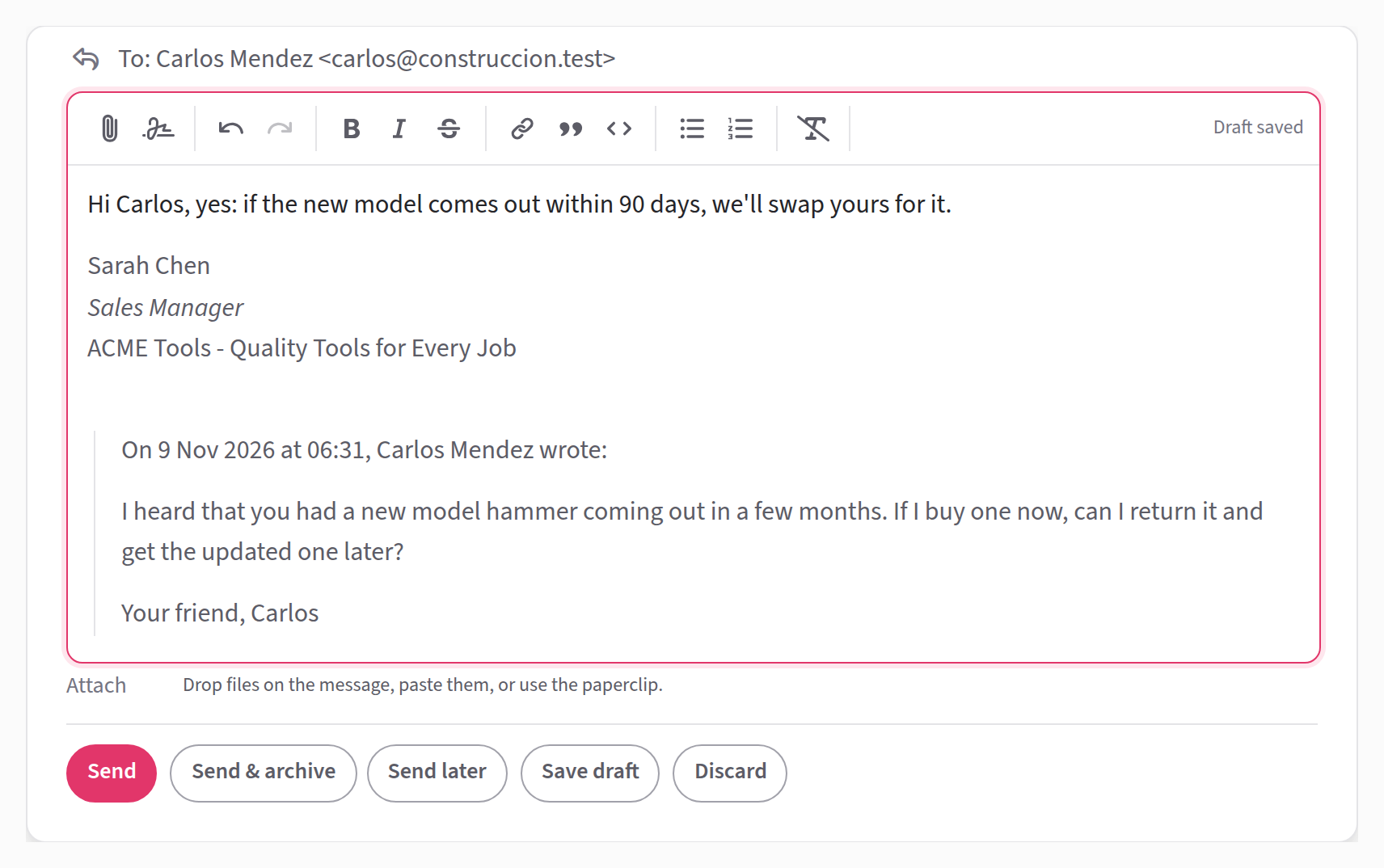
The message waits a few seconds before it goes, in case you want to undo it. Sending a reply also assigns you to the conversation, and you start following it.
Jelly saves your reply as you type, so you can leave it and come back. Drafts belong to the whole team, which means a colleague can open yours and finish it. See shared drafts.
Who it goes to
Jelly addresses a reply for you. It answers the newest message in the conversation, the way "reply all" does: To is the person who sent that message and anyone else it was addressed to, and Cc is everyone who was copied. Your team's own addresses are left off.
If the newest message is one your team sent, the reply goes to the same people it went to. To answer an earlier message instead, use the reply arrow on that message.
The addresses fold into one line starting To:. Click that line to change who the reply goes to, add Cc or Bcc, or choose a different From address.
Finding an address
Start typing a name or an address in To, Cc or Bcc, and after two letters Jelly suggests matching contacts, with the people you wrote to most recently near the top. Use ↓ and ↑ to move through the suggestions, and Enter or Tab (or a click) to add one.
You can always type an address in full, whether or not it belongs to a contact.
Which address it comes from
If your team has more than one address, From shows which one the
reply will come from. Jelly picks the address the person wrote to, so
somebody who wrote to sales@ hears back from sales@. To use a
different one for this reply, change From. The full rules are in
which address a reply comes
from.
The address is always one of the team's, never your own. The name shown beside it is by default your name with the address's name, such as "Carol (Acme Support)". That's a setting for the whole team: see From name on outgoing mail. Your team can also have a copy of every message it sends go to one address, with Automatic BCC.
The buttons under a reply
| Button | What it does |
|---|---|
| Send | Sends the reply |
| Send & archive | Sends the reply and archives the conversation |
| Send later | Sends the reply at a time you choose. See send later |
| Save draft | Saves it and leaves it for later |
| Discard | Throws the draft away, for the whole team |
Send & archive is ⌘ShiftEnter (CtrlShiftEnter on Windows and Linux). If you archive nearly everything you answer, you can make it the main button: see which send button leads.
Discard can't be undone, so Jelly asks Discard? first.
The toolbar
The toolbar above your reply has the usual formatting buttons: bold, italic, links, quotes, lists and so on. Point at a button to see its name and its shortcut. On the left are the buttons for adding things:
- Attach files adds attachments. You can also drag files onto the reply, or use Attach under it. All the files together must be under 10 MB.
- Insert a saved reply adds one of your team's saved replies, once your team has some.
- Add your signature puts your signature back if you've removed it.
Esc folds the reply away. Your words are kept in the draft.
Signatures
Jelly adds your signature to every reply and every new message you start. You write it once, on your preferences.
If you delete it from a reply and want it back, press Add your signature in the toolbar. If you take over a colleague's draft that ends with their signature, Jelly offers to swap it for yours.
Undoing a send
When you press Send, the message doesn't go straight away. It waits for 10 seconds, and a Sending… notice appears with an Undo button. On the conversation, a bar shows how much time is left.
To stop the message, press Undo, or z. It becomes a draft again, exactly as you left it, attachments included, and nothing has been sent. If you were too late, Jelly tells you the message had already gone.
A few things to know:
- Your team can change how long the wait is, or turn it off, with the undo-send window. If it's set to 0, every message goes at once and there's no Undo.
- With Send & archive, the conversation is archived only once the message has really gone. If you undo, it stays where it was.
- Undoing a send doesn't take your name off the conversation. To do that, let go of it.
- A forward goes at once and can't be undone.
Starting a new conversation
To write to somebody first, rather than answer them:
- Press New message at the top of the screen. The page that opens is called New conversation.
- Choose the From address, fill in To and the Subject, and write your message. If you're in more than one mailbox, choose the Mailbox the conversation belongs in too.
- Press Send.
You get the same few seconds to Undo as with a reply. There's no Send later or Send & archive on a new message.
The new conversation is assigned to you, and it's archived as soon as the message has gone, so it doesn't sit in the inbox while you wait for an answer. You'll find it in Sent, and it comes back to the inbox when the person replies.
Forwarding a message
To pass a message on to somebody else, open the ⋯ menu on that message and choose Forward. Jelly opens a new message with "Fwd:" in the subject, the original quoted, and its attachments included. Add who it's for and anything you want to say, then send it:
| Button | What it does |
|---|---|
| Forward | Sends the forward and shows it to you |
| Forward & go back | Sends the forward and takes you back to the message you forwarded |
Forward & go back is ⌘ShiftEnter (CtrlShiftEnter on Windows and Linux). You can make it the main button in which send button leads.
A forward starts a conversation of its own, assigned to you and archived straight away, like any conversation you start. The conversation you forwarded from isn't changed.
When a reply isn't sent
If a reply can't be sent, it goes back to being a draft, with a box above it saying why. Every message you send also shows what happened to it afterwards, beside the time it went out. See did it arrive?.