
Mailboxes
Normally, everyone on the team can see every conversation. That's usually what you want, but some mail shouldn't be read by the whole team: job applications, HR matters, anything legal. A mailbox keeps conversations like these to a named group of people. Anyone who isn't in the mailbox doesn't see them in Jelly at all.
Keep mailboxes few. A conversation tucked away in one is seen by fewer people, so it's easier to forget.
How mailboxes work
Every team has a default mailbox, called General on a new team. Everyone is in it and every conversation starts there. You can't rename or delete it.
Any other mailbox has its own list of people. A conversation that's only in that mailbox is hidden from everyone else on the team.
Two things are worth knowing before you rely on one:
- A conversation can be in more than one mailbox, and anyone in any of them can see it. So a conversation that's in the default mailbox as well as HR is visible to everyone.
- A mailbox keeps conversations from Members, not from Admins. Admins and the Owner aren't in a mailbox unless they add themselves, but any Admin can do that at any time.
Creating a mailbox
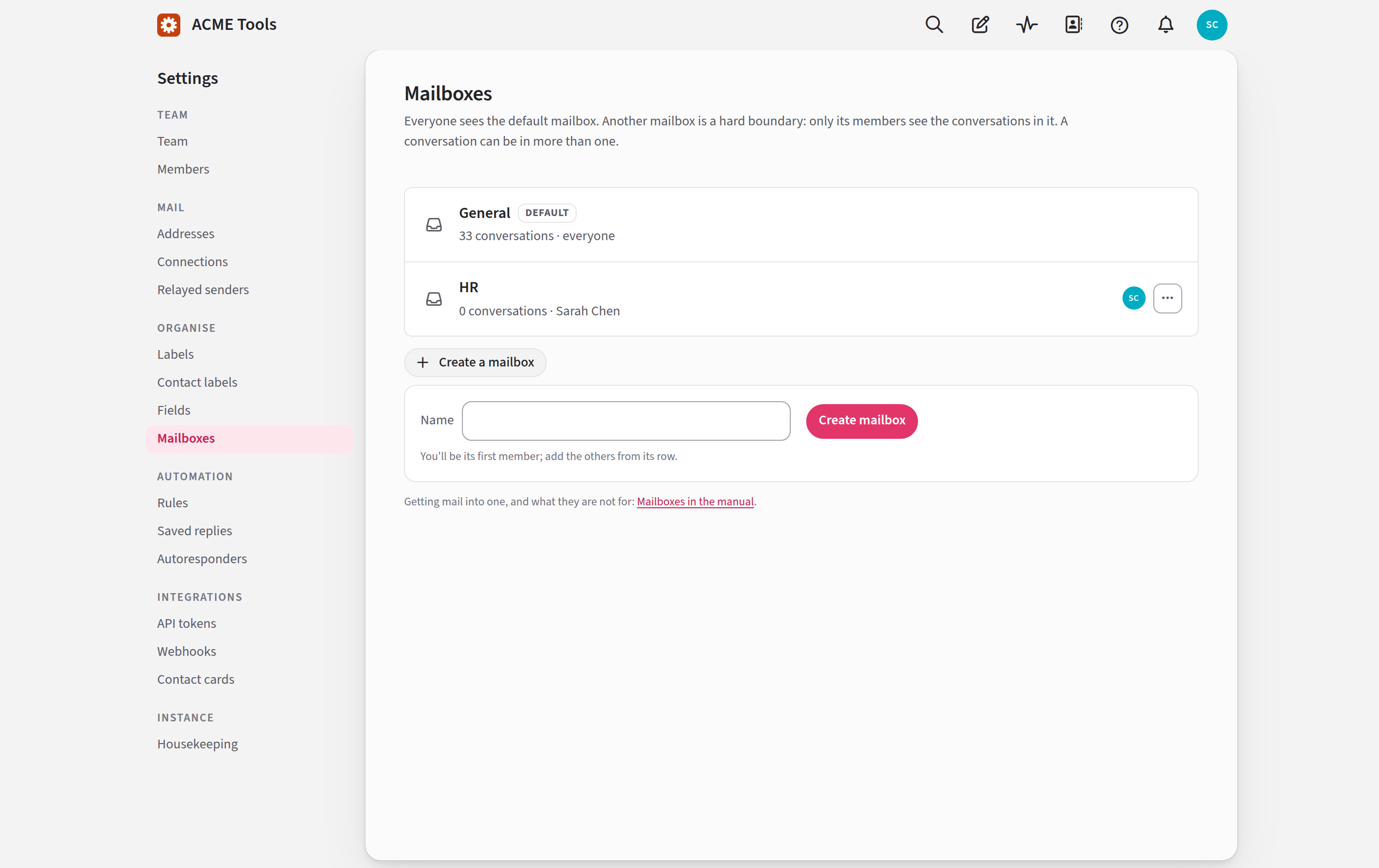
Admins and the Owner create mailboxes and choose who's in them.
- Go to Settings → Mailboxes.
- Open Create a mailbox, type a Name and press Create mailbox. To begin with, you're the only person in it.
- Click the new mailbox's name to open its page.
- Under Who's in it, click each person you want to add. Click someone again to take them out. Each click is saved as you make it.
When you take someone out of a mailbox, Jelly unassigns them from its conversations and they stop following them.
Getting conversations into a mailbox
New mail always arrives in the default mailbox, where everyone can see it, and stays there until a rule or a person moves it.
With a rule
For mail that should always be private, such as everything sent to
hr@, let a rule move it as it arrives:
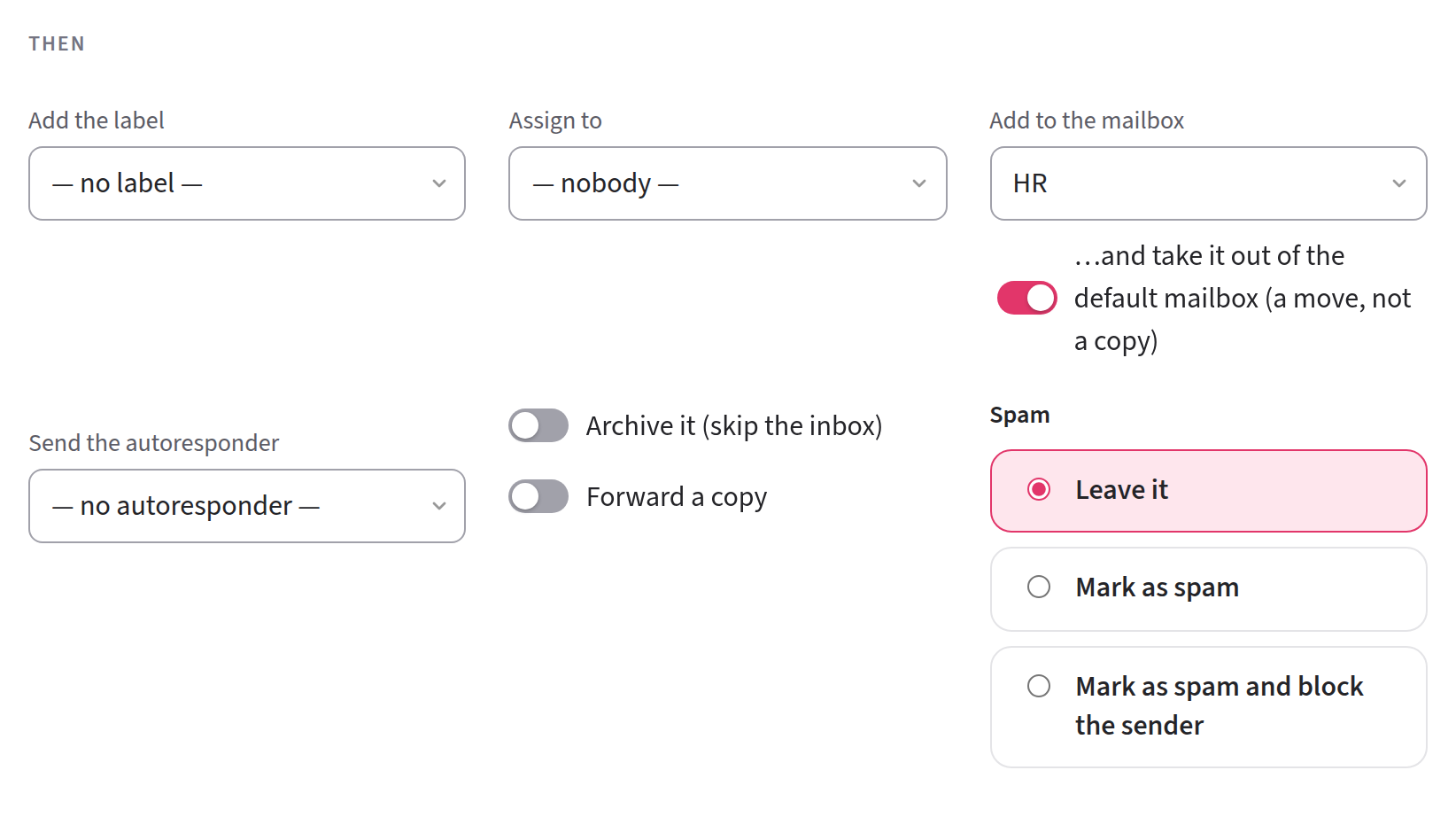
- Make a rule that matches the mail, such as mail sent to
hr@. - Under Then, choose Add to the mailbox and pick the mailbox.
- Leave …and take it out of the default mailbox (a move, not a copy) on, as it is for a new rule.
A rule moves a conversation once, when it first arrives. If someone later puts it back in the default mailbox, the rule won't move it out again.
By hand
If you're in a mailbox besides the default one, you'll see a Mailbox control on each conversation (Mailbox › in a row's ⋯ menu). Open it, and then either:
- click a mailbox's name to move the conversation there, and out of every other mailbox; or
- tick a mailbox to add the conversation to it as well, or untick one to take it out.
To move several conversations at once, press Select in the list, tick them, then use Mailbox ▾ in the bar.
A conversation always has to be in at least one mailbox. There's no undo for a move, but you can move it back the same way. If a move means someone assigned to the conversation can no longer see it, Jelly unassigns them and the notice tells you who.
A message you start
Rules only look at mail that arrives, so they never move a message someone on your team starts. You choose its mailbox as you write it instead.
If you're in a mailbox besides the default one, New message has a Mailbox field under From. The conversation opens in the mailbox you pick once the message is sent, and until then only the people in that mailbox see its draft in Drafts.
Jelly remembers the mailbox you last chose for each From address,
in the browser you're using. If you always send from jennifer@ into
a Jennifer mailbox, pick it once and it's chosen for you next time.
A reply has no Mailbox field, because its conversation is already where it belongs.
Mailboxes you're not in
You can only add a conversation to, or take it out of, the default mailbox and the mailboxes you're in. Sometimes a conversation is also in a mailbox you're not in, and you'll see that mailbox's name as a chip on it. You can still add the conversation to one of your own mailboxes. What you can't do is move it to yours alone, because that would take it out of the other one. Jelly tells you "It's also in a mailbox you're not in, so it can't be moved", and if you were moving several at once, none of them moves.
Filtering the inbox by mailbox
If you're in a mailbox besides the default, the left column has a Mailboxes list. Click a mailbox to see only its conversations in the inbox. A chip beside the list's title, such as in HR ×, reminds you the filter is on. Click its ×, or All mailboxes, to see everything again.
What a private mailbox hides, and what it doesn't
When a conversation is only in mailboxes you're not in, Jelly hides it from you everywhere: in the inbox and every other list, in search, in Activity and Statistics, on a contact's page and in the conversation sidebar, and in notifications. If you follow a link to it, Jelly shows There's nothing here.
Nobody can assign the conversation to someone who can't see it, and mentioning them in a note doesn't notify them.
An assistant or app you sign in to yourself sees what you see.
Renaming and deleting a mailbox
On Settings → Mailboxes, click a mailbox's pencil to rename it. To delete it, open its ⋯ menu, choose Delete mailbox…, then press Delete the mailbox.
Deleting a mailbox can't be undone, and it makes its conversations visible again:
- Conversations that were only in it go back to the default mailbox, where everyone can see them. Any that were also in another mailbox stay in that one.
- Rules that moved mail into it lose that action.
- API tokens that could see it lose that access.
If your team leaves Royal Jelly
This is the same as deleting each mailbox by hand. To use mailboxes again, you'd need to make them again and move the conversations back in.
While Jelly is paused for your team, it keeps your mailboxes as they are, but you can't make new ones.