
Keyboard shortcuts
If you spend a lot of time in the inbox, the keyboard is the quickest way through it. Single keys move you through the list and the conversation, and take a conversation (I got this), archive it, reply to it or set it aside.
You don't need to memorise this page. Press ? anywhere in Jelly to see the main shortcuts in a small panel, and ? again to hide it.
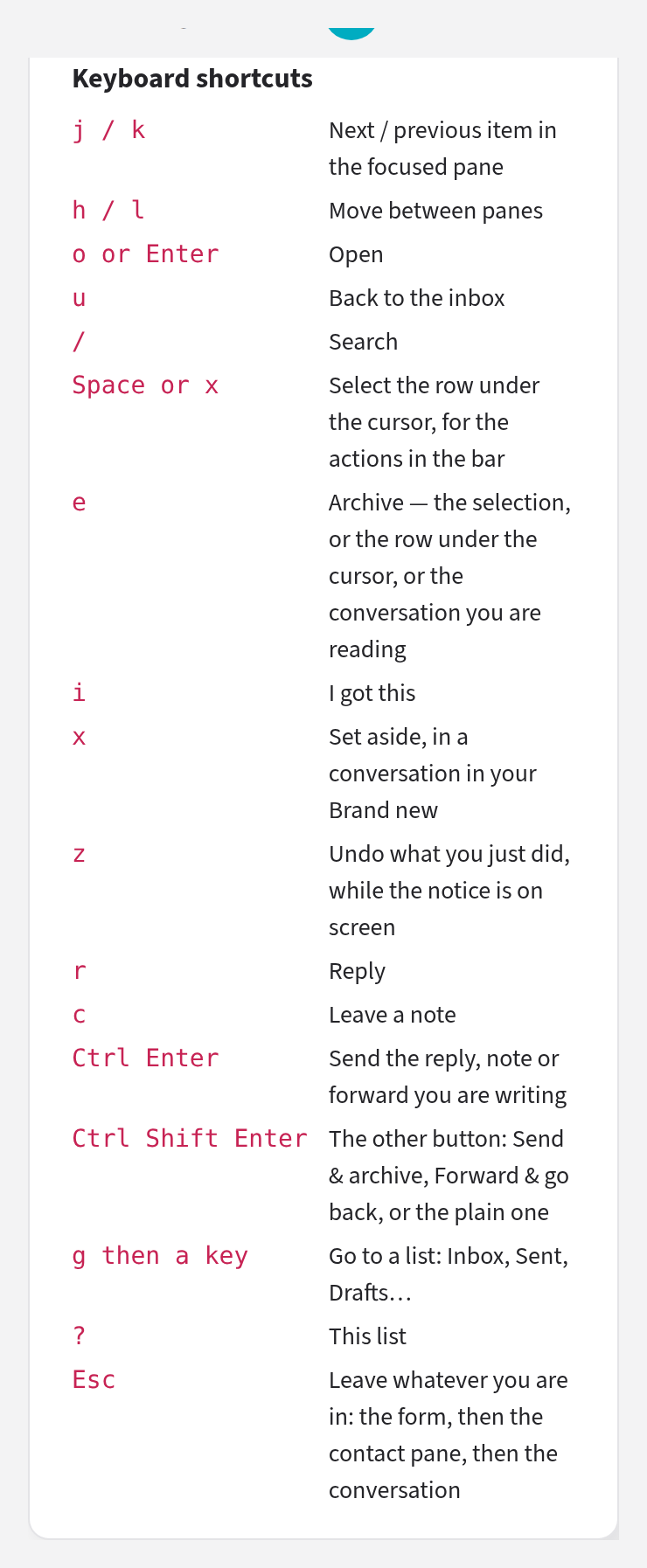
A few things are true of every shortcut here:
- They pause while you type. In a text box or the editor, a letter
types that letter, so pressing e in a reply types an
eand archives nothing. The send keys and Esc still work there. - Letters are lower-case. With Shift or Caps Lock on, the letter keys do nothing. Buttons show their key as a capital, such as Archive E, but it's the plain letter you press.
- This page writes ⌘, the Mac key. On Windows or Linux, press Ctrl instead.
- A key only does what its button can. If a button isn't on the screen, its key does nothing. For example, i does nothing on a conversation somebody already has.
A quick way through Brand new
Press j to move to the next conversation, o to open it, i to take it, then r to reply. When you're done, Esc brings you back to the list with the highlight where you left it, ready for the next j. If you press e to archive instead, Jelly takes you to the inbox.
Moving around
| Key | What it does |
|---|---|
| j / k | Next / previous item: a conversation in the list, a message or note in the conversation, or a view in the left column |
| h / l | Move to the pane on the left or right |
| o or Enter | Open the highlighted conversation or view. In a conversation, unfold the highlighted message or note, or fold it again |
| Space | In a conversation, unfold the highlighted message or note. If it is already open, scroll down |
| u | From a conversation, go to the inbox |
| Esc | Close the conversation and go back to the list you opened it from |
| / | Go to the search field, on any page |
| g, then a key | Go to a list, such as g s for Sent (see Going to a list) |
Nothing is highlighted until you press j or k, and the first press highlights the first item. When you open a conversation and come back, the highlight is on the row you opened.
In a conversation, j and k also stop on Show earlier messages when older messages are hidden. Press Enter there to show them. The highlight moves to the first one.
From a conversation, l moves into the conversation sidebar. There, j and k move through that person's other conversations, and o opens one.
/ selects any search already in the field, so what you type replaces it.
Taking, archiving and setting aside
These keys act on the highlighted row in a list. If no row is highlighted, they act on the conversation you're reading.
| Key | What it does |
|---|---|
| i | I got this: take the conversation. It works when the conversation is in the inbox and nobody has it yet |
| e | Archive |
| x | In an open conversation in your Brand new: Set aside. In a list, it ticks the row (see below) |
| z | Undo your last action, while its notice is still on screen |
When you archive from a list, the row leaves and the highlight moves to the next one, so you can press e again and again to clear rows one after another. When you archive or set aside a conversation you have open, Jelly takes you to the inbox, and the notice there has an Undo.
z also takes back a reply while its Sending… notice is showing. Once a notice has gone, z does nothing.
Selecting several conversations
| Key | What it does |
|---|---|
| x or Space | Tick or untick the highlighted row |
| e | Archive every ticked row |
| Esc | Clear the selection |
e is the only key that acts on all the ticked rows. The other actions for them are in the bar that appears above the list, and i still acts on the highlighted row only.
Writing and sending
| Key | What it does |
|---|---|
| r | Open the reply and put the cursor in it |
| c | Open a note to your team and put the cursor in it |
| ⌘Enter | Send what you're writing: a reply, a note, a forward or a new message |
| ⌘⇧Enter | Press the other send button under a reply or a forward |
| Enter | A new line. Press it again on the empty line to start a new paragraph |
| @ | In a note, mention someone. Use ↑ and ↓ to choose, and Enter or Tab to pick |
A reply has two send buttons, Send and Send & archive, and so does a forward: Forward and Forward & go back. ⌘Enter presses the first one and ⌘⇧Enter the second. You choose which comes first on your preferences, and each button shows its key.
⌘Enter also submits any other form your cursor is in, such as a field in Settings.
Formatting a reply or a note
| Key | What it does |
|---|---|
| ⌘B | Bold |
| ⌘I | Italic |
| ⌘U | Underline |
| ⌘⇧X | Strikethrough (on a Mac only) |
| ⌘K | Add a link |
| ⌘D | Code, within a line |
| ⌘⇧6 | Quote |
| ⌘⇧7 | Code block |
| ⌘⇧8 | Bulleted list |
| ⌘⇧9 | Numbered list |
| Tab / ⇧Tab | In a list or quote, indent / outdent |
| ⌘] / ⌘[ | Indent / outdent |
| ⌘/ | Remove formatting |
| ⌘Z | Undo typing |
| ⌘⇧Z | Redo |
You can also start a list as you type: * (a star and a space) at
the start of a line starts a bulleted list, and 1. a numbered one.
Menus
- In a long menu, such as Assign on a large team, type to filter it. Enter picks the first match.
- In a long drop-down list in a form, type to search, use ↑ and ↓ to move, and Enter to pick.
- While you're renaming something in place, such as a conversation's subject, Esc cancels.
Getting out with Esc
Esc steps out one level each time you press it. Depending on what's open, it closes a menu, the form you're writing in, the conversation sidebar or the selection. When nothing else is open, it closes the conversation and takes you back to the list you came from.
Pressing Esc while you're writing a reply or a note folds the form away without losing your words. Press r or c to carry on.
Going to a list
Press g and a small Go to… panel opens. Press one more key to go to that list:
| Keys | Goes to |
|---|---|
| g i | Inbox |
| g s | Sent |
| g f | Scheduled |
| g a | All mail |
| g d | Drafts |
| g b | My Bookmarks |
| g z | Snoozed |
| g t | Trash |
| g ! | Spam |
Esc, any other key, or a click elsewhere closes the panel without going anywhere. The keys for Scheduled and My Bookmarks work even when those lists are empty and missing from the left column.