
Writing to support
When you're stuck, or something isn't working, you can write to Jelly's support from inside Jelly and read their answers in the same place. Anyone on your team can do this, whatever their role.
If your problem is one message that arrived looking wrong, it's quicker to report it from the message.
On a self-hosted Jelly, you can write to support once it's connected to Jelly's services. Until then, the Support page has no form to write in.
Writing a request
- Open Support from the account menu (your picture, top right), or from the Help menu.
- Under Having problems?, start with a one-line summary, which becomes the request's name. Then say what you were doing, what went wrong, and the address of the page it happened on. You can paste screenshots straight into the text, or add files with Attach.
- If support may need to look inside your Jelly to help, turn on Allow support to access our data. It's off unless you turn it on.
- Press Send to support.
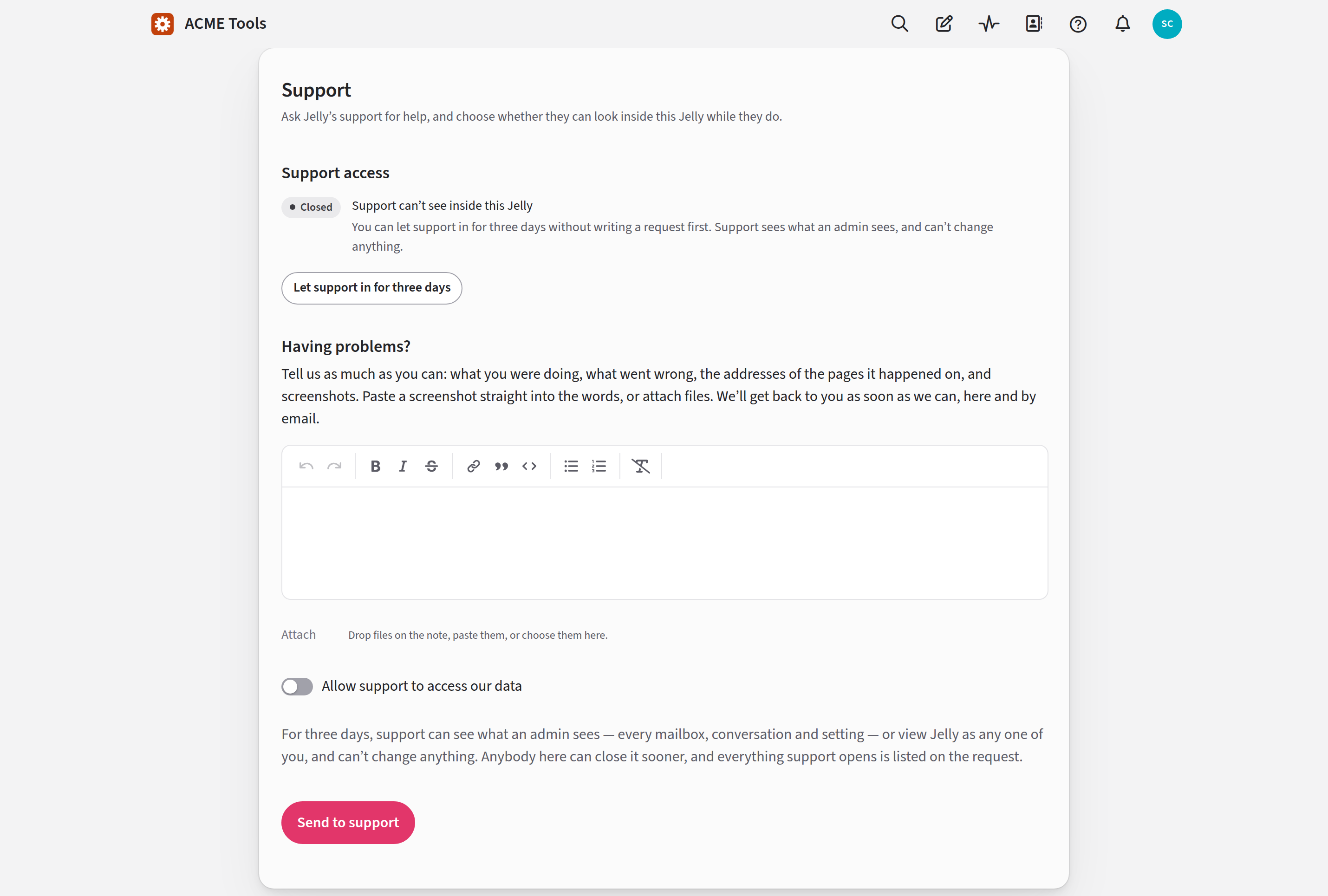
Jelly takes you to the request's own page.
Without the switch in step 3, support can read only what you wrote and the files you attached. With it, they can look around your Jelly for three days. Letting support in explains what they can see. If support access is already open, the page tells you so and the switch isn't shown.
Answers from support
Support's answers appear on the request's page, under what you wrote, and the person who wrote the request gets each one by email as well. To reply, write under Reply to Jelly's support and press Send to support. Anyone on your team can read the request and reply.
The Support page lists every request your team has written, with the open ones first. One marked Support answered is waiting for your team to write back.
If support finds they need to look inside your Jelly after all, they'll ask, and the request's page shows a button: Let support in for three days.
Closing a request
When you're done, press Close this request. Support may also close it with their last answer. Once a request is closed, support can no longer read it. If the problem comes back, press Write to support and mention the earlier request.
Closing a request doesn't close support access. If you let support in with the request, they can still look around until the three days are up. To end that sooner, press Close support access on the Support page.
What Jelly's own systems are told
When your team writes a request, Jelly's support systems are told that it exists and who wrote it. They aren't sent what you wrote: support reads the request from your Jelly when they open it.