
Availability
When you're on holiday or off sick, customers keep replying to the conversations you were handling. Normally your colleagues would leave those alone, because they're yours. Setting your availability tells the team you're away, and puts new mail on your conversations in front of the people who are in.
Setting your availability
Click your picture at the top right to open the account menu, click Availability, and choose one of the four options.
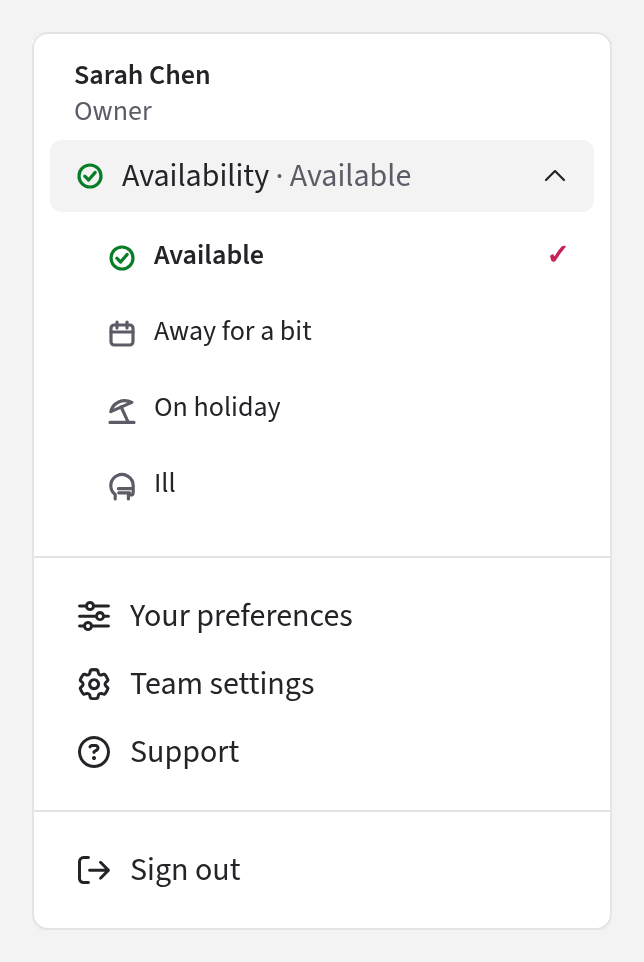
| Choice | Meaning |
|---|---|
| Available | Here and working. This is where everyone starts. |
| Away for a bit | Stepped out, back today. |
| On holiday | Away for a while. |
| Ill | Not working. Your Preferences page calls this Off sick. |
The three away choices all work the same way. The only difference is what they tell your colleagues.
You can also set it on your Preferences page, under Availability. See Your preferences.
What happens while you're away
Usually, a conversation assigned to you sits in your Mine section, and in everyone else's Assigned to someone else, so they leave it to you. (See the four sections.)
While you're away, any of your conversations with mail a colleague hasn't read yet appears in that colleague's Brand new section instead, where they'll notice it. That happens as soon as you mark yourself away, for anything already unread, and for new mail as it arrives. Once a colleague has read it, it goes back to their Assigned to someone else.
Two things can keep a conversation out of a colleague's Brand new:
- If the conversation is assigned to several people and one of them is available, nothing changes. It only moves when everyone assigned is away.
- A colleague who has set the conversation aside doesn't see it there.
These conversations have no I got this button in Brand new, because somebody already has them. A colleague who wants to take one over uses Assign. See Brand new.
For you, nothing changes. You stay assigned, the conversations stay in your Mine, you still get your notifications, and people and rules can still assign conversations to you. So before a long absence, it's kinder to hand your open conversations over properly by reassigning them. See Assignment.
Where the team sees it
While you're away, your colleagues can tell in three places:
- a small badge on your picture, which says your status when they point at it;
- after your name in the Assign menu, for example "· on holiday";
- on the Members page, as a pill such as "Away · on holiday".
Setting a colleague's availability
If someone is off unexpectedly and didn't get the chance to say so, an Admin can mark them away. Go to Settings → Members, click the person's row, choose their availability from the menu in the row, and press Save. In this menu, Away for a bit is called Away, and Ill is Off sick.
The Owner and Admins can do this for Members and Admins. Nobody can set the Owner's availability for them, and you can't set your own here: use the account menu instead.