
Rules
Some mail always gets the same treatment. Billing questions go to Jane, receipts get filed, job applications go to the people hiring. A rule does that sorting for you, the moment the mail arrives, so nobody has to do it by hand.
Each rule has two halves: When a message matches something, Then do one or more things with it. A rule can label the conversation, assign it, archive it, mark it as spam, put it in a mailbox, forward it or send an automatic reply.
Admins make rules on Settings → Rules. Simple rules are on every plan. A few conditions and actions need Royal Jelly, and Rules on each plan lists them.
Making a rule
- Go to Settings → Rules and press Add a rule.
- Under When, choose the Field to look at, such as
Subject or From address, and type the words to look for in
Looking for. Capitals don't matter:
invoicealso findsInvoiceandINVOICE. - Under Then, choose what should happen. A rule can do several things at once.
- Press Add rule.
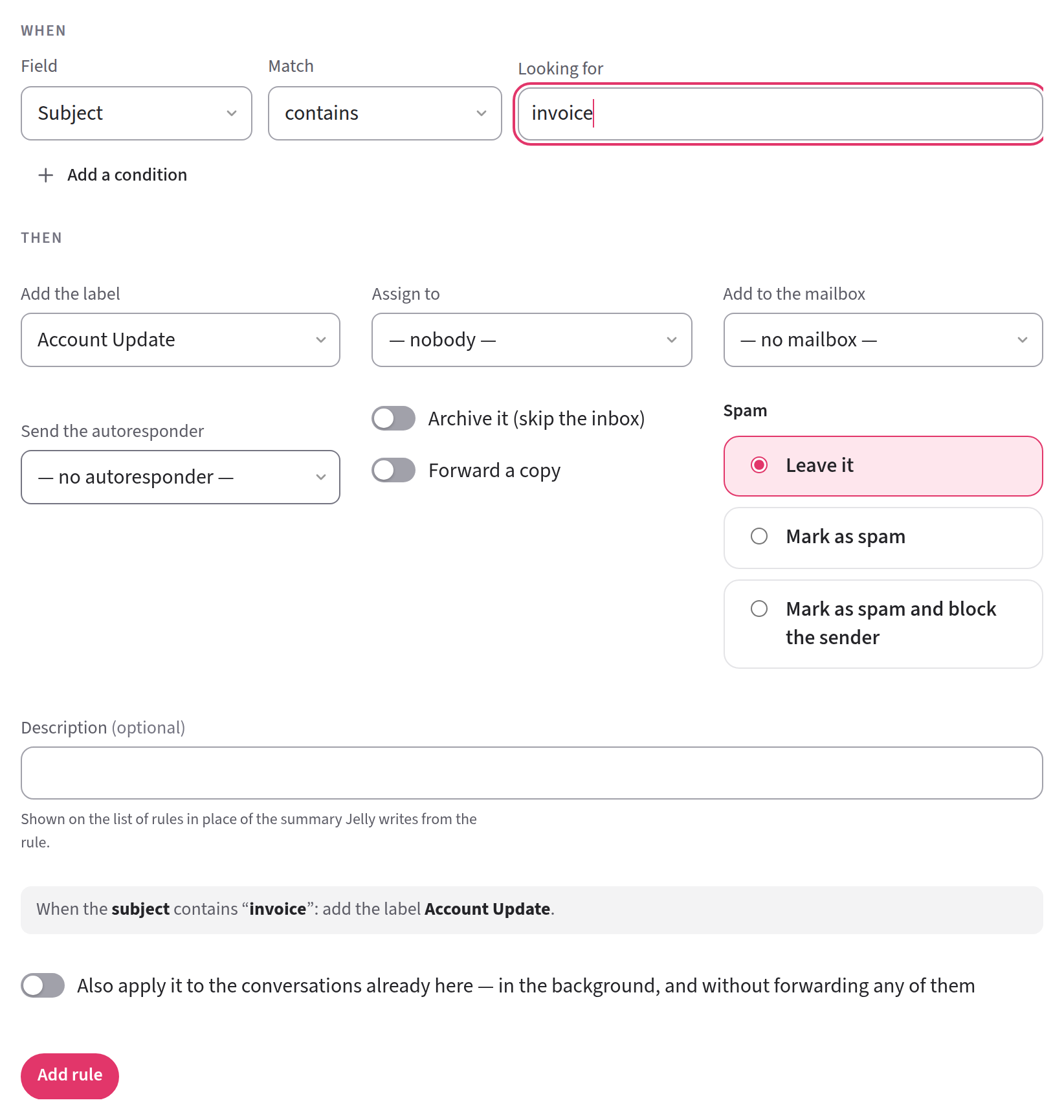
As you fill in the form, a sentence under it tells you in plain words what the rule will do. Once you've added it, the rule is on straight away and runs on every message that arrives from then on.
To catch mail sent to one of your team's addresses, such as
billing@, choose Received at as the field. The other two boxes
are replaced by Address, where you pick the address from a list.
Rules a small team might set up
Send billing questions to the person who does billing.
When Received at is billing@, Assign to Jane and Add the
label Billing. Jane finds them in her Mine section, already
labelled. If billing@ isn't in the Address list, use
Forwarding address contains billing@ instead.
File receipts without anyone reading them.
When From address contains stripe, Add the label Receipts
and tick Archive it (skip the inbox). The receipts never reach the
inbox, but they're kept and easy to find under the Receipts label.
Hear about your biggest customer. When From address contains their domain, Add the label VIP. Anyone who cares can then follow the VIP label, and hear about that customer's mail and nothing else.
Keep job applications to the people hiring (Royal Jelly).
When Received at is jobs@, Add to the mailbox Hiring, and
leave …and take it out of the default mailbox (a move, not a copy)
on. Only the people in the Hiring mailbox can see the
applications.
How rules run
Rules run on mail the team receives, never on mail the team sends.
Every rule that's on and matches a message runs. The first match doesn't stop the others, so if two rules both match, both do what they say. The one exception is the automatic reply: a message gets one at most, however many rules send one. Which one answers explains how Jelly chooses.
Applying a new rule to older mail
A new rule normally leaves the conversations already in Jelly alone. If you'd like it to sort those too, tick Also apply it to the conversations already here before you press Add rule. You can only do this when you first make the rule.
Jelly then works through the existing conversations, apart from those in Trash, and applies the rule once to each, going by its latest message from outside the team. It doesn't forward anything, send automatic replies or notify anyone. It can take a while, and if you switch the rule off or delete it in the meantime, Jelly stops.
Changing, switching off and deleting rules
The list on Settings → Rules shows each rule as a sentence, with its actions under it and a pill saying whether it's On or Off.
- To change a rule, click it, or open its ⋯ menu and choose Edit it. Make your changes and press Save.
- To switch a rule off, open its ⋯ menu and choose Turn off. Turn back on starts it again. There's a switch on the rule's own page too.
- To delete a rule, open its ⋯ menu and choose Delete rule…, then Delete the rule. You can't undo this.
All three only affect mail that arrives afterwards. Anything the rule has already done stays done.
Describing a rule
Jelly writes each rule's sentence in the list from the rule itself: "When the subject contains “invoice”", then the actions. That's always accurate, but a rule with a few conditions can read like a puzzle.
If you'd rather say it your own way, write a line in the rule's Description box, such as "Billing goes to the accounts desk". The list shows your description in place of the generated sentence. It doesn't change what the rule does. A description is one line of up to 200 characters, and emptying the box brings the generated sentence back.
The conditions
This is everything a rule can look at. The Field says which part of the message it checks:
| Field | What it looks at |
|---|---|
| From address | Who sent it: their address and their name |
| To address | Who it was written to |
| Cc/Bcc address | Who was copied. Blind copies can't be seen, so in practice this is Cc |
| Any address | From, To and Cc together |
| Forwarding address | Every address the message was delivered to, plus-tags included |
| Received at | Which of the team's addresses it came in on, picked from a list |
| Subject | The subject line |
| Body | The text of the message |
| Anywhere | All of the above |
| A field under This conversation’s fields | That field's value on the conversation |
| A field under The contact’s fields | That field's value on the contact who wrote |
The four address fields at the top look at the person's name as well
as their address, so From address contains stripe matches
Stripe <receipts@example.com>.
Received at and Forwarding address sound alike, but they do different jobs:
- Received at is the one team address the mail came in on, which is also the address your reply goes out from. Mail that names none of the team's addresses counts as arriving at the default address.
- Forwarding address searches every address the message was
delivered to. Use it to catch an alias, or a plus-tag (the part
after a
+in an address):+billing@matcheshello+billing@. On older mail it can only see the To and Cc lines.
Fields
If your team keeps fields on its conversations or contacts, they appear at the end of the Field list. That lets a rule say "when the plan is enterprise, assign it to Sarah". Fields are usually filled in by a program through the API, as it puts a message into Jelly or updates a contact.
Pick the field, then choose how to compare it in Match. Value offers whatever the field can hold: a choice's options, yes or no, a date.
- is and is not compare the whole value. Capitals don't matter, and is not also matches when the field has no value.
- contains looks for some words in the value.
- is set and is empty check whether the field has a value at all.
If a field is deleted later, a rule that looked at it matches nothing.
The actions
This is everything a rule can do. A rule needs at least one action. It can have several, but only one label and one person to assign.
- Add the label puts a label on the conversation.
- Assign to assigns one person. They get the usual notification, which says a rule assigned it. The rule skips this if the person has left the team or can't see the conversation's mailbox.
- Add to the mailbox (Royal Jelly) puts the conversation in a mailbox. It only appears once the team has more than one. With …and take it out of the default mailbox (a move, not a copy) on, as it is for a new rule, the conversation moves rather than being in both, and anyone assigned who can't see the new mailbox is unassigned.
- Set the field fills in one of the conversation's fields, if your team has any, with the value in To. Leave To empty to clear the field instead.
- Send the autoresponder (Royal Jelly) sends one of the team's autoresponders, which can be the default one. The autoresponder has to be switched on: one that's off is listed as "(off)", and a rule that sends it sends no automatic reply at all, not even the default.
- Archive it (skip the inbox) sends the conversation straight to Archived, and nobody is notified.
- Forward a copy (Royal Jelly) sends a copy to the address in Forward to. See Forwarding.
- Spam can be Leave it, Mark as spam, or Mark as spam and block the sender. Blocking sends that sender's future mail straight to Spam too. Nobody is notified about mail a rule marks as spam.
A rule never marks a contact's mail as spam, or blocks them, if someone has marked that contact Never spam. The rule's other actions still run.
A rule whose autoresponder has been switched off, emptied or deleted carries a Sends no autoresponse pill in the list. Its other actions still run. To fix it, edit the rule to choose another autoresponder, or switch the autoresponder back on.
Forwarding
A forwarded copy goes out from the address the mail arrived at, with "Fwd:" in front of the subject and the original attachments. If the person you forward to replies, their reply goes to the original sender, not to your team. The conversation's activity records it as "forwarded this to" the address.
There are two limits to know about:
- A rule doesn't forward mail that arrived at an address still marked Unverified on Settings → Addresses.
- A rule forwards at most 25 messages an hour to any one address. Past that, Jelly skips the forward and doesn't send it later. The rule's other actions still run.
Rules on each plan
Every plan can make a rule with one condition, and use the actions Add the label, Assign to, Archive it (skip the inbox), Set the field and Spam.
On the Jelly plan, the editor marks these actions "(on the Royal plan)".
If your team moves from Royal Jelly to Jelly, your rules are all kept. A rule that uses one of the Royal Jelly actions skips that action and still does its others. An advanced rule stops running altogether, and the list marks it Not running; change it to a single condition without a pattern and it runs again. If you move back to Royal Jelly, every rule runs as it did before.
Advanced rules
An advanced rule has more than one condition, or uses a pattern. Both are part of the Royal Jelly plan.
More than one condition
On the rule's form, press Add a condition and fill it in. Then, in Which must match, choose All of these conditions or Any one of them. Once a rule has two or more conditions, each has a × to remove it.
Patterns
When contains isn't precise enough, change a condition's Match
to matches the pattern and type a regular expression in Looking
for. For example, ^inv-\d{4,} on the Subject matches INV-2041 overdue but not Re: INV-2041.
A few things to know if you write regular expressions:
- Patterns ignore capitals, as contains does.
^and$match at the start and end of every line. On the Body,^order:finds any line that starts withOrder:.- A pattern can be up to 200 characters long.
- Patterns use RE2 syntax, which doesn't allow referring back to an
earlier group (
(ha)\1) or looking ahead or behind ((?=…),(?<=…)). The editor tells you if you've used one. - On an address field, a pattern sees each address on a line of its
own, written as
Name <address>when the person has a name. So^billing@won't matchBilling Team <billing@example.com>. Use<billing@, or leave out the^.