
How the inbox works
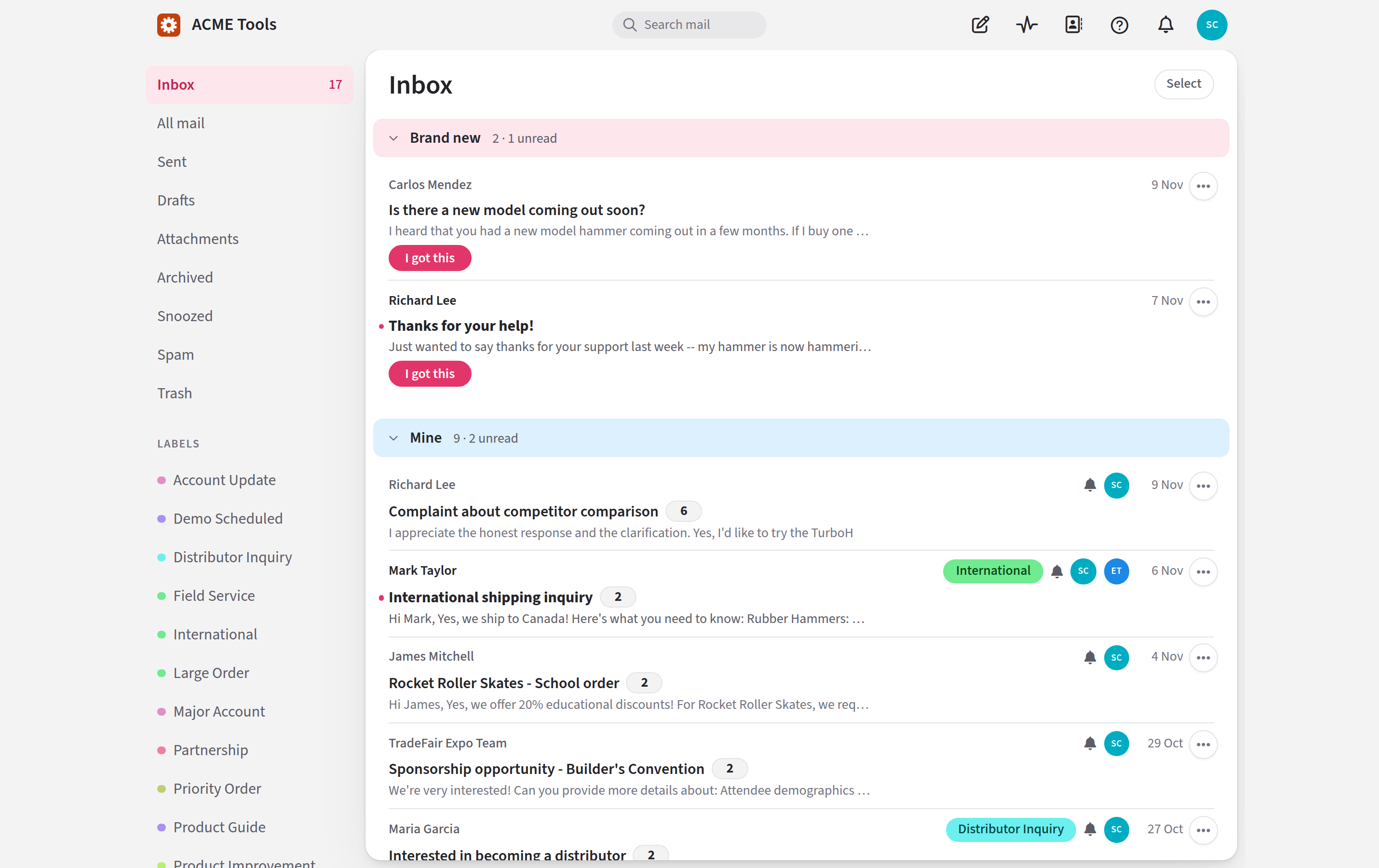
The inbox holds every conversation your team is still working on. The whole team shares it, and Jelly sorts it into four sections for each person, so you can see at a glance what nobody has picked up yet, what's yours, and what a colleague is handling.
The four sections
Everyone on the team sees the same conversations (unless your team keeps some in private mailboxes). What differs from person to person is which section each one is in.
| Section | What's in it |
|---|---|
| Brand new | Conversations nobody has taken yet |
| Mine | Conversations you're handling |
| Unassigned | Conversations you set aside, which nobody has taken yet |
| Assigned to someone else | Conversations a colleague is handling |
Each heading shows how many conversations the section holds and how many of those you haven't read, such as 12 · 3 unread. A section with nothing in it isn't shown. The What's this? line under each heading explains the section, and Got it × hides it once you no longer need it.
Here's how one conversation moves through the sections for two people, Carol and Dev:
- Somebody writes in. The conversation is in Brand new for both of them.
- Dev sets it aside, because it isn't for him. It moves to Dev's Unassigned. Carol still sees it in Brand new.
- Carol presses I got this. It moves to Carol's Mine, and to Dev's Assigned to someone else.
- Later, Carol lets go of it. It's back in Carol's Brand new, and in Dev's Unassigned, because he had set it aside.
Reading a conversation never changes its section. Only taking it, assigning it or setting it aside does.
Brand new
These are the conversations nobody has taken yet, so this is the section to look at first. A conversation stays here, for you and everyone else, until somebody takes it or you set it aside. For each one, you can:
- take it with I got this, on the row itself;
- give it to a colleague with Assign, in the row's ⋯ menu (see assignment);
- move it out of your way with Set aside (for me), in the same menu (see setting aside).
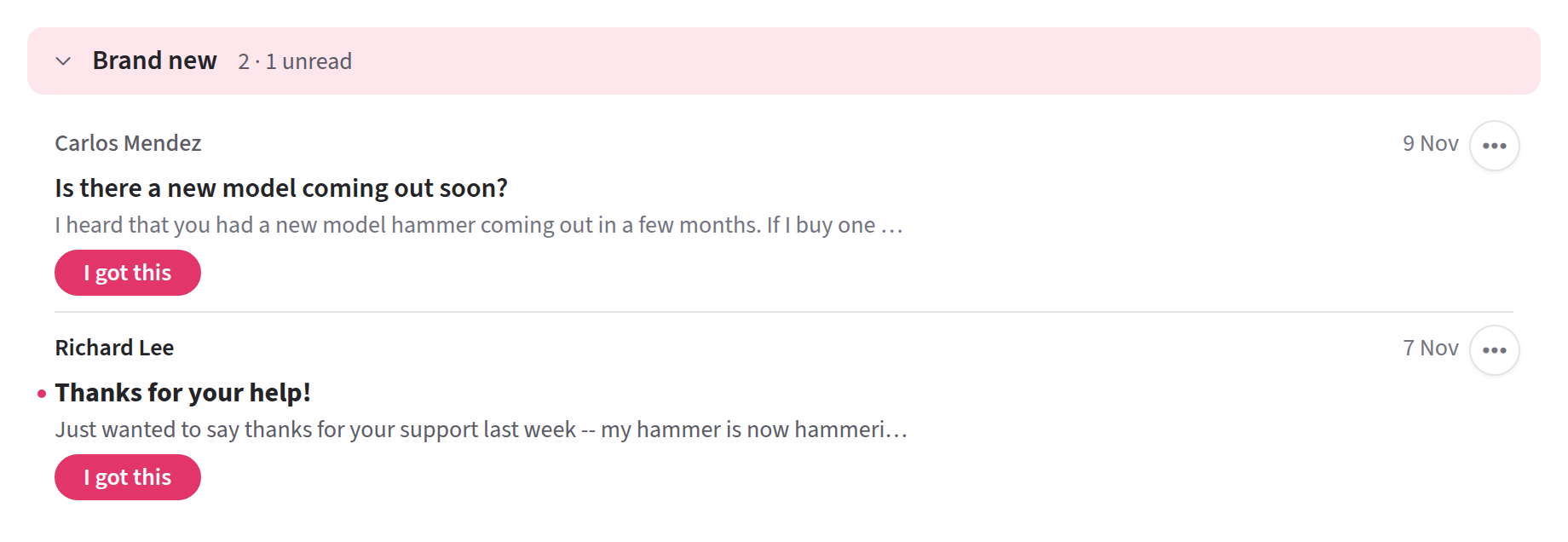
One other kind of conversation turns up here. If everyone assigned to a conversation is away and there's something on it you haven't read, it appears in your Brand new so that it isn't missed. It has no I got this button, because somebody already has it; use the Assign menu if you want to take it on. Once you've read it, it goes back to Assigned to someone else.
Mine
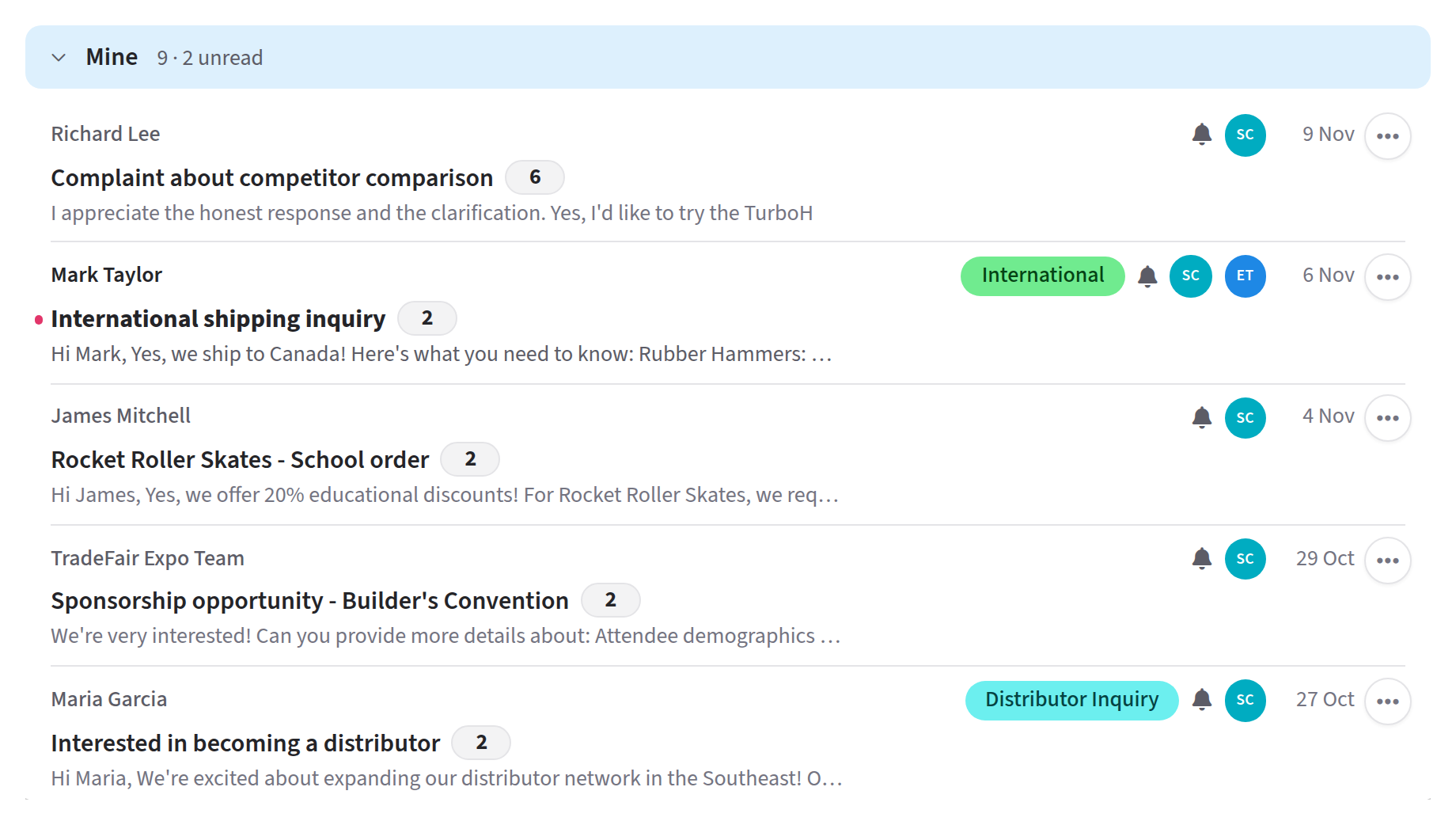
These are the conversations you're handling. A conversation lands here when you press I got this, when you reply to it or start it yourself, or when a colleague or a rule assigns it to you.
Several people can be assigned to one conversation. It's then in Mine for each of them.
Unassigned
These are the conversations you've set aside because they aren't for you. Nobody has taken them yet, so your colleagues still see them in their Brand new.
Only conversations you set aside are here. One that nobody has taken and you haven't set aside is in Brand new, even though the button at the top of it says Unassigned.
A conversation stays here, even when new mail arrives on it, until somebody takes it or you choose Put back in Brand new. If one sits here for a long time, nobody on the team has picked it up, and it's worth asking whose it should be.
Assigned to someone else
These are the conversations a colleague is handling. They aren't yours to deal with, but you can still read them, add a note and follow them. If you reply to one, you're assigned alongside your colleague.
Acting on a conversation from the list
You don't have to open a conversation to act on it. I got this is on every row nobody has taken, and everything else is in the ⋯ menu at the end of the row: Assign, Archive, Label, Snooze, Follow, Copy link, Report spam, Delete and more.
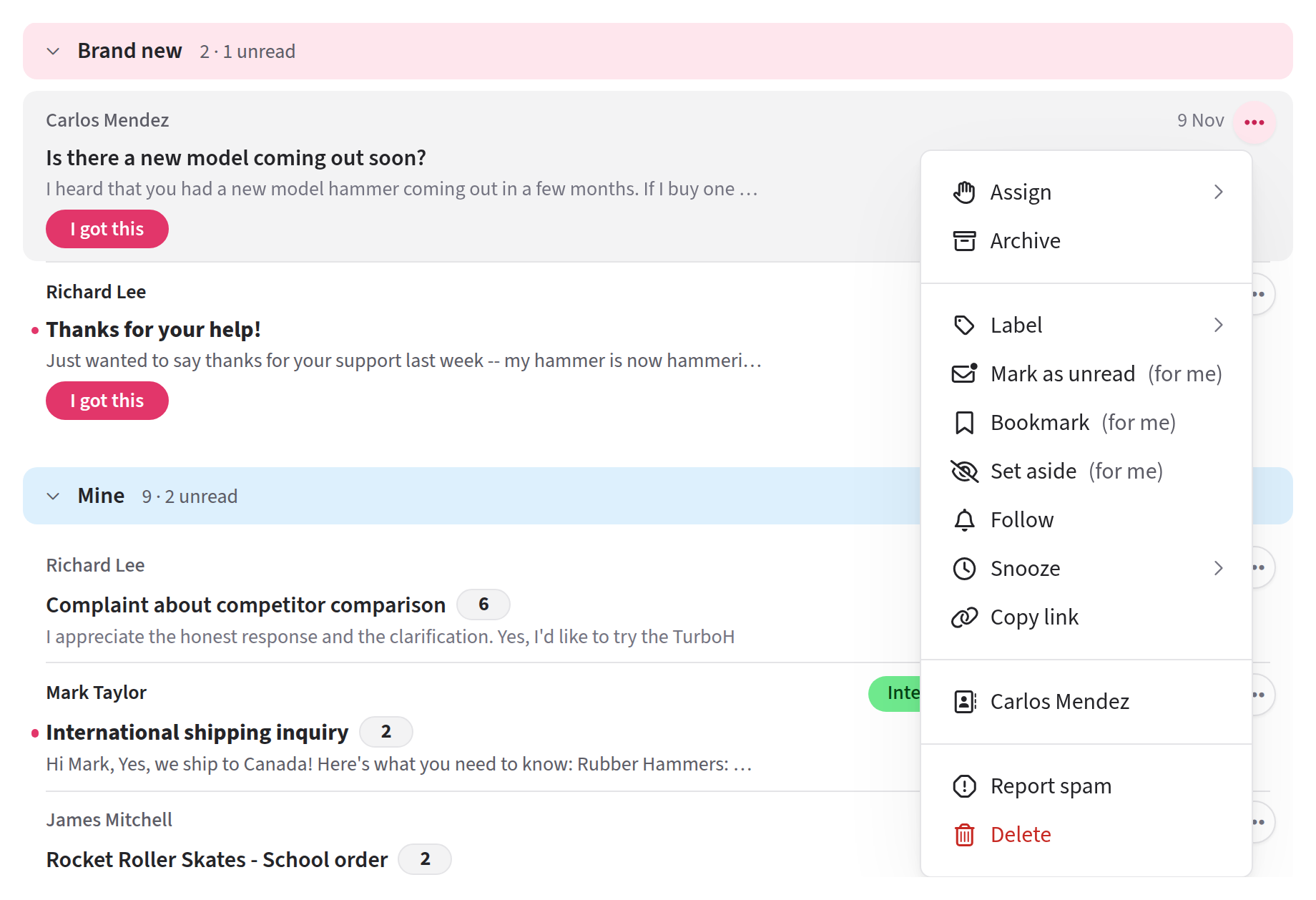
Items marked (for me) change only your own view. Everything else changes the conversation for the team: see who sees what you do.
To act on several conversations together, tick them. See doing several at once.
From the keyboard, j and k move between rows, o or Enter opens one, i takes it and e archives it. Press ? to see every shortcut, or read keyboard shortcuts.
Read and unread
Unread rows are in bold, with a dot at their left. Read and unread are personal: opening a conversation marks it read for you and changes nothing for your colleagues, and the unread counts on the headings are your own.
A conversation becomes unread again when a new message arrives on it: for everyone when it's from outside the team, and for everyone else when a colleague replies. Notes don't make a conversation unread, and neither do automatic messages such as out-of-office replies and bounces, or mail from somebody you've blocked.
Folding a section
Click a section's heading to fold it shut, and click it again to open it. This only affects your own view, on the browser you're using.
Brand new opens itself again when something new arrives in it. The other sections stay folded until you open them.
When a section gets long
A section shows its 25 most recently active conversations. Below them, Show all gives the full count, such as Show all 180, and opens the complete list a page at a time.
That list includes archived conversations as well as open ones. So Show all from Mine is everything you're still assigned to, finished or not.
When a conversation leaves the inbox
A conversation leaves the inbox, for the whole team, when somebody archives it, snoozes it, deletes it or reports it as spam. See archiving, spam and trash and snoozing.
An archived or snoozed conversation comes back by itself when somebody outside the team writes in again.
The other views
The column on the left lists the inbox and the other ways to look at your team's mail. The number beside Inbox counts every conversation in it, not only the unread ones.
| View | What's in it |
|---|---|
| All mail | Everything except spam and trash: in the inbox, archived or snoozed |
| Sent | Conversations anyone on the team has sent a message in |
| Drafts | The whole team's replies and new messages that haven't been sent yet |
| Scheduled | Messages waiting to send later. Shown only while there are some |
| My Bookmarks | Your own shortlist. Shown once you've bookmarked something |
| Attachments | Every file in your team's mail |
| Archived | Finished conversations |
| Snoozed | Conversations waiting for their time to come back |
| Spam, Trash | Conversations reported as spam, or deleted |
If you can see more than one mailbox, a Mailboxes list follows, so you can look at the inbox for one mailbox at a time. Your team's labels are listed at the bottom.
Activity and Contacts have pages of their own. On a computer, they're at the top of the screen.