
Webhooks
A webhook tells another system when something happens in Jelly, as it happens: new mail, an assignment, a label, a note, an archive, a bounce, a change to a contact. Jelly sends the details to a web address you choose, so your system doesn't have to keep asking the API for news.
Adding a webhook
Admins and the Owner set up webhooks. A team can have several, each with its own address and events.
- Go to Settings → Webhooks and open Add a webhook.
- Type the URL to send to. It must start with
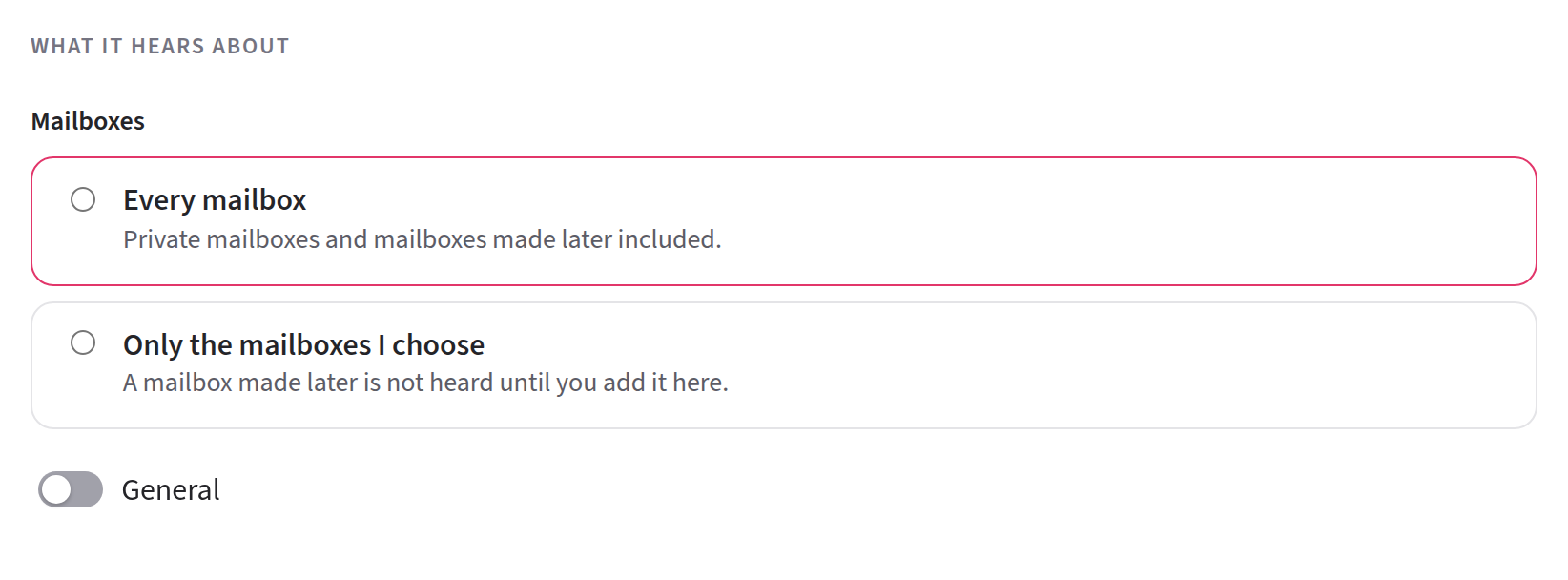
https://. - Under What it hears about, choose Every mailbox, or Only the mailboxes I choose and tick them. Jelly makes you choose each time, so a webhook never hears a private mailbox by accident.
- Under Send these events, tick at least one. They're in groups: Conversations, Messages, Notes, Contacts and Delivery. The switch beside a group's name ticks or unticks every event in it.
- If your system needs a username and password, fill in Basic auth username and Basic auth password.
- Press Add webhook.
Jelly opens the webhook's page and shows its signing secret, which your system uses to check that each request really came from Jelly. Press Copy and give it to your system straight away, because Jelly shows it only this once. If you lose it, press New signing secret on the webhook's page.
Send a test
To check a webhook, open its page and press Send a test. Jelly
sends a ping event at once, signed like any other, and tells you what
your system answered: Test delivered, with the answer's status
code, or why the test didn't land. The test appears at the top of
Recent deliveries. You can send a test while the webhook is off, to
check your system before you turn it back on.
The events
There's an event for everything that happens to a conversation, a
message, a note or a contact: Message received, Message sent,
Assigned, Label added, Archived, Snoozed, Note
added, Delivery changed (a bounce, for example), Contact
updated and more. Under each one on the settings page is its name in
the API's change feed, such as
conversation.archived. That's also the name your system receives.
Jelly sends nothing for spam, for mail from a blocked sender, or for old mail it brings in when you first connect your email. It also sends nothing while your team is paused.
The API reference describes what each
request contains, its headers, and how to check the signature. Every
request carries seq, its place in the change feed.
Older event names
Webhooks made before the full list of events used five names: New message, Assigned, Note added, Conversation archived and Conversation unarchived. A webhook subscribed to one of them keeps getting it, in the same form as before. On the settings page, the events each old name stands for are ticked, and a line under the events says the webhook is also sent the old name. Saving the page keeps the old name for as long as all of those events stay ticked. The old names stop on 22 October 2027 (see the API changelog).
What it hears about
A webhook hears about every mailbox, or only the mailboxes you choose. One limited to some mailboxes gets nothing about a conversation in any other mailbox, so a private mailbox stays private. If a conversation moves out of its mailboxes, the webhook is told that it moved, and nothing else about it. Contacts belong to the whole team, so contact events go to every webhook that asks for them.
On the settings page, What it hears about offers only the mailboxes you can see yourself. If a webhook hears a private mailbox you aren't in, its page tells you how many such mailboxes there are, without naming them, and saving the page keeps them.
Webhooks made before you could choose mailboxes hear every mailbox until you change them.
Changing a webhook
On Settings → Webhooks, open a webhook's menu:
- Edit it changes its URL, the mailboxes it hears about, its events and its basic auth. Leave the password empty to keep the one already saved, or tick Forget the basic auth credentials to remove them.
- Turn off stops sending. Turn back on starts it again.
- Remove webhook…, then Delete the webhook, deletes it along with its log of deliveries. There's no undo. If you add the same URL again, it gets a new signing secret.
New signing secret, on the webhook's page, replaces the secret at once and shows the new one, once, with Copy. Update your system straight away, because every request after that is signed with the new one.
Delivery
The list of webhooks shows each one as Active, Off or
Switched off after failures. Each webhook's page lists its ten
most recent deliveries, and whether each was Delivered, Will
retry, Gave up or Failed. Each delivery also shows its seq,
its place in the change feed, so you can tell your system where to
catch up from. Jelly keeps a record of every delivery for 30 days.
A delivery succeeds when your system answers with a success code (2xx) within ten seconds. Anything else is a failure, and Jelly tries again for up to 48 hours. Two things count as failures that you might not expect:
- A redirect. Jelly doesn't follow one, so give the URL your system actually answers on.
- A private address. Jelly sends webhooks only to the public internet. If the URL's name points at an address on a private, local or internal network, the delivery isn't sent and shows the address is private. It's tried again like any other failure, so it goes through once the name is put right.
Your system may receive the same delivery more than once, and events may arrive out of order. The API reference explains how to handle both, and lists the retry times.
When deliveries keep failing
When Jelly gives up on a delivery, it emails the team's Admins and the Owner, at most once a day for each webhook. The webhook stays on.
After ten deliveries given up in a row within a day, Jelly switches the webhook off and emails the Admins and the Owner again. One action that changes many conversations, such as archiving ten at once, counts as one.
While a webhook is off, whether you turned it off or Jelly did, nothing is sent to it. Deliveries waiting to be tried again are dropped, and events that happen in the meantime are never sent. Fix the problem, then press Turn back on.
Catching up on what was missed
Try again, beside a delivery that failed, sends it again at once:
the same request, signed again, with the same X-Jelly-Delivery, so
your system can tell it's a repeat. Jelly tells you whether it landed.
A delivery can be tried again for 30 days.
For events that were never sent, read the API's change
feed from the last seq your system
handled.
Receivers on your own network
On a Jelly you run yourself, a webhook may need to reach a system on
the same private network as Jelly. Whoever runs the instance can allow
that by naming those networks in the JAM_WEBHOOK_PRIVATE_NETWORKS
setting, separated by spaces, and restarting Jelly:
JAM_WEBHOOK_PRIVATE_NETWORKS="10.20.0.0/16 192.168.1.5"
Webhooks may then be sent to addresses in those networks, and to no other private address. A team can't change this from Settings, and on Jelly's own hosting it's never set.
Managing webhooks through the API
A team token that may change the team's settings can list, add, change and remove webhooks, send a test, see the deliveries, and send a delivery again. A token that sees only some mailboxes can manage webhooks only for those mailboxes. The signing secret is shown only when the webhook is made and when it's replaced. See Webhooks in the API reference.
If your team leaves Royal Jelly
Your webhooks are kept, but Jelly sends nothing to them, and the list shows Not sending. Deliveries waiting to be tried again are dropped, and events from that time are never sent. Sending starts again when your team is back on Royal Jelly.