
Assignment
In a shared inbox, the question that matters most is "who's dealing with this?" Assigning a conversation answers it. Once a conversation has somebody's name on it, everyone else can stop worrying about it, and nobody answers the same person twice.
Anyone on the team can take a conversation, assign it to a colleague, or take a colleague off it. A conversation can be assigned to one person or to several.
Taking a conversation with I got this
When a conversation is yours to deal with, press I got this. It's on the conversation's row in the inbox, so you can take it without opening it, and at the top of the conversation itself. You can also press i.
On a phone, tap the button at the top of the conversation that says Unassigned, and choose I got this in its menu.
Taking a conversation moves it to your Mine section, and to Assigned to someone else for the rest of the team. Your picture appears on it, and you start following it, so you hear about new messages and notes.
I got this is only there while nobody has the conversation. If a colleague takes it a moment before you do, Jelly tells you who has it and changes nothing. To join them, use the Assign menu.
If you took one by mistake, let go of it. When you take a conversation from the list, the Yours now notice also has an Undo.
Replying or starting a conversation also assigns you
When you send a reply, Jelly puts your name on the conversation. If a colleague already has it, you're added beside them. A conversation you start with New message is yours as soon as you send it.
Undoing the send doesn't take your name off again. If you didn't mean to take the conversation on, let go of it.
A reply you schedule with Send later assigns you when it goes out, not when you schedule it.
The Assign menu
The button at the top of a conversation shows who has it, or says Unassigned when nobody does. Click it to open the Assign menu. The same menu is under Assign in the ⋯ menu on the conversation's row.
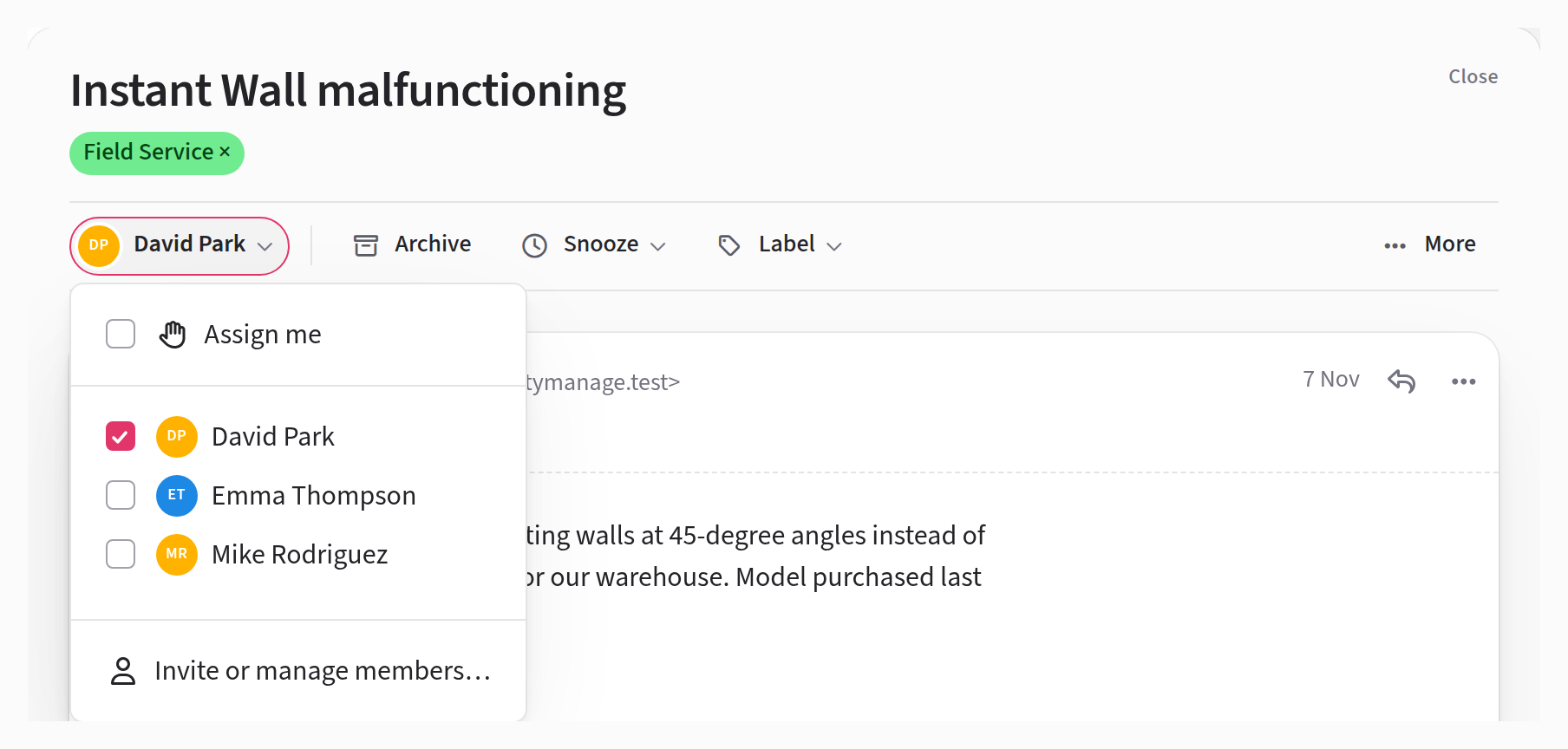
You're first in the menu. Your line reads I got this when nobody has the conversation, Assign me when a colleague has it, and Unassign me when you have it. Your colleagues follow, with a tick beside anyone already assigned. If somebody is away, their availability shows after their name. With more than ten people on the team, you can type in Filter people… to find someone.
Assigning a colleague
Open the Assign menu and click your colleague's name. The menu closes and the conversation moves to their Mine section. To assign several people in one go, click the tick box beside each name instead; the menu stays open while you choose.
Jelly notifies the person you assigned, and they start following the conversation. If you picked the wrong person, click their ticked name to take them off again, though they'll already have been notified.
The menu only lists people who can see the conversation's mailbox, so if somebody is missing, that's why.
Taking a colleague off
Open the Assign menu and click the colleague's ticked name. Anyone else assigned stays assigned. Jelly doesn't notify the person you took off, but the conversation's activity records it, as it records who assigned whom.
To hand a conversation from one person to another, assign the second person first, then take the first one off. That way it never drops back into the team's Brand new in between.
Letting go
To take yourself off a conversation, open the Assign menu and choose Unassign me.
If nobody else is assigned, the conversation goes back to Brand new for the whole team, you included, so somebody else can pick it up. (For anyone who had set it aside, it goes back to their Unassigned instead.)
You keep following the conversation after you let go. To stop hearing about it, choose Stop following in the conversation's More menu.
If you're going away rather than handing work on, set your availability instead. You stay assigned, and new messages on your conversations show up in your colleagues' Brand new while you're away.
Working on one together
When two people really are working on a conversation together, assign both. It's in Mine for each of them, both their pictures show on it, and either one can let go without affecting the other.
Rules can assign
A rule can assign incoming mail to somebody
automatically: everything sent to billing@ to the person who does
billing, for example. That person is notified, the same as when a
colleague assigns them.
When someone leaves the team
Somebody who has been removed from the team no longer counts as assigned. Any conversation that was theirs alone goes back to Brand new, ready for somebody else to take.