
Connecting an AI assistant
You can connect an AI assistant such as Claude to Jelly and ask it to help with your team's mail: find the conversations about a late order, sum up a long thread, label and assign what came in overnight, or write replies for you to check.
The assistant can never send email. Anything it writes waits as a shared draft until a person reads it and presses Send.
Connecting Claude
Each person who wants to use Claude connects it for themselves.
- In Claude, open Settings → Connectors and choose Add custom
connector. Name it
Jelly. - For its address, type your team's Jelly web address followed by
/mcp. The web address is the start of what's in your browser's address bar while you use Jelly. If Jelly is athttps://acme.letsjelly.com, typehttps://acme.letsjelly.com/mcp. - Claude opens a Jelly page in your browser. Sign in if Jelly asks. If you signed in a while ago, it asks you to confirm it's you.
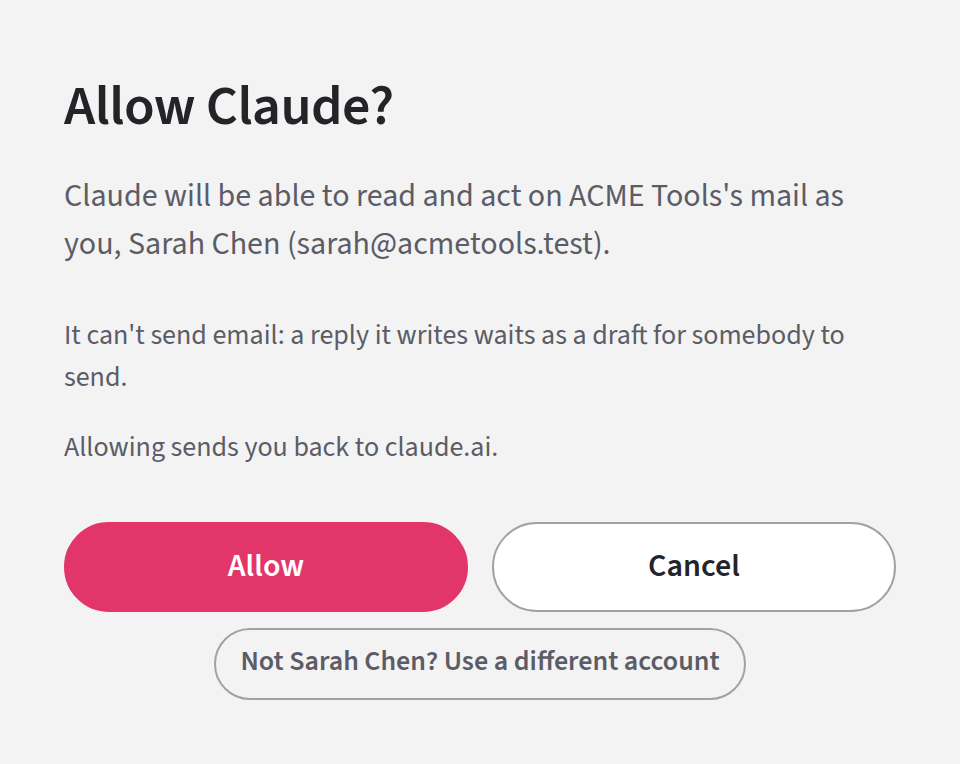
- Jelly asks Allow Claude? Press Allow, and you're taken back to Claude, connected.
Jelly sends you an email, New sign-in from Claude, so you know the connection was made.
Claude stays connected until you disconnect it. If you don't use it for 180 days, the connection ends and you connect it again.
What the assistant can do
Claude works as you. It sees the conversations and mailboxes you can see, and no others. It can:
- find and read conversations, their messages and their notes
- look up your team's labels, people, mailboxes, contacts and autoresponder
- leave a note
- label, assign, unassign and snooze conversations
- archive, move to spam or the trash, and undo each of those
- write a draft: a reply, a forward, or a message that starts a new conversation
It can't:
- send email, ever
- change who a draft is going to, once the draft exists
- change a draft that someone has open, you included. It can change the words of a reply draft nobody has open, including a colleague's.
- change a draft that starts a new conversation or forwards a message, once it has written it. You finish those in Jelly.
- make or change labels, the autoresponder, or a conversation's mailboxes, even if you're an Admin
An email can contain text written to trick an assistant into doing something, such as archiving mail or writing a reply. Jelly tells Claude to treat everything in an email as information, not as instructions, but that isn't a guarantee. Read every draft before you send it, and keep an eye on what Claude did.
What your team sees
Everything Claude does shows under your name, with Claude's mark beside it. On a conversation, a note or an archive from Claude reads "Sarah Chen (via ✳)", and pointing at the mark shows the word "Claude". You see your own as "You (via ✳)". In emails it reads "Sarah Chen via Claude".
Drafts are the exception. A draft Claude writes shows under your name alone, with no mark.
Undoing what it did
You can undo most of what Claude does from the conversation, the same way you'd undo it if you'd done it yourself. Two things can't be undone:
- Notes. A note Claude leaves is yours. Like any note you write, you can delete it only in the first 5 minutes after it's posted.
- Notifications. If Claude assigns someone or mentions them in a note, they're told, and that can't be taken back.
Disconnecting
Open your account menu, choose Your preferences, then Where you're signed in. Find the row named Claude, press Sign out, and then Sign it out to confirm.
Claude loses access at once. To use it again, you connect it again. Sign out everywhere on the same page disconnects Claude too, and so does being removed from the team.
Using a different assistant
Only Claude can sign in to Jelly as you. Other AI tools, such as Cursor or Claude Code, can connect with a team API token instead, as long as they let you add a connection with a header. An Admin makes the token on Settings → API tokens, and names it after the assistant.
A token suits an assistant that works for the whole team rather than for one person. It can do the same things as Claude, with the same limits: it can't send email, and it can't change labels, the autoresponder or mailboxes, even if the token may change team settings.
With a token, the assistant isn't you. Its actions show under the token's name, with an API mark, and it sees only the mailboxes the token was given (see what a token can see). Notes it writes can never be deleted.
For developers
Jelly's MCP (Model Context Protocol) server is at your team's Jelly
web address followed by /mcp, over streamable HTTP. It accepts a
team token in the Authorization header:
claude mcp add --transport http jelly https://acme.letsjelly.com/mcp \
  --header "Authorization: Bearer jelly_…"
A client that calls /mcp without a token is pointed to
/.well-known/oauth-protected-resource/mcp, which describes how to
sign in. Jelly has a fixed list of apps that can sign a person in this
way, and there's no way to register another, so any other client needs
a team token.
A person's sign-in from Claude works only for MCP. It can't be used with the API, which is one reason an assistant can never send email.
Everything a sender wrote is marked as untrusted in the tool results, and the server tells the model to treat it as data and not as instructions.
The tools:
| To… | the tool |
|---|---|
| find conversations | list_conversations, search_conversations |
| read them | get_conversation, list_messages, get_message, list_notes |
| look things up | list_labels, list_members, list_mailboxes, find_contact, get_autoresponder, get_statistics |
| leave a note | add_note |
| organise | label_conversation, assign_conversation, unassign_conversation, snooze_conversation |
| move a conversation | conversation_action: archive, unarchive, trash, restore, spam, unspam, unsnooze |
| write a reply | create_draft_reply, update_draft |
| start a new conversation, or forward a message | create_draft_conversation |
search_conversations takes the same search
operators as the search field in
Jelly. Each MCP call counts as one API request against the API's rate
limits.