
Changelog
What’s new in Jelly
New features and changes to how Jelly works, newest first. Follow along with the feed.
New: Forwarding
This one has been a long time coming: Now you can forward an email to someone else, right from Jelly! You can find the option from the ••• actions menu on a message.
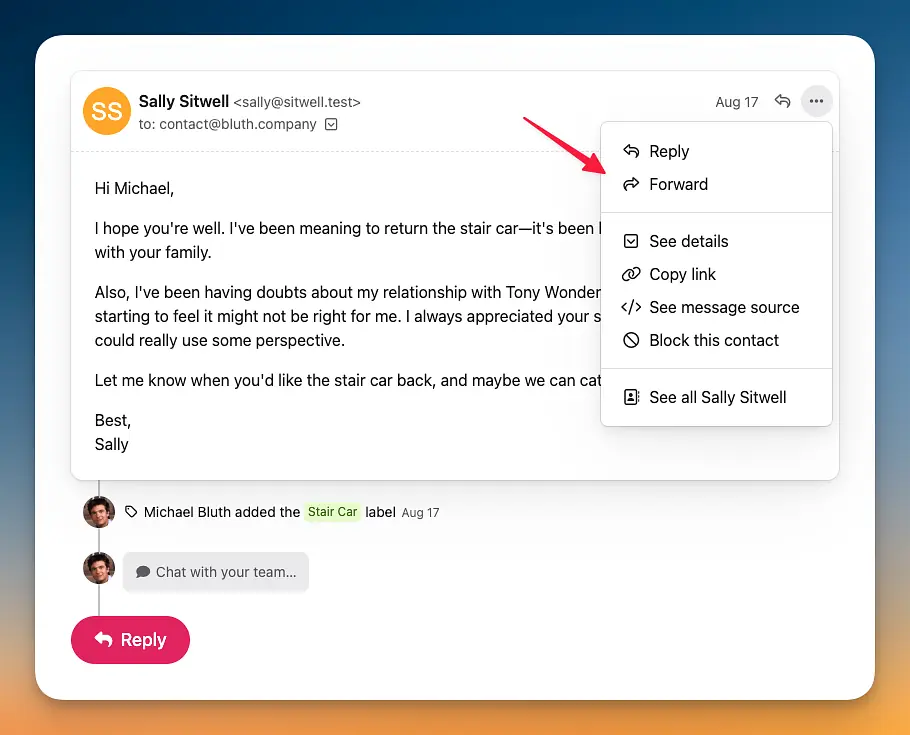
Building this was a trickier journey than we anticipated that required rewriting large swaths of our original codebase (like creating an all new editor and rebuilding the draft experience), but we’re excited to finally bring this functionality to you. And speaking of that draft experience, you’ll now be able to more easily see the drafts you’ve started, and you’ll find a new “My Drafts” mailbox in the mailbox dropdown.
New: Push Notifications on Desktop & Mobile
Jelly’s Notification system is a powerful way for you and your team to get notified about the latest updates to conversations you’re following. It’s what alerts your team that hey, an email over here might need your attention! This is especially true for assignment notifications.
Today we’re excited to announce that, in addition to notifying you within the app and by email, Jelly can now also pop-up push notifications on your desktop and mobile devices!
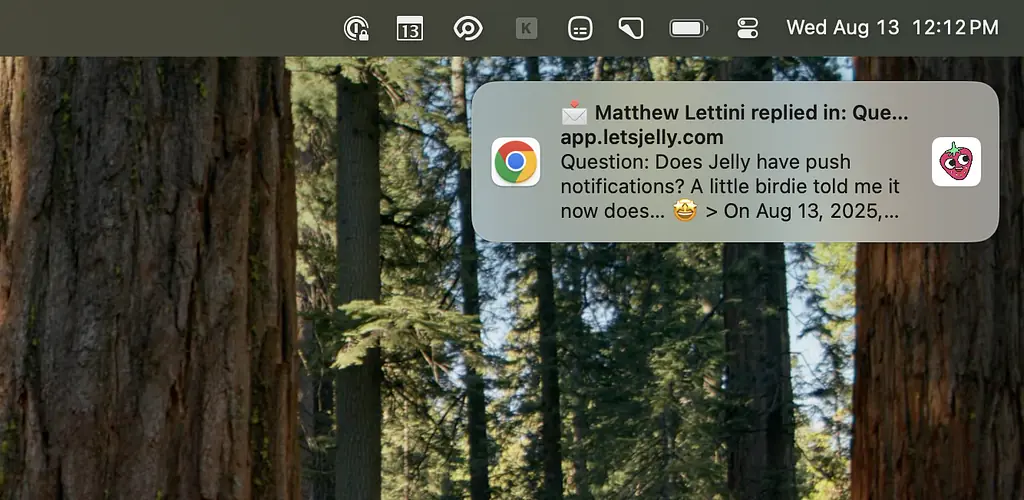
To set these up, head to your personal Notification Settings, click “Pop up notifications on this device”, and grant the browser permission to send you notifications from Jelly. You’ll need to do this for every browser you access Jelly from, including on mobile. (Pro-tip: Jelly was specifically designed to work great when added to your home screen.)
Push notifications are especially useful in combination with the new Rules we announced yesterday. If you set up Jelly to auto-assign a team member based on some criteria, Jelly will notify them immediately if they have push notifications set up.
Upgraded: Auto-Assign and Auto-Archive in Rules v2
Jelly’s Rules have always been a great and simple way to automatically label conversations based on email address. Maybe you wanted to add the label “Support” to emails coming into your support@ address, or add the label “Important” when you got a new email from a specific client. Jelly makes that easy.
Today we’re excited to announce a significant update to our Rules system. In addition to auto-labeling, you can also auto-assign a team member or auto-archive the conversation, or mix-and-match! Not only that, but you can also choose how you want to match a conversation, including matching on the Subject or Body.
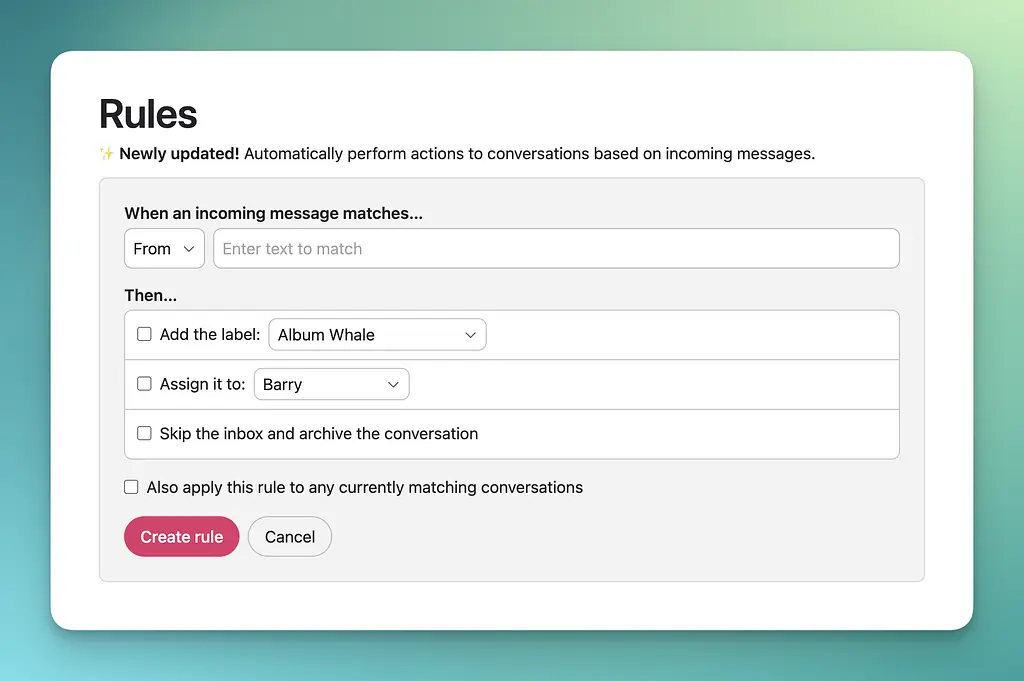
Here’s some example workflows you can now set up in Jelly:
- If you run client services firm with specific account managers on your team, you can set Jelly to always assign specific team members to new emails from specific clients.
- For billing receipts, you can set Jelly to watch for any new email with the word “Receipt” in the subject and automatically archive it with the label “Receipt.”
- For technology services, you can set Jelly to watch for any new email with the word “Bug” anywhere in the message and automatically assign it to an engineer with the label “Bug.”
- For teams with multiple inbound addresses for multiple teams, you can have all new emails to admin@ get immediately assigned to an admin, while all new emails to support@ get immediately assigned to your support teammate. They can always re-assign as needed afterwards (i.e. shared triage duty).
These are just some examples — the world Jelly is your oyster. Additionally, when Jelly labels, assigns, or archives a conversation, it’ll log an activity so you know the system took that action.
We hope this new powerful rule system saves you a ton of time triaging your Inbox!
New: Bulk Archive and Inbox Filtering
For teams that run on email, your Inbox is where you live day-in and day-out, responding to customers and/or clients and trying to keep everything running smoothly. The shared inbox in Jelly already makes this a breeze for small teams that collaborate on shared email — it’s simple and intuitive to see who’s handling what and have everyone up-to-speed on the latest.
Today we’re excited to bring you two updates to Jelly’s Inbox:
- Now you can bulk select conversations and Archive them (or Spam or Delete them)! This makes it incredibly easy to keep your Inbox nice and clean and relevant. We’ve brought this functionality to the Inbox first, and over time we’ll expand where you can bulk select and what bulk actions you can take.
- You can also filter conversations in your Inbox! Our filters make it super quick to jump to just open conversations for a specific member of your team (for example), or just the conversations you’re following, or just what’s unread, or all 3 at the same time! This is especially powerful if you have Label Rules set up for different inbound addresses.
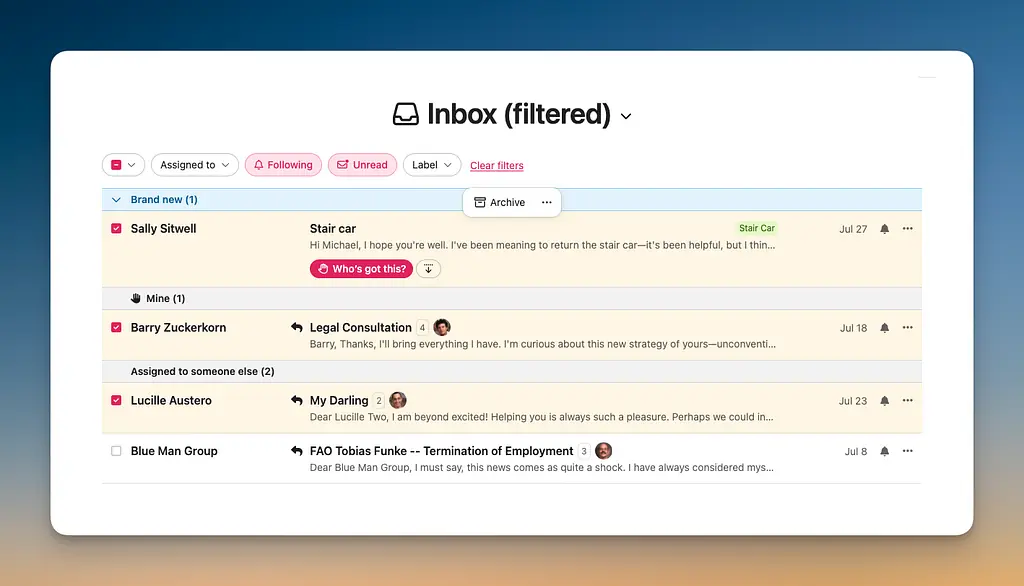
We look forward to seeing how these features make you and your team’s daily Inbox management that much simpler and smoother!
New: Reply to Previous, Appearance, and more…
We’ve shipped a few neat updates to Jelly in the past couple of weeks. We thought we’d write a roundup changelog entry this week so you can quickly get up-to-speed with the latest!
Reply to Previous
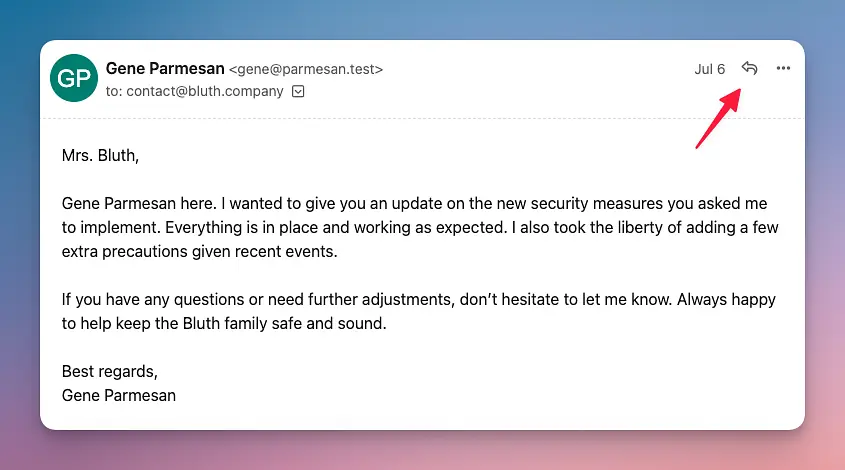
Now in Jelly you can reply to a specific message further back in a conversation. Just look for the reply icon in the top-right of a message.
Appearance: Set Light/Dark Mode
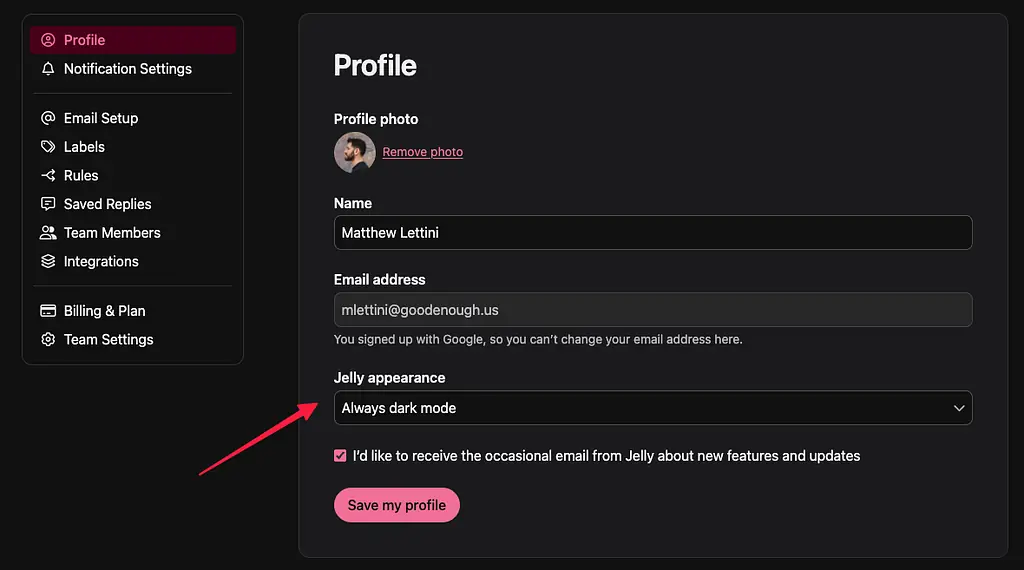
Jelly has always synced with your system appearance, so if you prefer your OS in dark mode, we respect that and show your emails in dark mode. But some of you wanted to override Jelly and use it in dark mode even when your OS is in light mode (or vice versa). Now you can with a new Appearance setting found in your Profile.
Filter Conversations and Activity
We’ve added a new filter button to All Mail, Search, and Team Activity. Now it should be even easier to find that specific conversation or activity entry you’re looking for (or see a specific group of conversations or activity).
Darker Labels
Labels are extremely helpful in organizing your conversations and inbox, and they’re flexible enough to be used in various ways (i.e. denote a specific inbound email, specific status, or other). We’ve added new darker label colors that offer more contrast, which can help certain labels stand out if you need.
New: Notify a teammate when sending an email
One of Jelly’s core strengths is helping your whole team stay in-the-loop on the shared email conversations they care about. We achieve this with a simple inbox built around transparency, a robust notification system built across assigning and following, and pricing plans that make it a no-brainer to invite your whole team to participate.
Now in Jelly when you’re replying to a conversation, you can make sure a teammate is following along and will be notified of your reply.
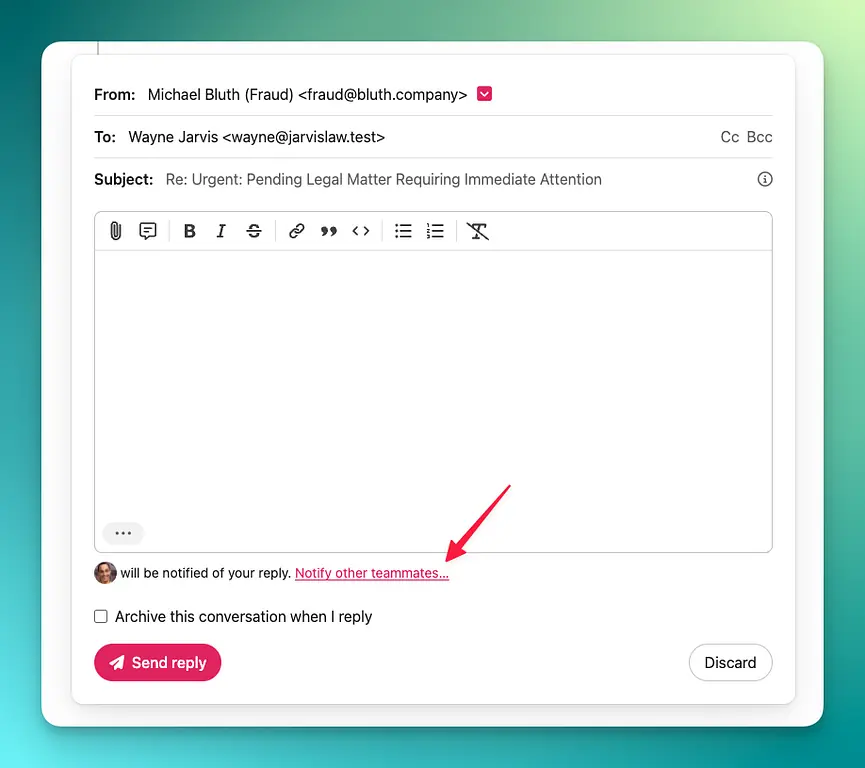
With traditional email this is like Cc-ing your teammate, but better — Cc chains can break and information lost to other inboxes if someone accidentally forgets to “Reply All”. Jelly’s inbox doesn’t run into this issue!
New: Pre-Saved Reply Messages
Are you finding that your team often replies to the same inquiries with the same words, over and over again? Or, have you ever wanted your team to reply to similar questions with the same specific answer, so you can be sure you’re all saying the same thing?
Now in Jelly you can quickly and easily add a pre-saved message into the editor any time you’re replying to a conversation. You can access all of your team’s Saved Replies from a new message bubble icon in the editor toolbar, saving you time and typing when writing a reply.
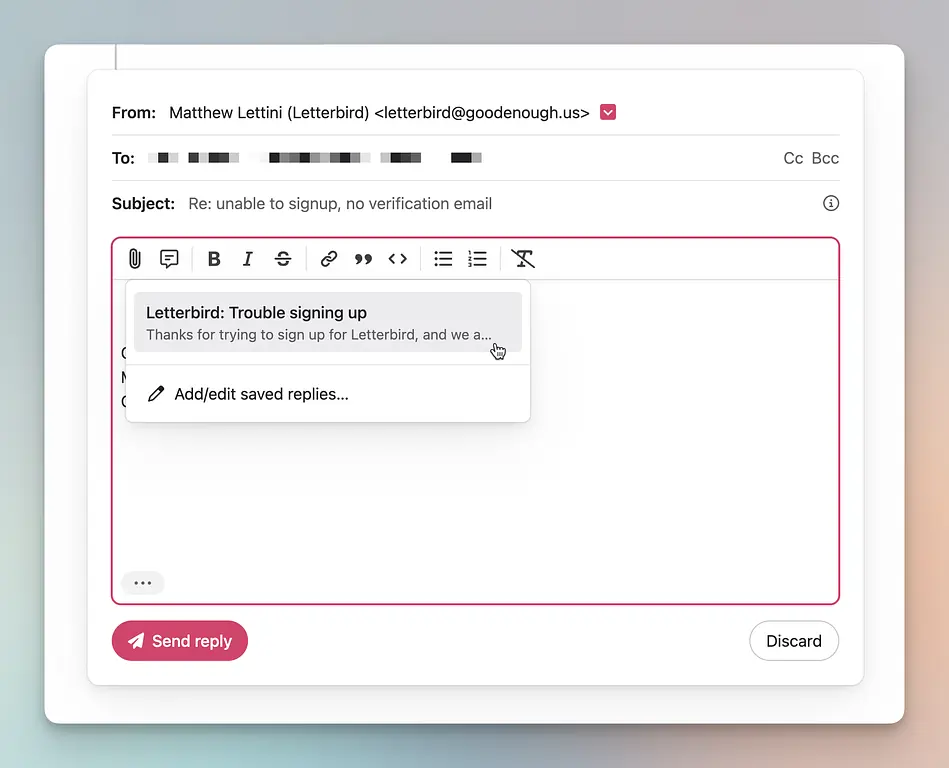
Administrators can add and edit Saved Replies from the new manage section in the top right settings menu (under your profile photo).
New: Assign Teammates to a Conversation
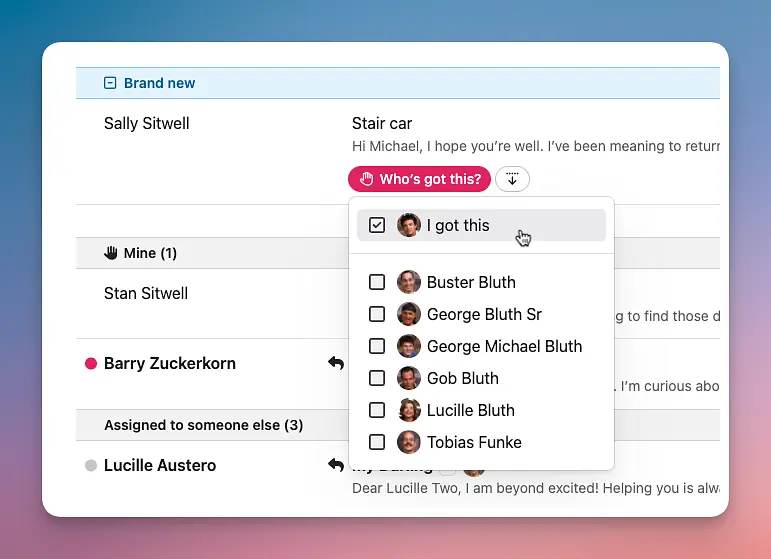
When we launched Jelly at the end of last year, our first take on “assignment” for email conversations was built around personal ownership, or claiming an email with the “I got this” button. Our hunch was that many other small teams worked much like ourselves here at Good Enough, with a high degree of autonomy and less need for adding to each other’s plates.
Since then we’ve learned that, even among high trust and autonomous small teams, this take doesn’t always mesh well with workflows where one person takes on triage duty. For many teams, it’s simply easier for everybody if one person organizes the inbox.
To better support those teams, now in Jelly you can say “This other person got it!“ You’ll see all those “I got this” buttons are now “Who’s got this?“
New: Sign up & Log in with Google
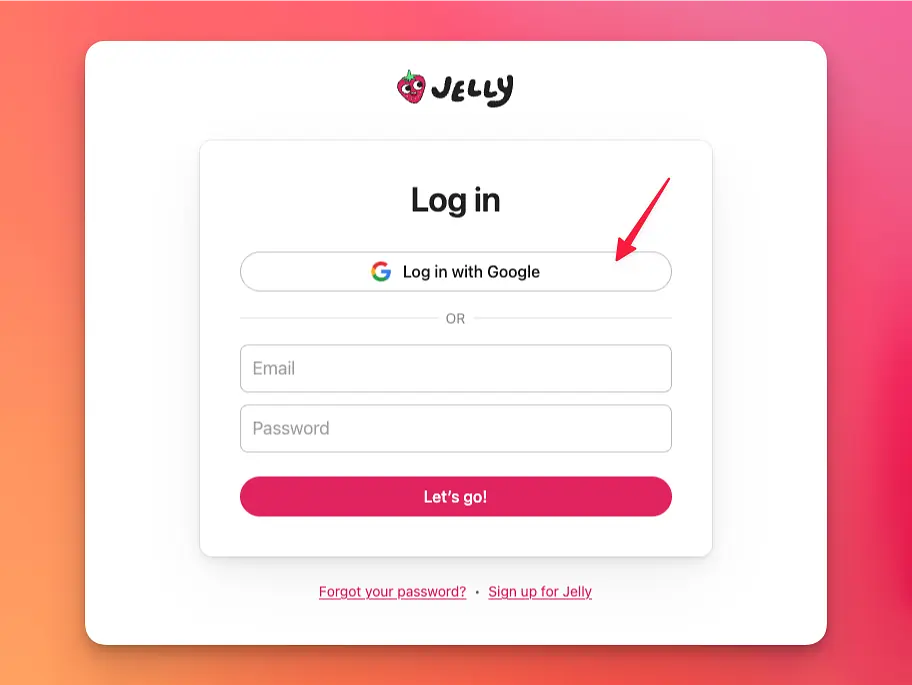
Are you a Google user and fan of their one-click buttons to get into your favorite apps? Well get ready to add Jelly to that list, because we now have those!
New: Quoted Replies
When you reply to a conversation, Jelly will now automatically insert the message you’re replying to at the bottom of your email. This is common practice for most email, and now Jelly follows suit. The quoted replies will start out truncated in the reply form, but you can see them by clicking the “Show trimmed content” ••• button:
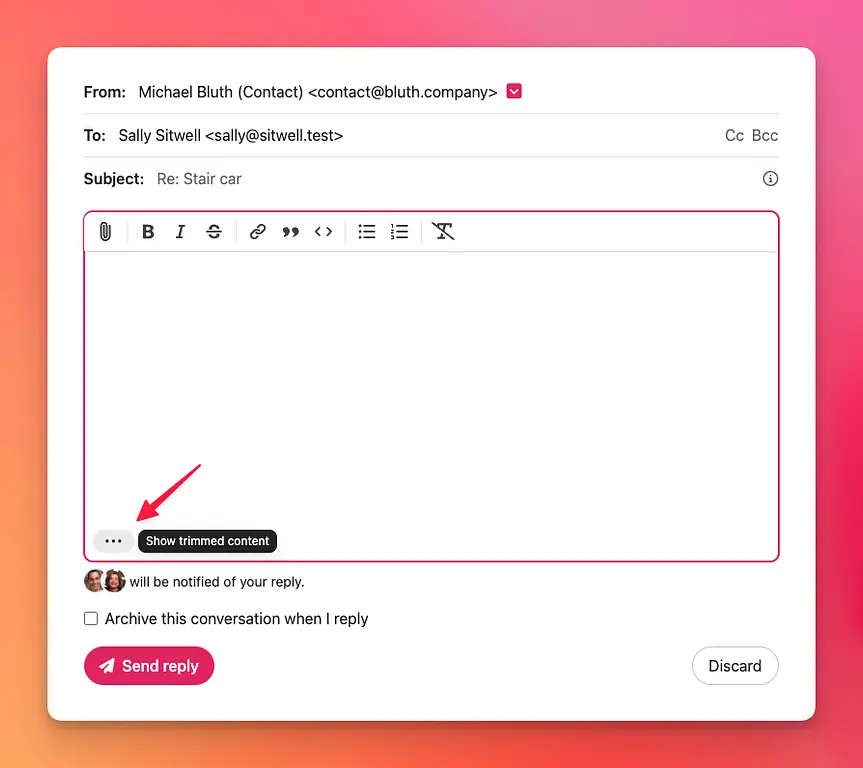
Supporting quoted replies in Jelly required building an all new editor under-the-hood, which brings some additional improvements like better attachment handling. This new editor also paves the way for other long-awaited improvements too – stay tuned!